Getting started
Getting started — your first image
From sign-up to your first downloaded image in a few minutes, with no card required.
From Plien Roob — AI model photography for online stores
You get 10 free credits the moment you sign up. No credit card is needed, and that is enough to create several real images. This page walks you through to your first saved file.
The first five steps
Sign up with your email. You land on a welcome page for your own shop.
Open the Studio and pick a tool from the left sidebar. If you are not sure which one, start with Product to Model.
Upload your product photo, either by dragging the file in or picking it from your device. Quality is checked immediately and you are told if the photo is too small or too blurry.
Pick whatever extras you want from the library — a model, a scene, a pose, or items styled with it. Everything is a button. You never write a prompt.
Check the credit count on the generate button, then press it. The image appears on the same page when it is done.
The number on the generate button is what will actually be deducted, not an estimate. Change an extra or a quality level and the number moves before you press anything.
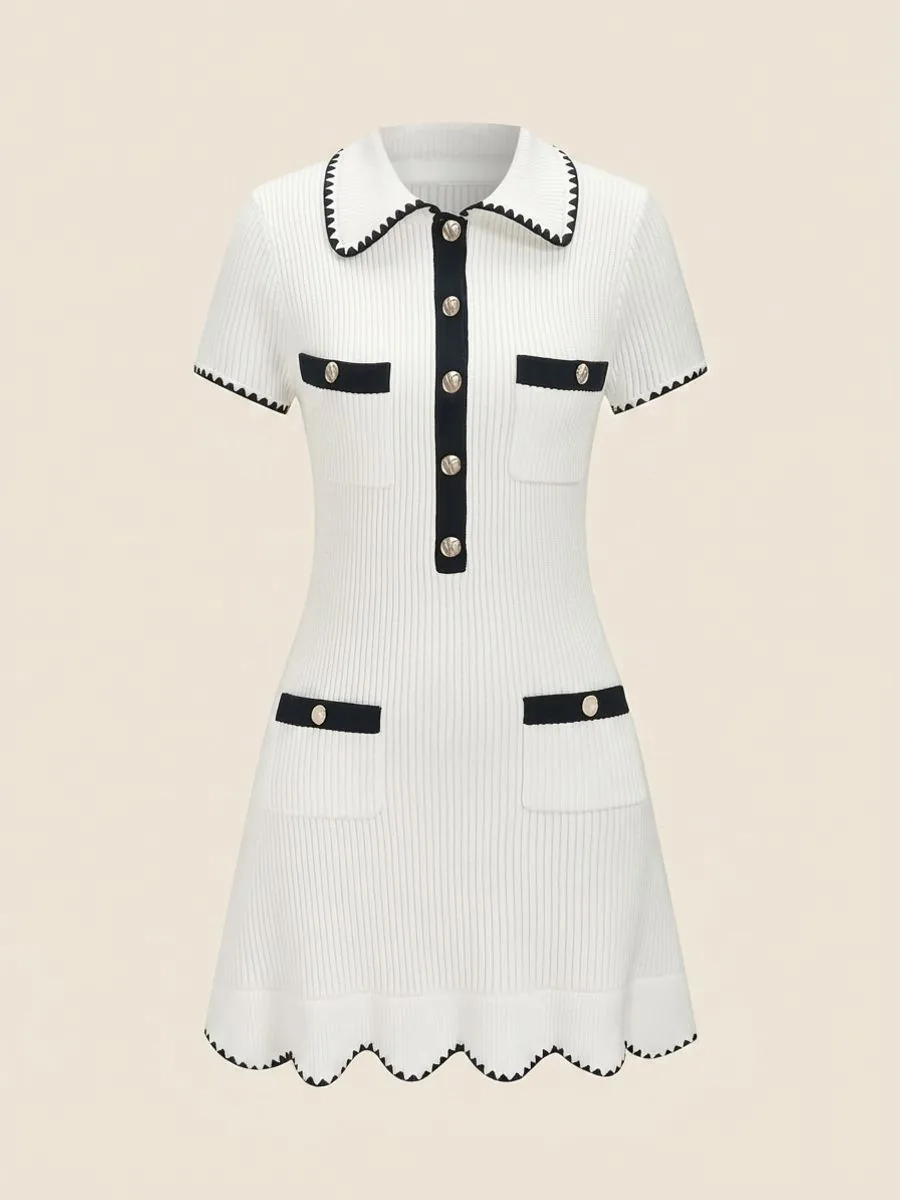


What you can make
What you can do with an AI model on this site. Each card is that tool's cover image; tap it to read how the tool works.
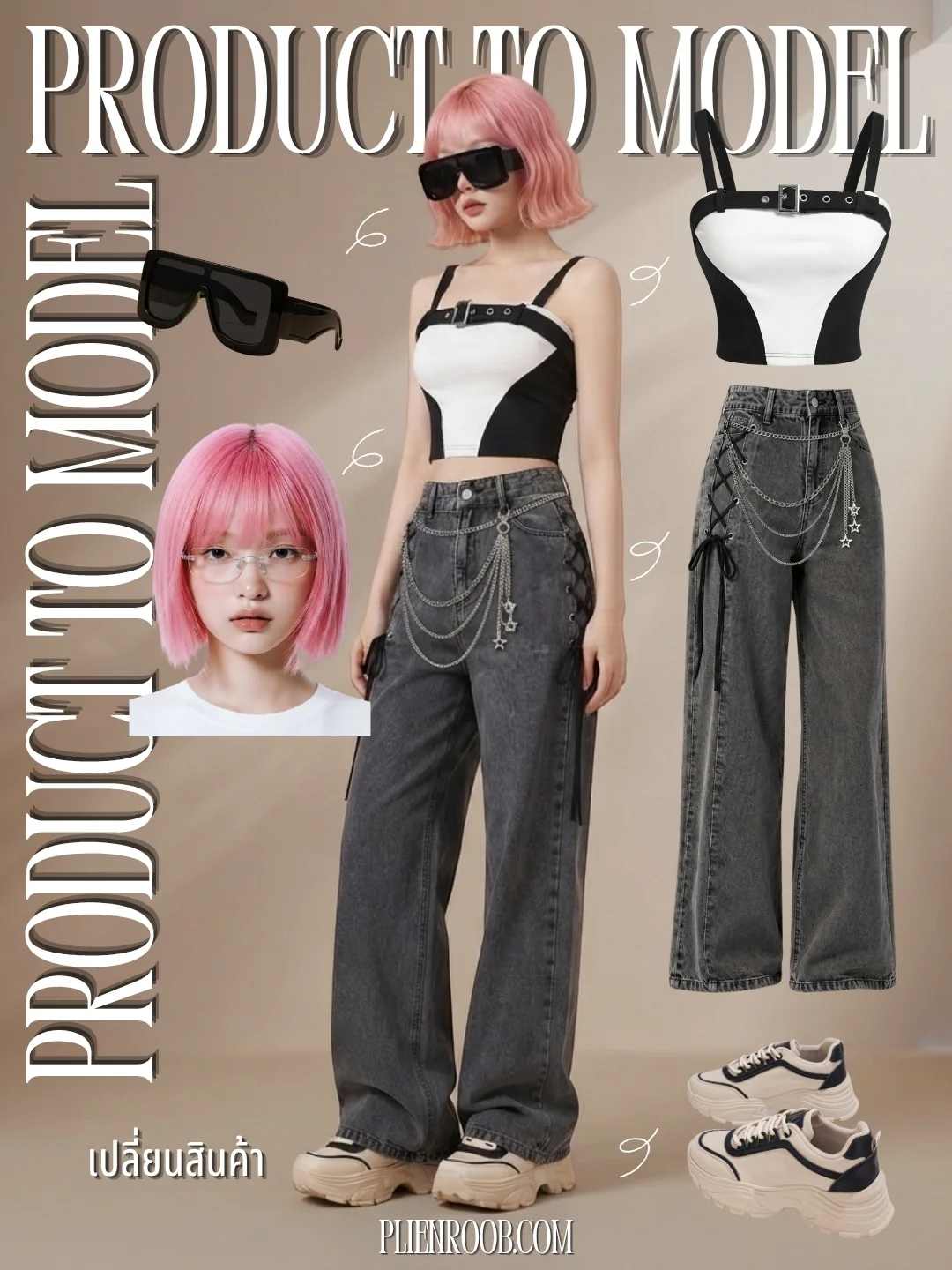


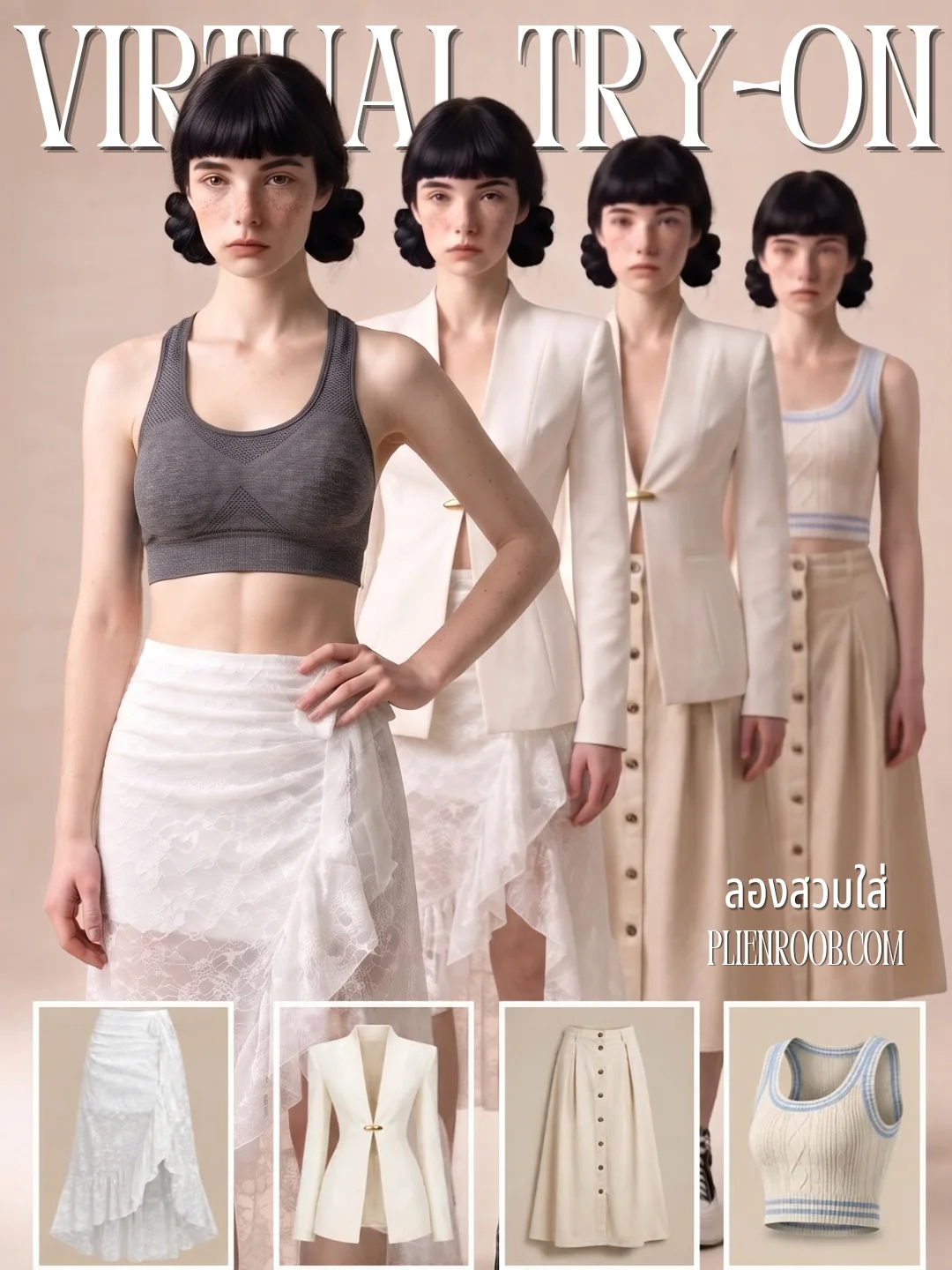


What to do with the result
Download it to your device. This works on both desktop and mobile.
Open the editor to crop, draw on, or add text to the image before saving. That step runs in your own browser, so it costs no credits.
Every image is kept in your shop's library, so you can download it again later without spending credits.
On the Free plan your first image has no watermark; images after that carry one. To get every image without one, you need the Basic plan or above.
If a generation fails
Failed jobs refund their credits automatically. You do not need to report anything or wait. If the same photo keeps failing, read the page on which photos to upload first — most failures come from the source image, not from the system.
Still stuck?
Message us, and include the email you signed up with so we can answer the right question straight away.