AI Tools
Choosing an AI model that fits your shop
Last updated 2026-09-07From Plien Roob — AI model photography for online stores
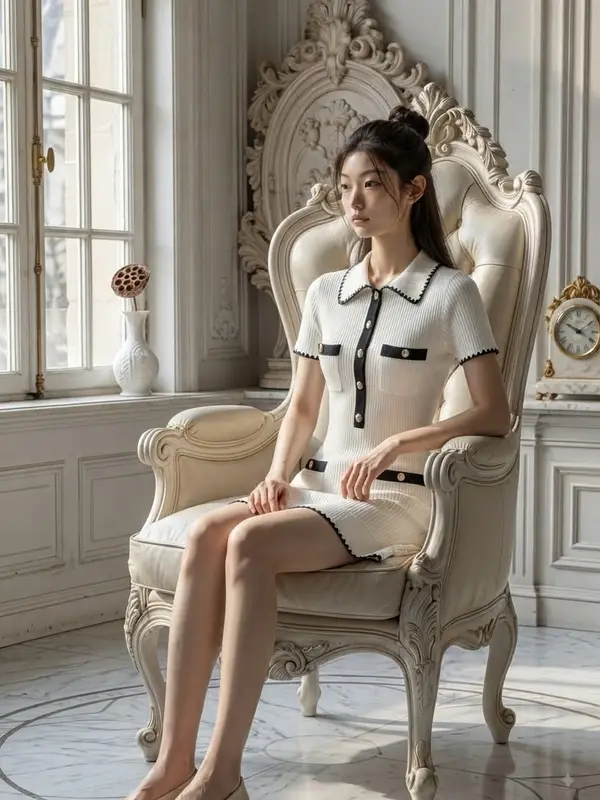

Most clothing shops are not after the most striking model. They want someone their own buyers can picture themselves as. So the real question is not whether AI can produce model photos — it is how to pick a person who fits your shop. That is the only thing this page answers, and you do not need to know anything about AI to follow it.
There is no prompt box, only picture cards to tap
Most AI tools hand you a text box and ask you to describe the model you want. Plien Roob has none, anywhere. The people library appears as picture cards: tap one to choose that person, tap the same card again to clear it, one person at a time. The cards in the picker are too small on a phone to judge a face by, so every card carries a magnify button that opens the person full screen first. The upside is that someone who has never touched an AI tool gets a usable result on the first try. The downside is real: if the face you want is not in the library, you cannot ask for it. That is a trade we made deliberately, not a feature we have not finished.
The people library has two tabs, and poses sit on their own button
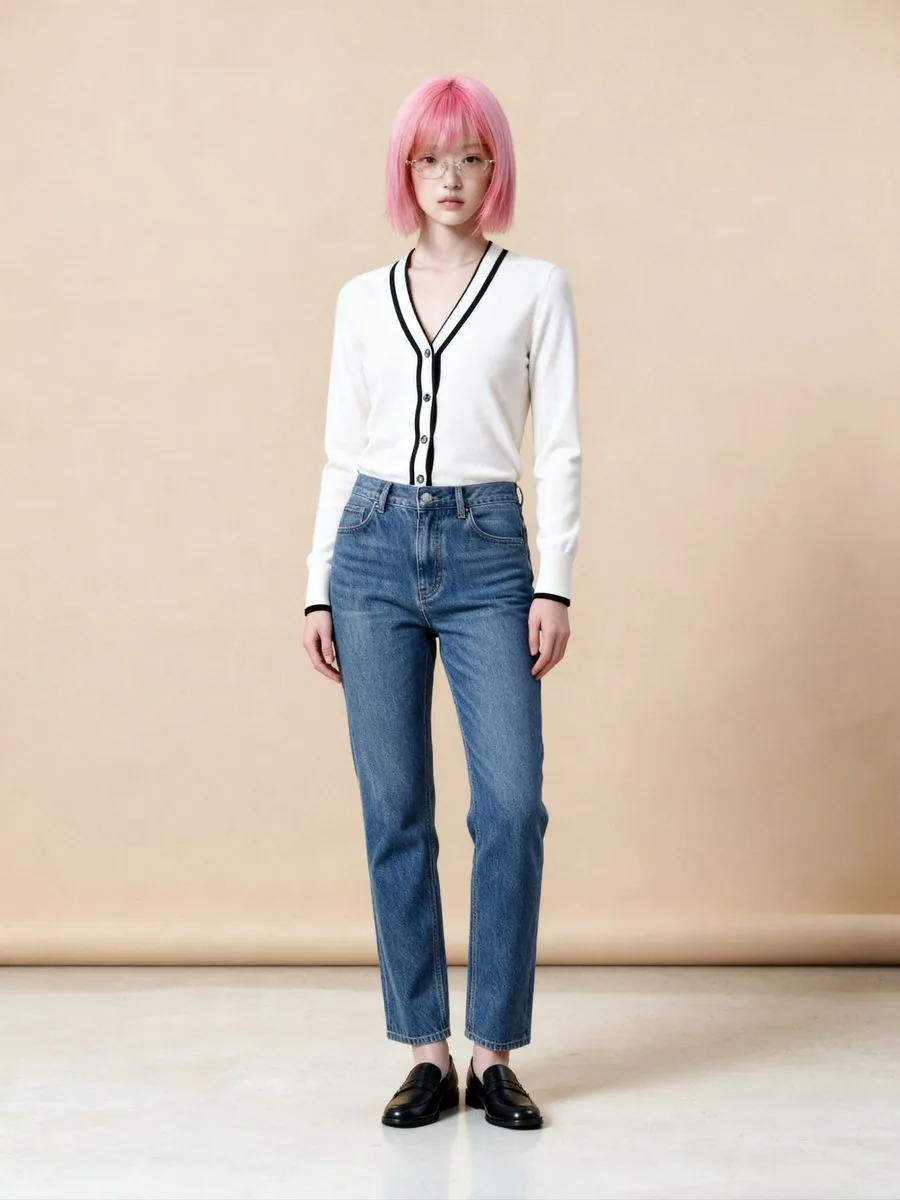
Models: the person who will wear your product, seen head to toe. Use these for full-body and half-body shots.
Faces: close-up frames showing the hair and the neckline. These are what hold the same face across several images.
Poses are a separate button from those two, because 'this person' and 'this pose' are different questions and you can answer both at once.
Picking someone from the library replaces a model photo you uploaded yourself. The two cannot be used together.
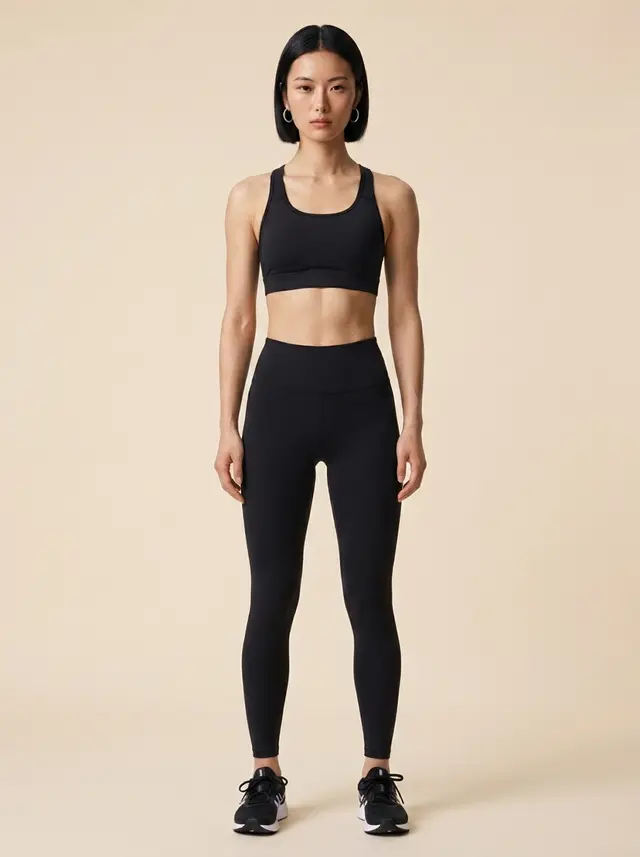
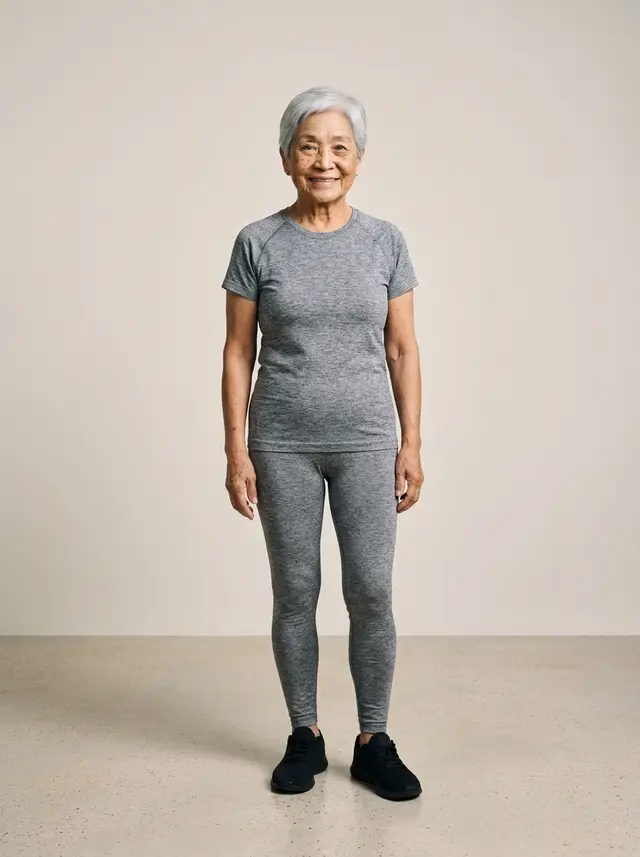
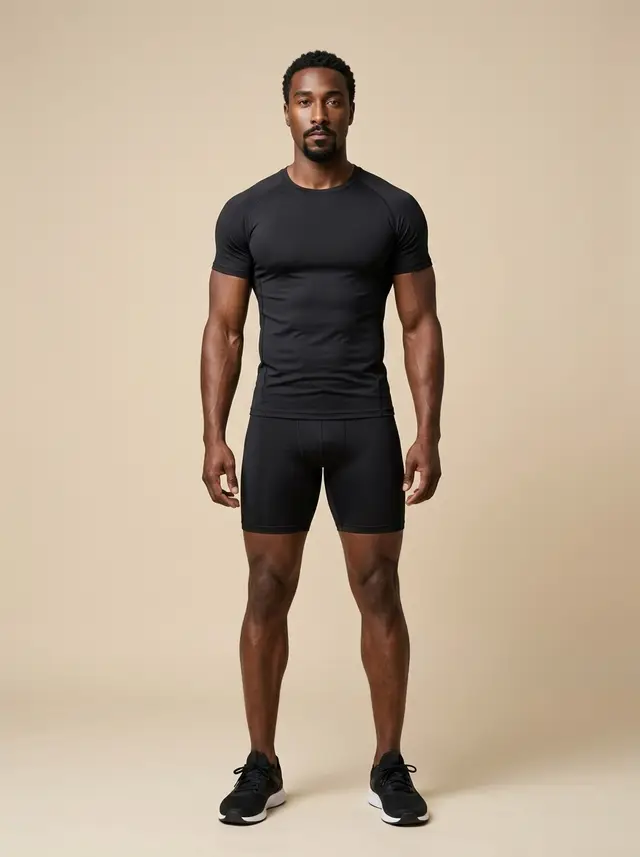
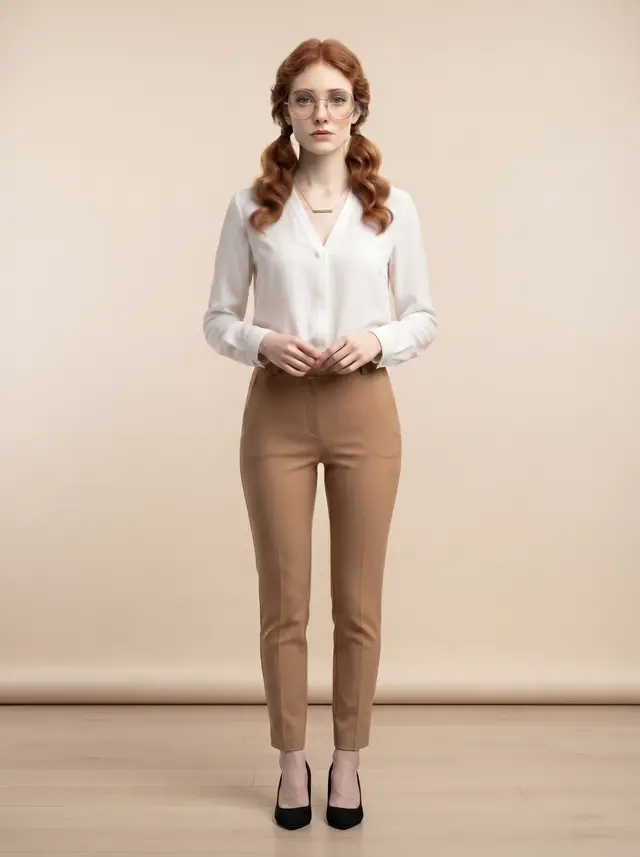
What a Thai shop can do with an AI model
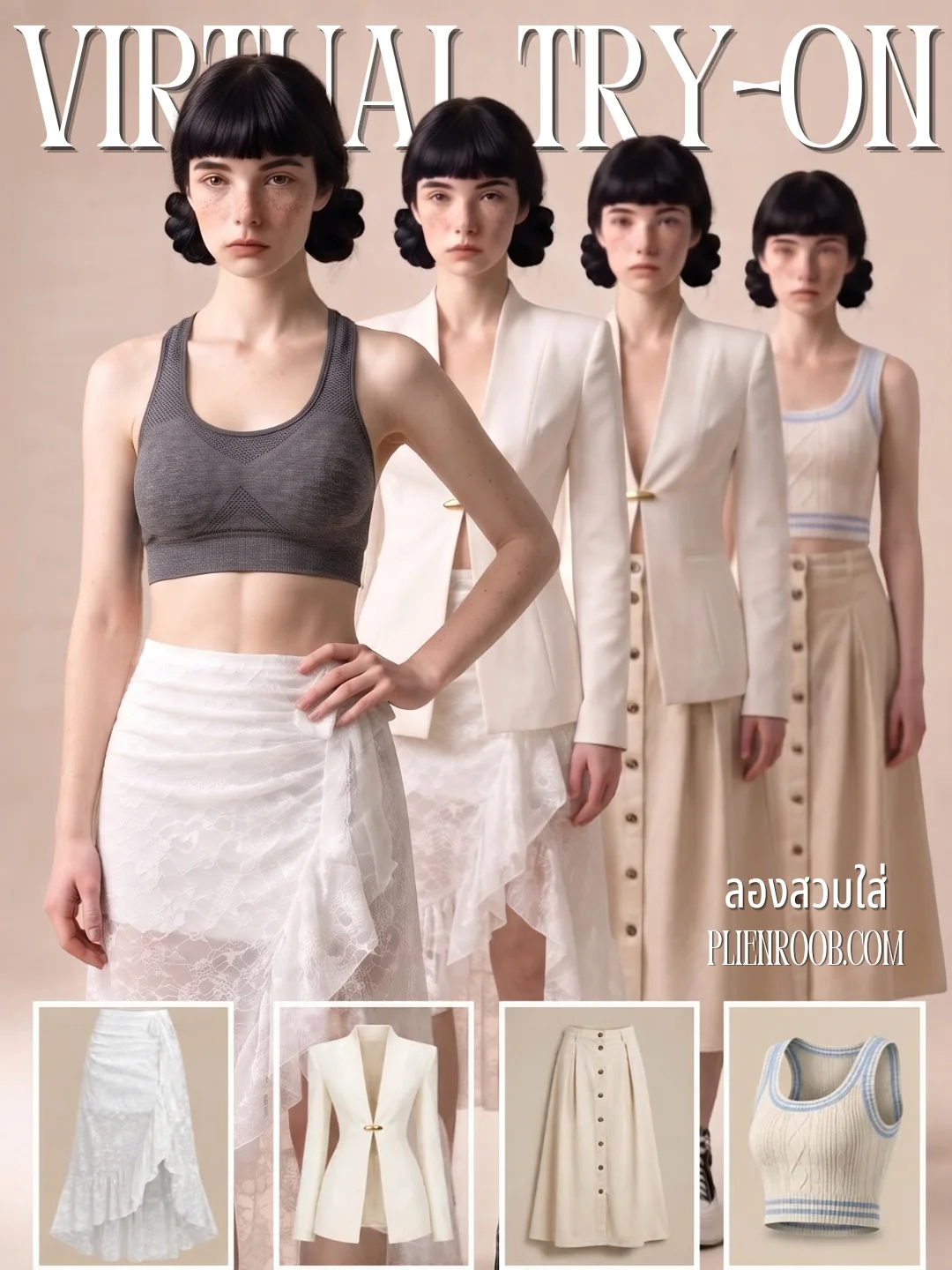
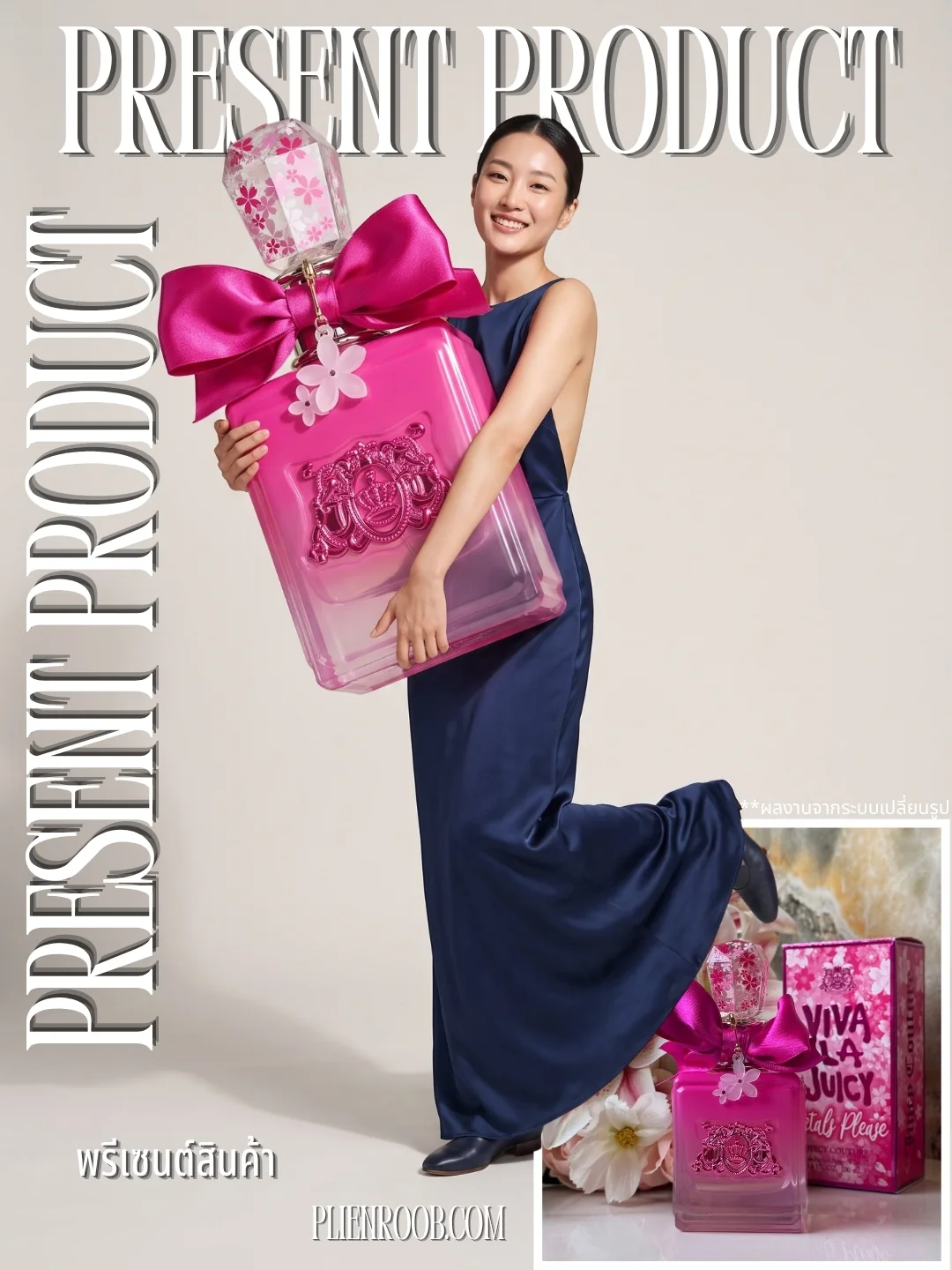
What you can do with an AI model on this site. Each card is that tool's cover image; tap it to read how the tool works.
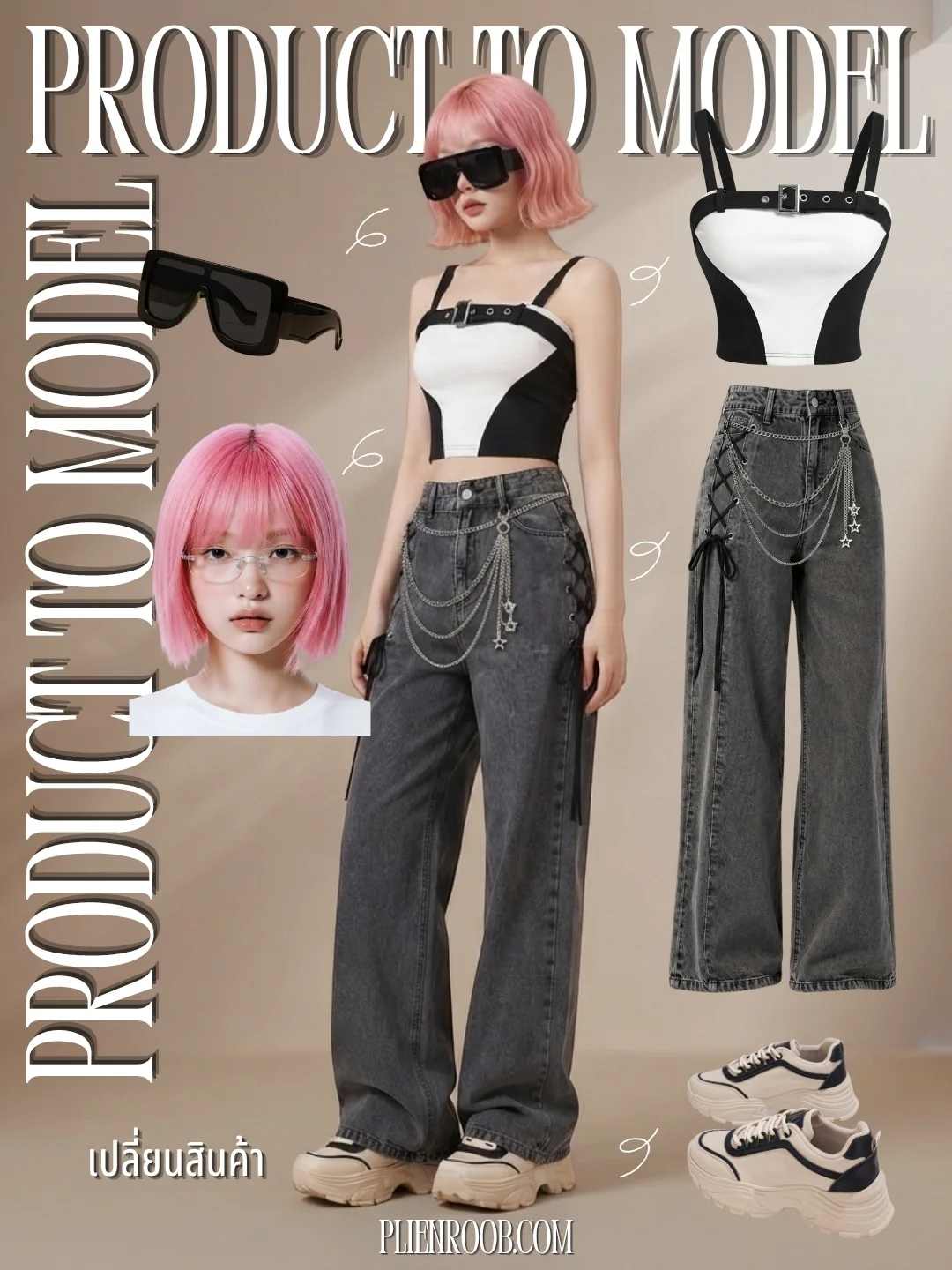
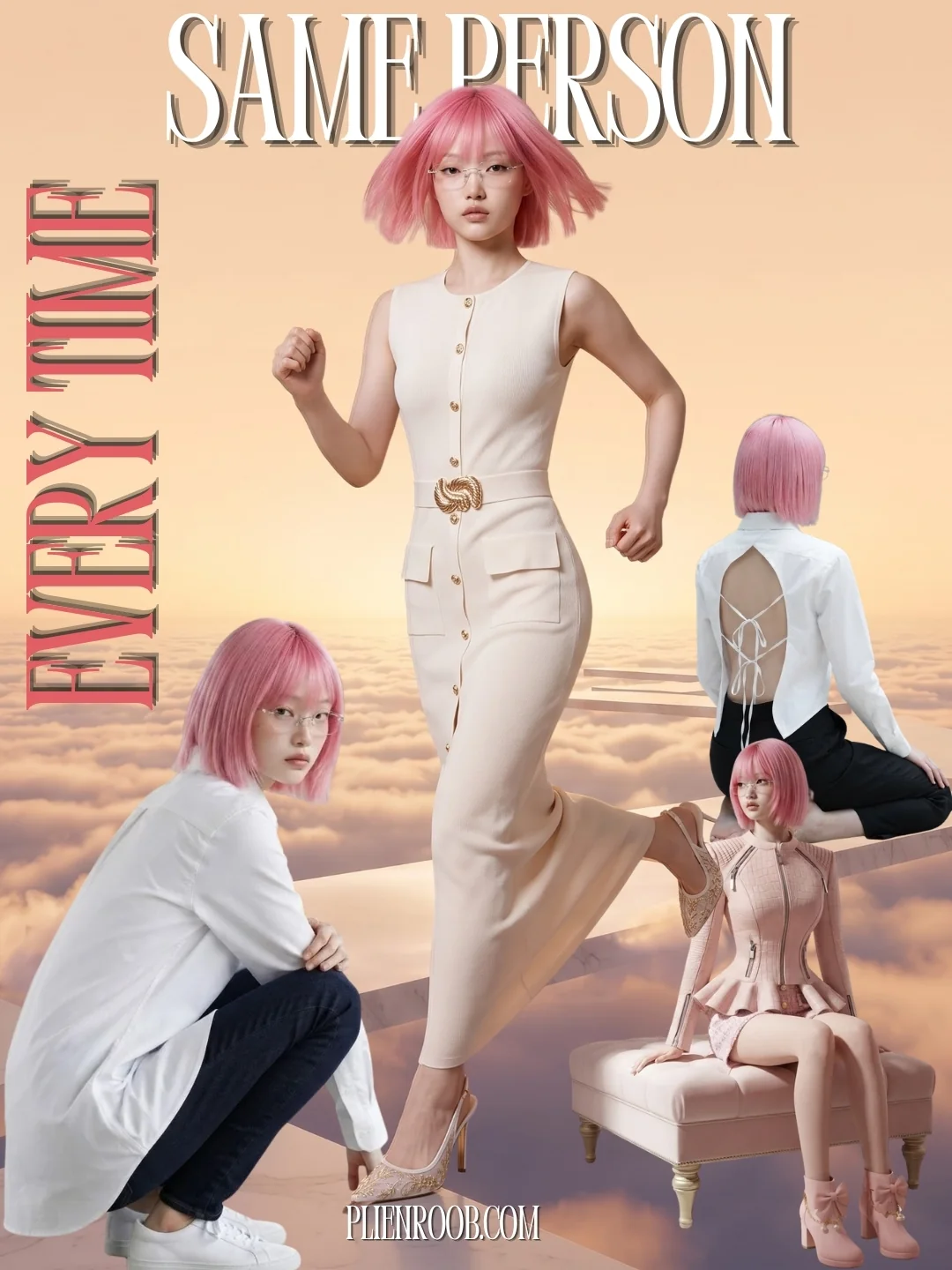
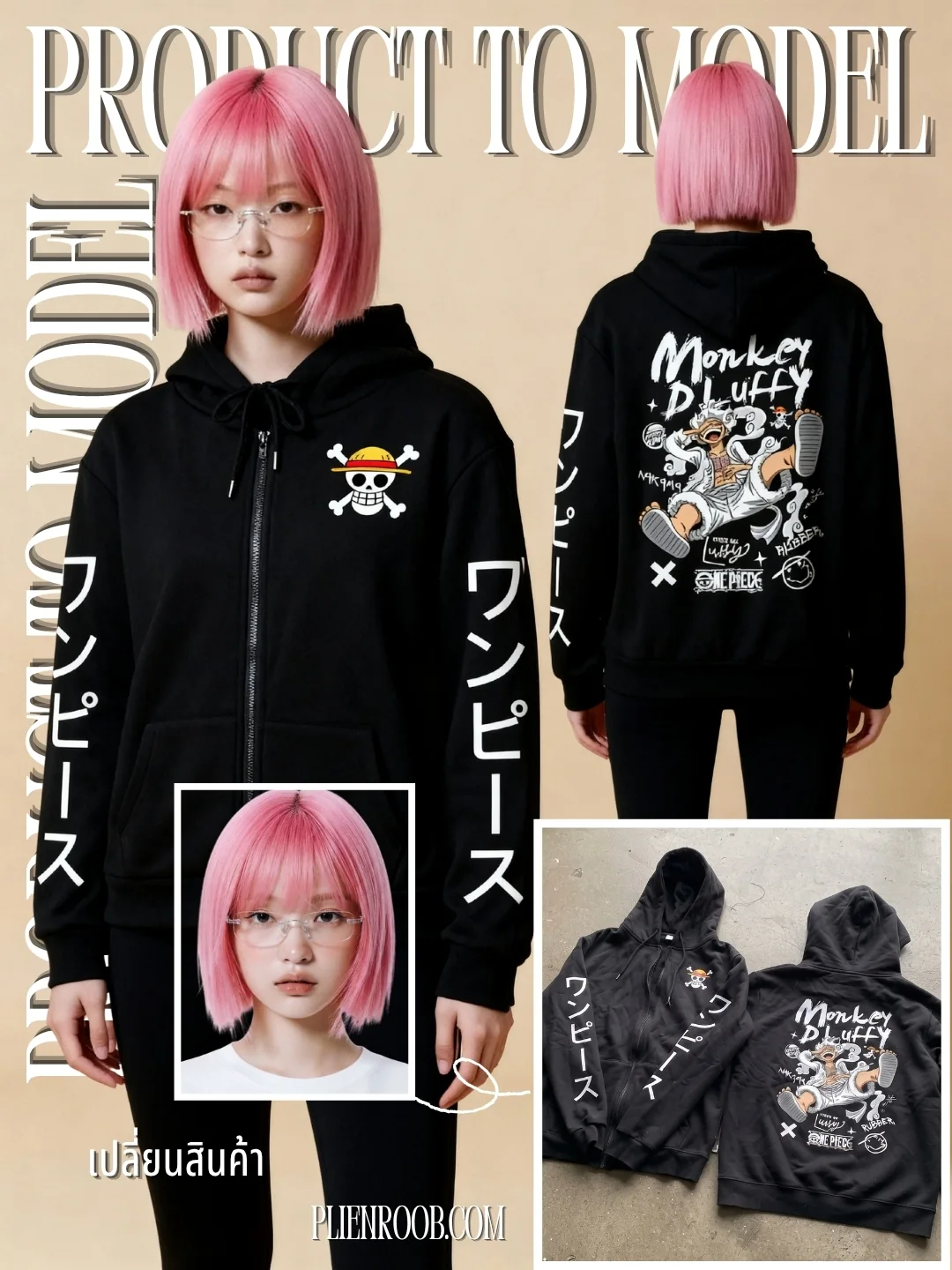
How to pick someone your buyers recognise
Start from your buyers, not from the best-looking card. If the people who buy from you are working adults, a teenage model makes the photo prettier and the sale harder.
Open the Dressing Room and press the filter button — filters are collapsed by default. There are four axes: gender, look, age range and body.
Use the magnify button and view the person full screen before deciding. What you are judging is the face and the body, and a thumbnail cannot tell you either.
Generate one image and look at it before doing the whole shop. The output is probabilistic: the same photo run twice will not be identical.
Once you have a result you like, press the button to reuse that model. The next images keep the same face, skin, hair and body — only the pose, the camera angle and the location change — and no extra model credit is charged.
If you pick nobody, the system casts for you
You can generate without choosing anyone. The system casts a look from a list of ten, weighted in advance: fifty parts Asian, thirty-five European and fifteen African, out of a hundred. Those weights exist because Thai shops are our main market. The casting is keyed to the product rather than to the run, which means the same product returns the same person every time, while a different product returns someone else. One more deliberate choice: the instructions never state the model's gender up front — the garment decides it, so a men's shirt does not come back on a female model.
The limits of that number, stated plainly: fifty, thirty-five and fifteen are the casting weights used when you have not picked anyone. They are not the composition of the library itself, and they are not a promise about what your next single image will look like. They show up across many images, not one.
Does picking a library model cost extra credits?
Product to Model on standard is 2 credits per image; picking someone from the library adds 1 more.
Product to Model on premium is 5 credits per image and already includes the model, so picking from the library adds nothing at all.
Try-On is 2 credits per image, has a single quality level, and lets you pick from the same library with no credit added.
Uploading your own model photo carries no model charge, because the photo is yours.
Reusing a model from earlier work carries no model charge either — that was paid for when the first image was made.
Image Set charges for the model once per set rather than once per image.
The screen shows the total credits before you press generate, every time.
Cards with a crown, and cards that are dimmed
A crown in the corner of a card means that person belongs to the premium plan. It does not mean a higher credit price. If your plan does not reach that far the card dims, will not respond, and says an upgrade is needed. Above the library sits a line telling you how many of the people on screen your plan can use. So you know before tapping whether you are looking at something usable, rather than finding out from an error after you press generate.
When uploading your own model photo is the better answer
Shops selling mainly plus sizes. The library has a body filter and does now hold curvy and plus-size people, but far fewer than slim ones. If you need someone who genuinely matches your buyers, upload your own photo and use it with try-on — closer to the truth, and no model charge.
Shops that already have a regular model. A face your buyers know works better than a new face nobody recognises.
Products whose shape depends heavily on the body wearing them. Your own model photo gets closer to how the item really looks.
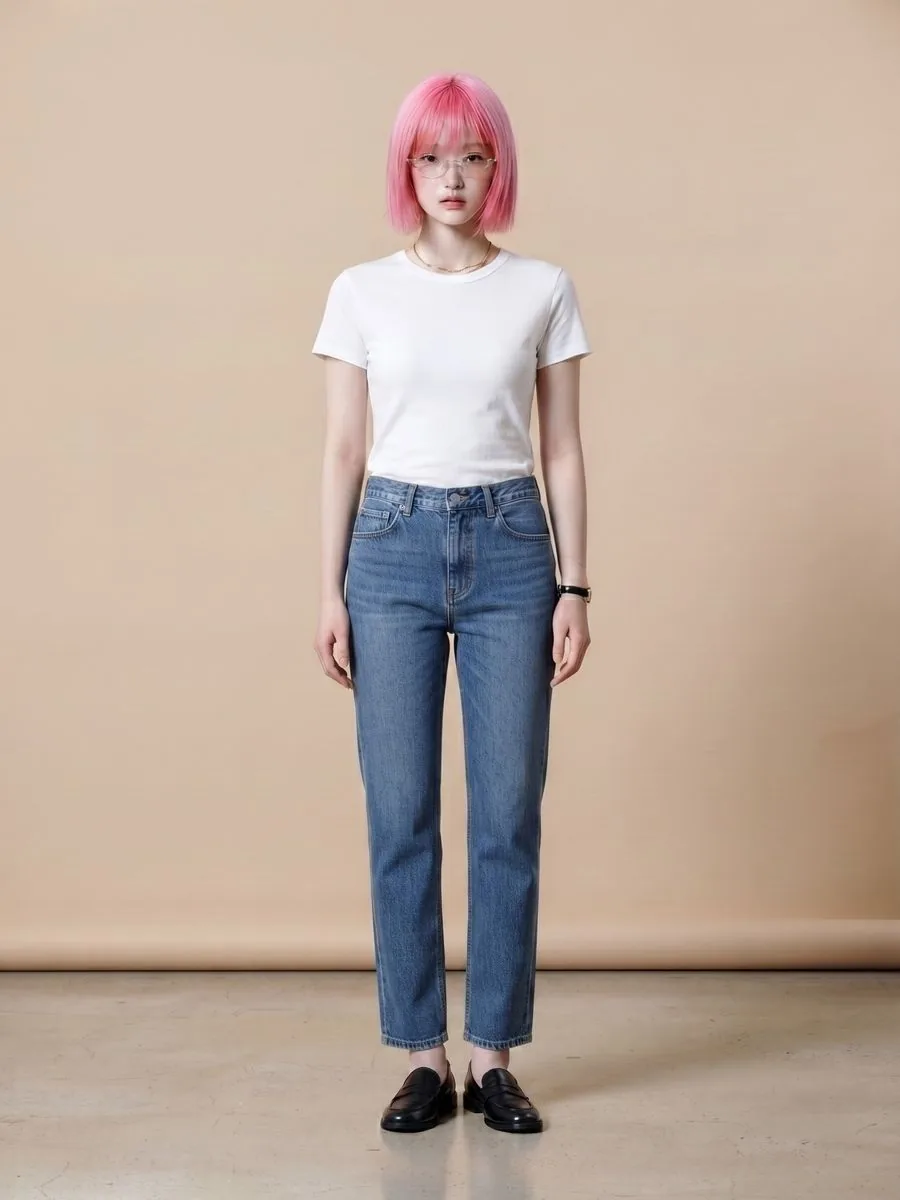
One thing to know before using try-on with a library model: the tool changes only the piece you send. Trousers, shoes and everything else come from the model photo and cannot be altered. For a fully styled look, use Product to Model, which dresses the rest for you.
People in photos you upload must be adults, and you must hold the right to use the photo. The system asks you to confirm this during upload.
Limits worth knowing before you start
The output is probabilistic. The same photo run twice will not be identical, so do not judge a person in the library on a single frame.
If you also pick a scene, the scene's light falls on the garment and can shift the colour slightly. When you need the most accurate colour, use the mode without a scene.
Lettering on a garment is at risk of being rewritten when the product photo you upload is not sharp. That is a separate problem from choosing a model, but it happens in the same image.
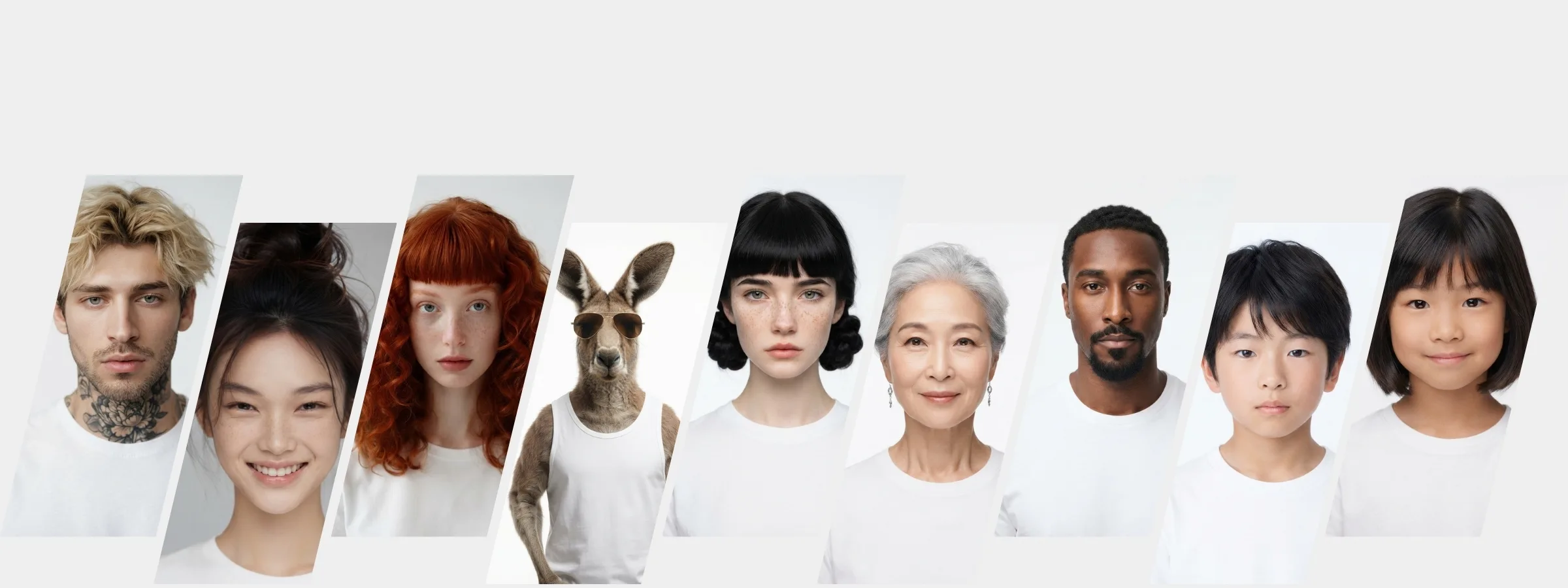
The library also holds fantasy models — animal-headed characters. Those work best when the system designs the pose and the scene itself; pairing them with a pose, a scene or styling pieces usually distorts the image, and the screen warns you before you spend credits.
Every person in the library is AI-generated rather than a photograph of a real individual. The look labels exist so shops can match their buyers, not to categorise people.
The quickest way to find out whether the library holds someone who suits your shop is to sign up and look. Signing up gives you 10 free credits, once, with no card required. One thing to know before you spend them: your first image on the free plan has no watermark, but every image after it carries our watermark burned into the file itself, not laid over the screen, so it cannot be removed and the image cannot be listed for sale. The free plan is there to let you judge whether this library works for your shop, not to do real work with.
Frequently asked questions
Do I need to know how to write prompts to make AI model photos?
There is nothing to type. The system has no prompt box at all. Models are chosen from picture cards by tapping, one at a time, and tapping the same card again clears it. Every card has a magnify button so you can view the person full screen first. The trade is real: if the look you want is not in the library, you cannot ask for it.
How do I find a model who looks like my customers?
Open the Dressing Room and press the filter button, which is collapsed by default. There are four axes — gender, look, age range and body. Narrow it to the group that matches the people who buy from you, use the magnify button to view candidates full screen, then generate one image before committing to a whole catalogue.
How many extra credits does a library model cost?
On Product to Model at standard quality it adds 1 credit to the 2 credits per image. At premium, which is 5 credits per image, the model is already included and nothing is added. Try-On lets you pick from the library with no credit added at all. Uploading your own model photo, or reusing a model from earlier work, carries no model charge either. The screen shows the total before you press generate.
What do I get if I do not pick a model at all?
The system casts a look from a list of ten, weighted fifty parts Asian, thirty-five European and fifteen African out of a hundred. The casting is keyed to the product rather than to the run, so the same product returns the same person while a different product returns someone else. Those weights show up across many images; they are not a promise about your next single one.
Plien Roob