Solutions
AI product photos for online shops: Shopee, Lazada and Instagram
Last updated 2026-09-17From Plien Roob — AI model photography for online stores

Shops that list new stock every week face the same job each time. Several items arrive at once, and each one needs a main photo that still reads as a small thumbnail in the listing grid, a model shot that lets buyers picture it on, and something to post on Instagram or build a promotional banner with. Hire a shoot for every batch and you pay for the photos before you know which items will sell.
Plien Roob is built so a whole batch is finished in one place. You can send many products into one queue, and single images from Virtual Try-On, Product to Model, Ghost Mannequin, Upscale and Remove Background have buttons that pass them to the next tool in one click, with no downloading and re-uploading, and not a word to type.
What this costs when you hire it out
A clothing shoot with a model, photographer, creative and studio on Fastwork: 6 products for ฿16,500, with a 5-day delivery time
White-background product photography on Fastwork: the category starts at ฿1,500
Background cut-outs on Fastwork: the category starts at ฿300
Our Batch, from 8 products up: a Standard 1K model shot costs 3 credits, about ฿6.26–฿10.50
Ghost Mannequin at Standard 1K: 2 credits an image, about ฿4.17–฿7.00 · Remove Background: 1 credit an image, about ฿2.09–฿3.50, in around 12 seconds
Reference prices come from pages anyone can open on Fastwork, checked on 17 September 2026 — prices from listings we found, not a market average. Our per-image price is calculated from real plan prices, from Premium yearly up to the smallest credit top-up.
AI product photos for online shops: what you can make
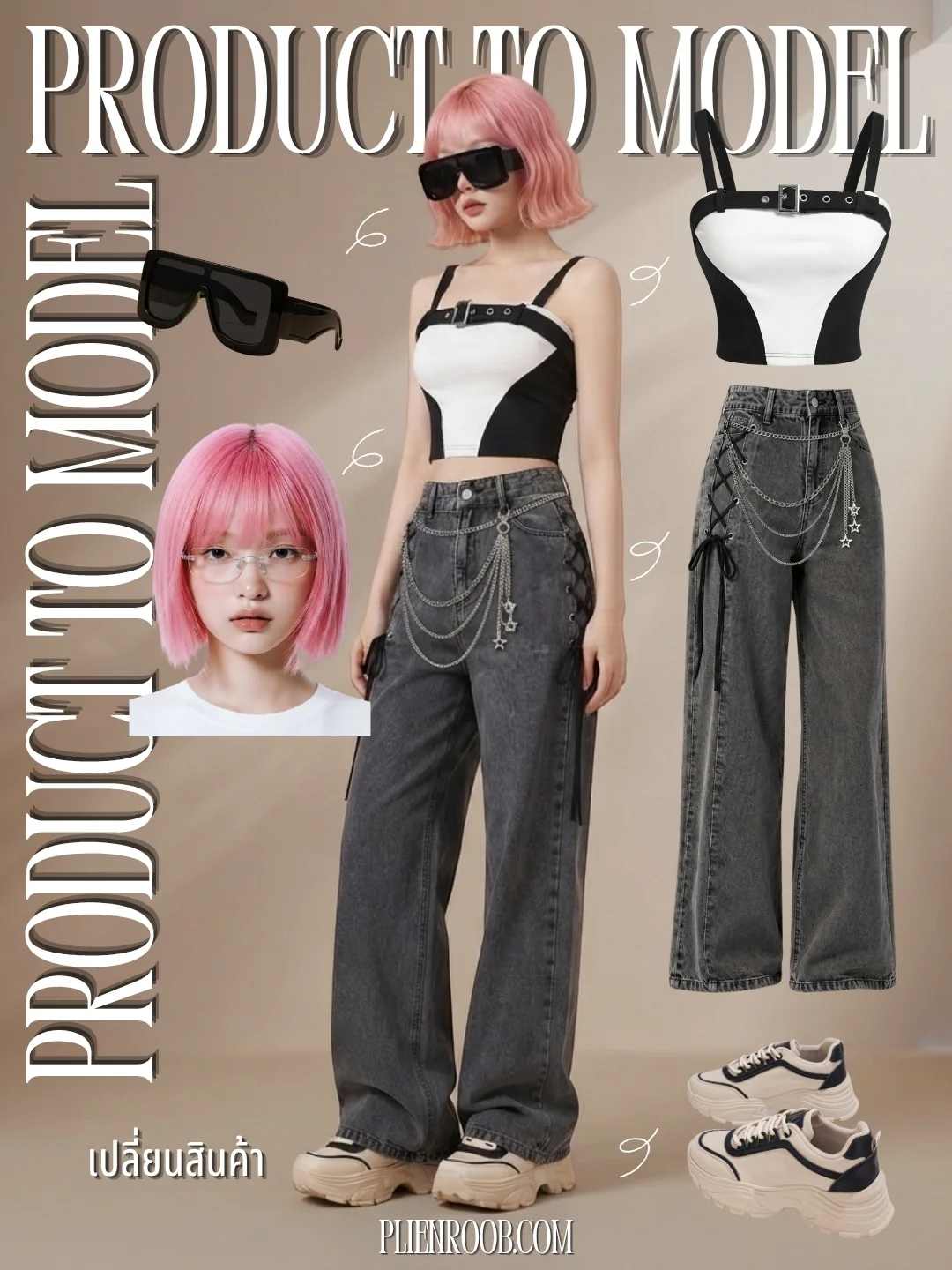
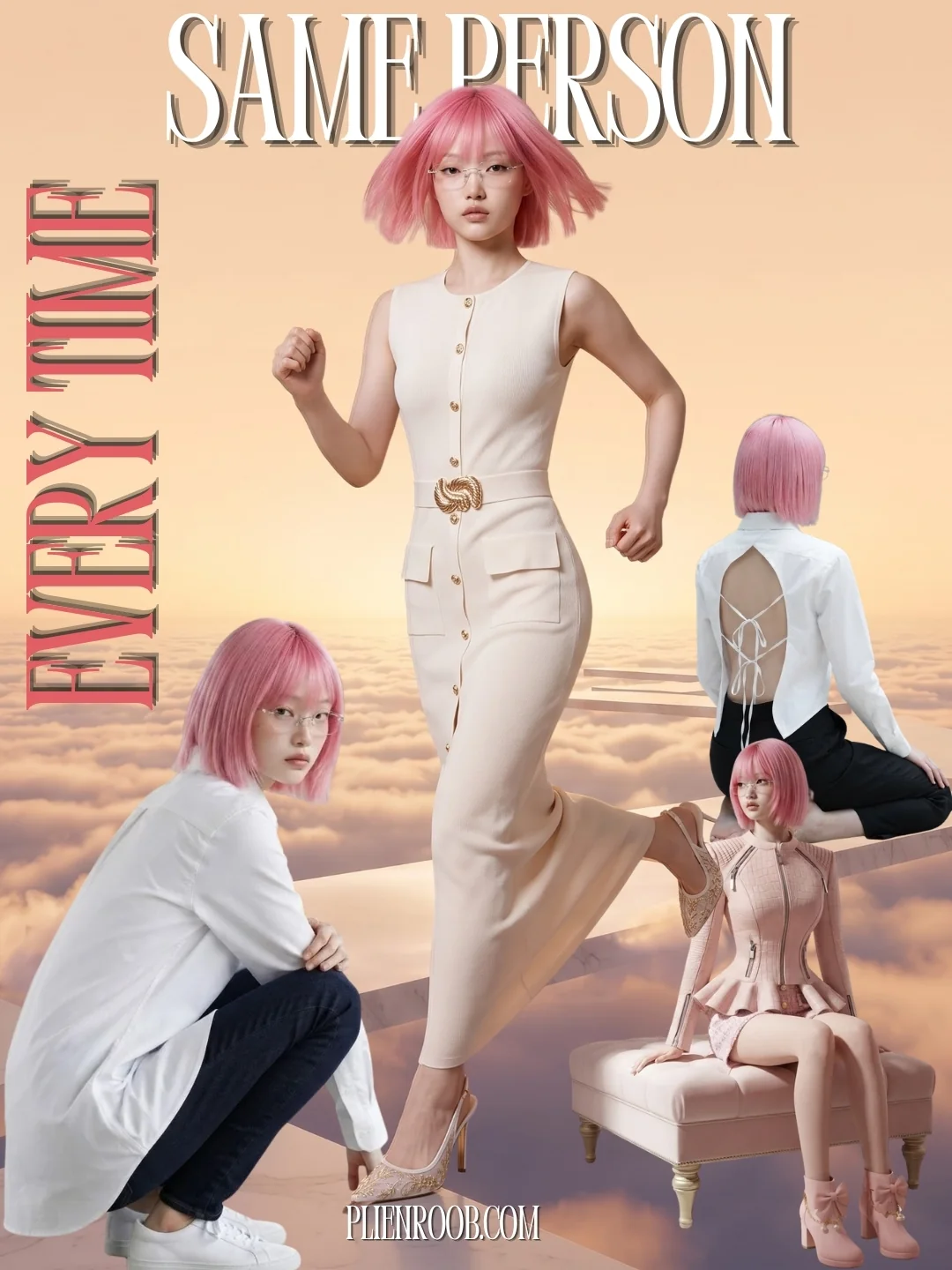
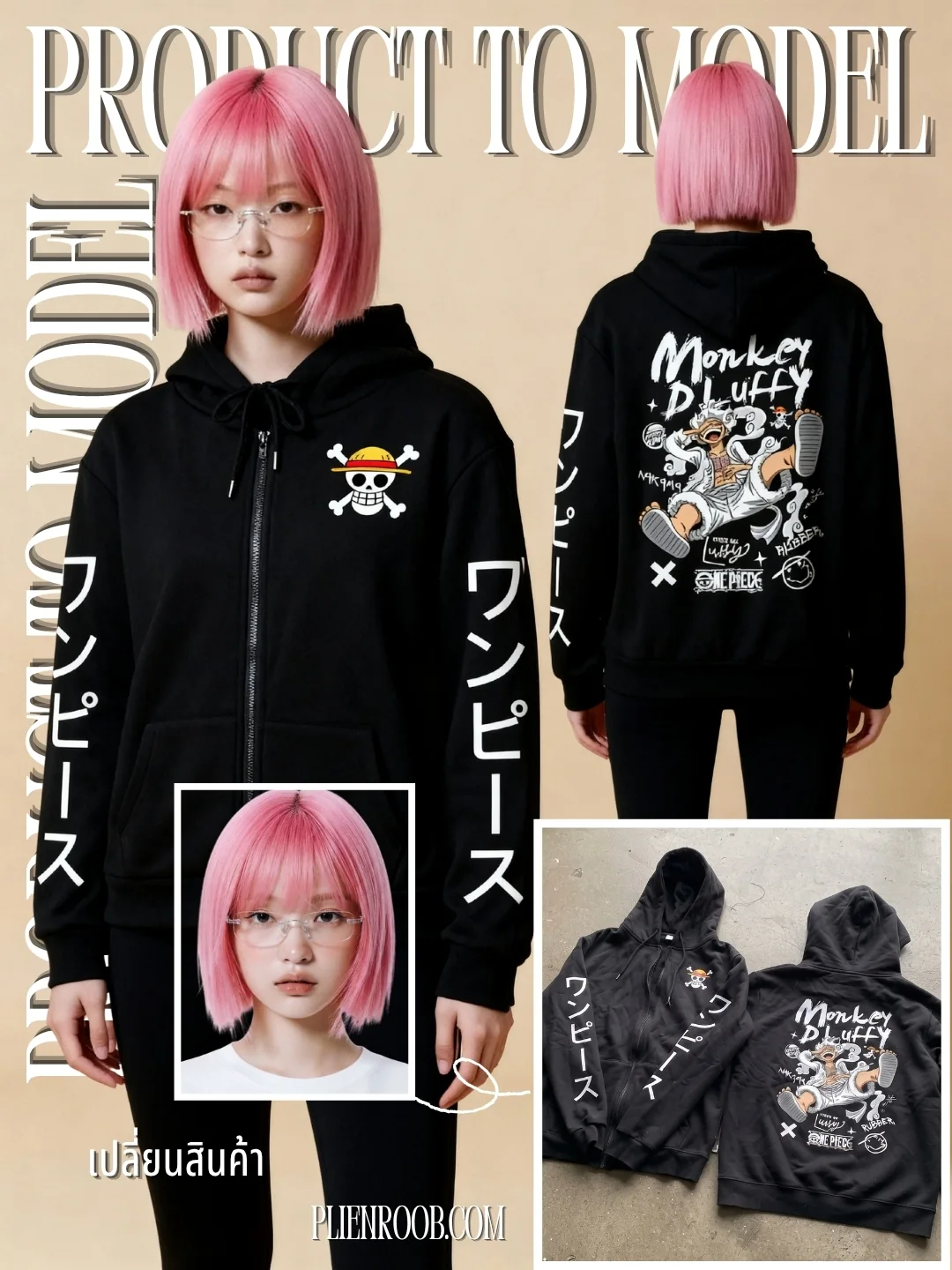
What you can do with an AI model on this site. Each card is that tool's cover image; tap it to read how the tool works.
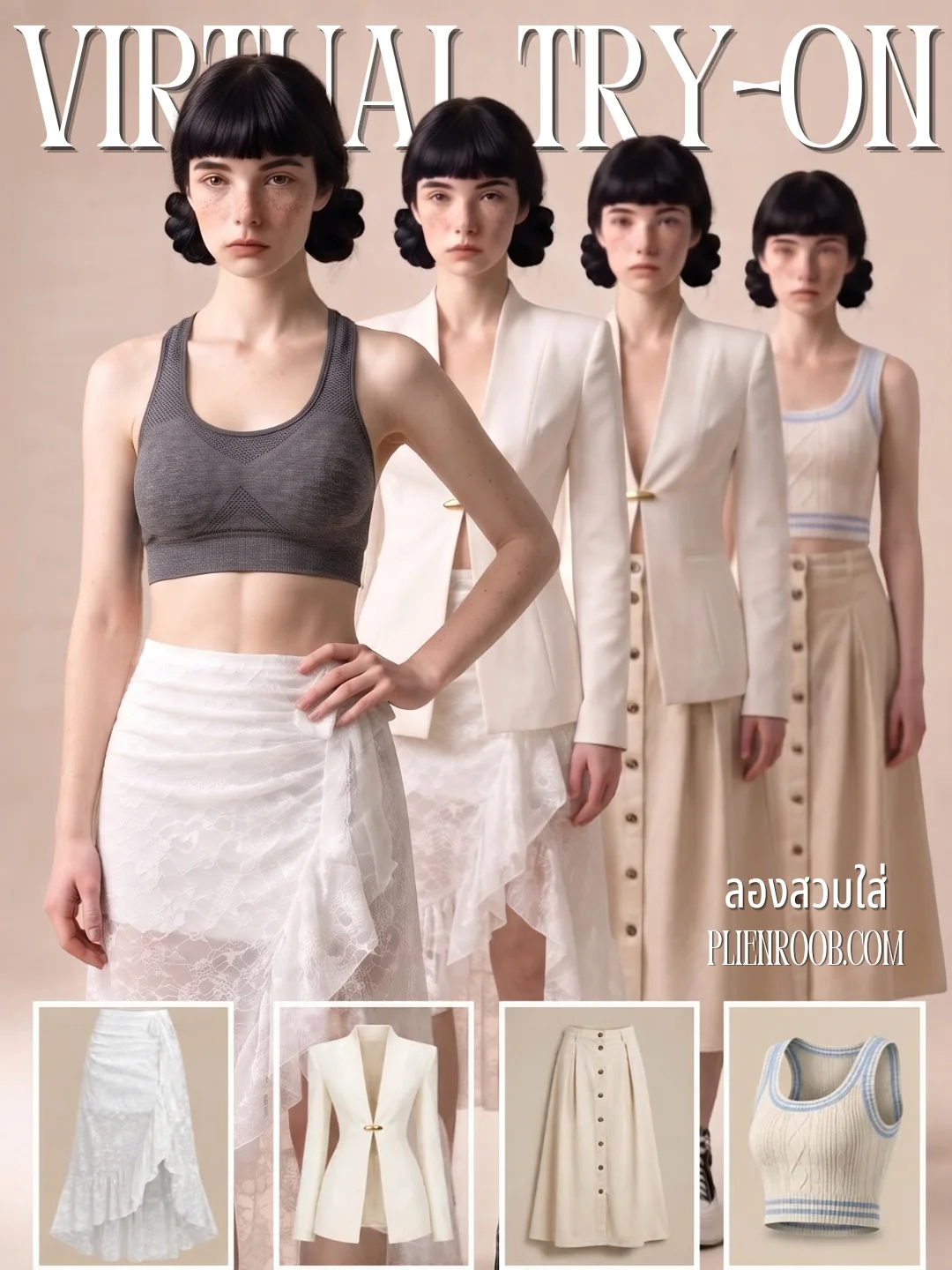
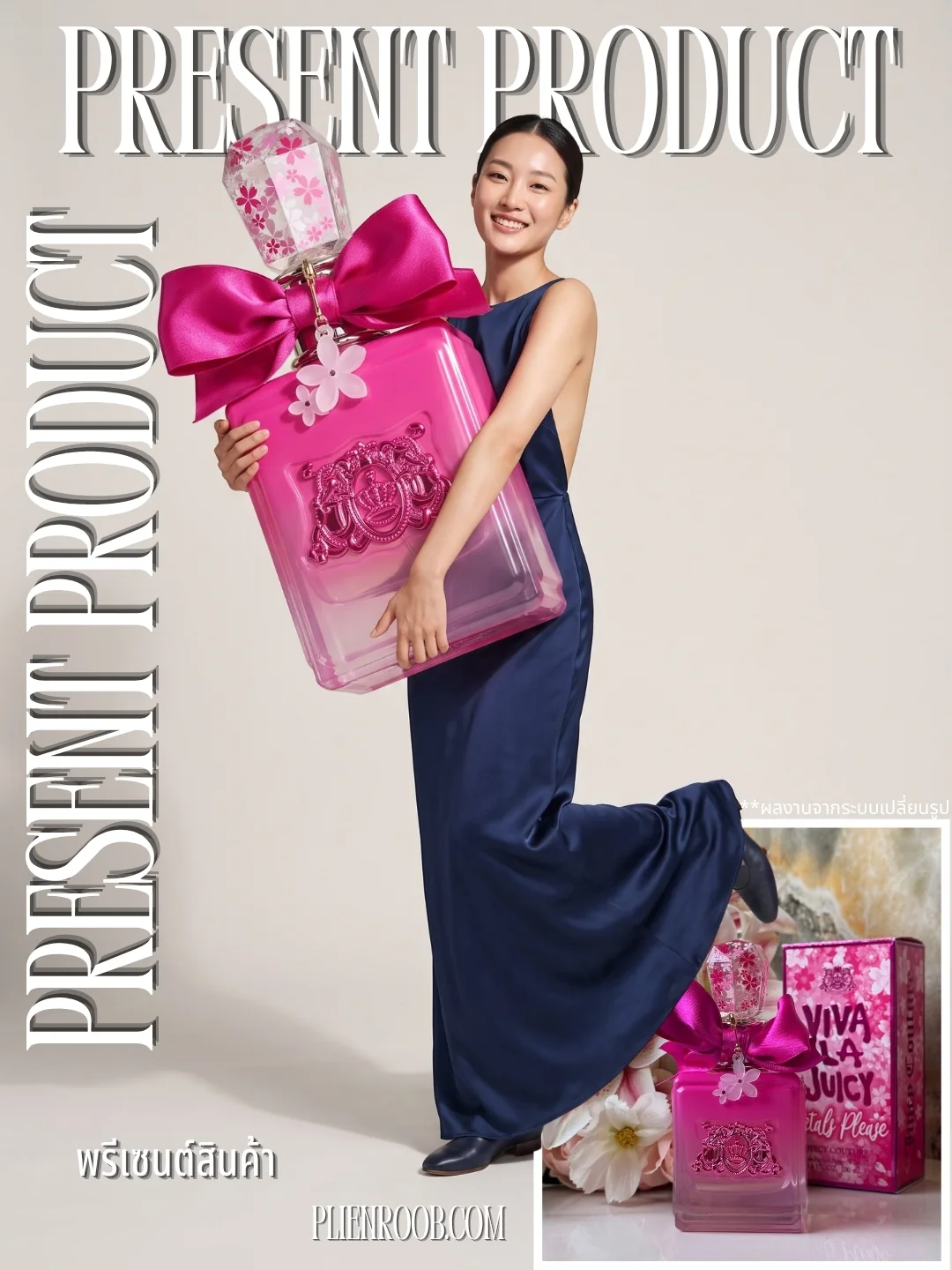
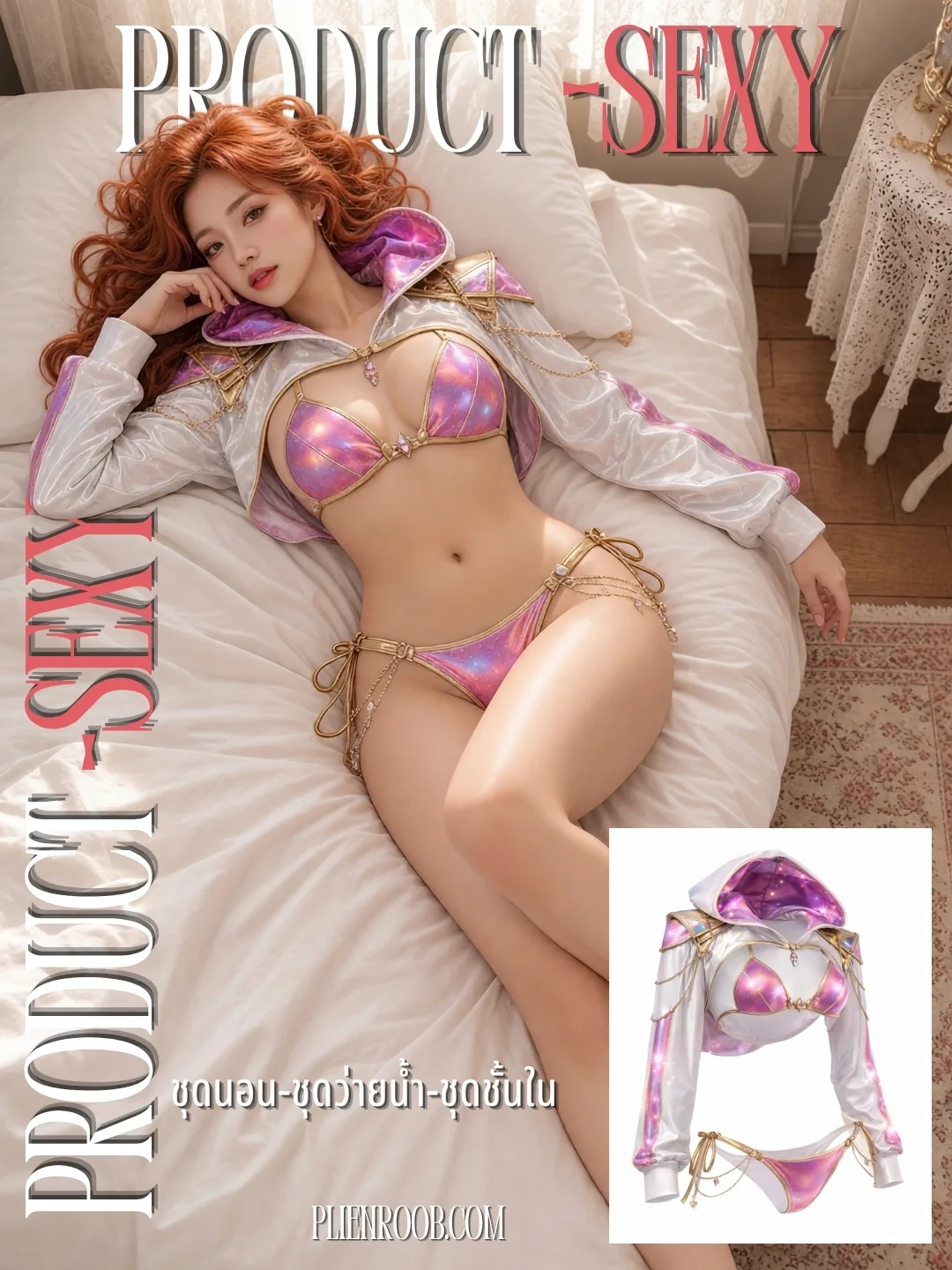
One batch of stock, from arrival to listing
Photograph every item on your phone, one item per photo, front side, laid out so the whole garment shows
Send every item into one Batch queue and pick one model: you get one full-length model shot per item, up to 20 items per run
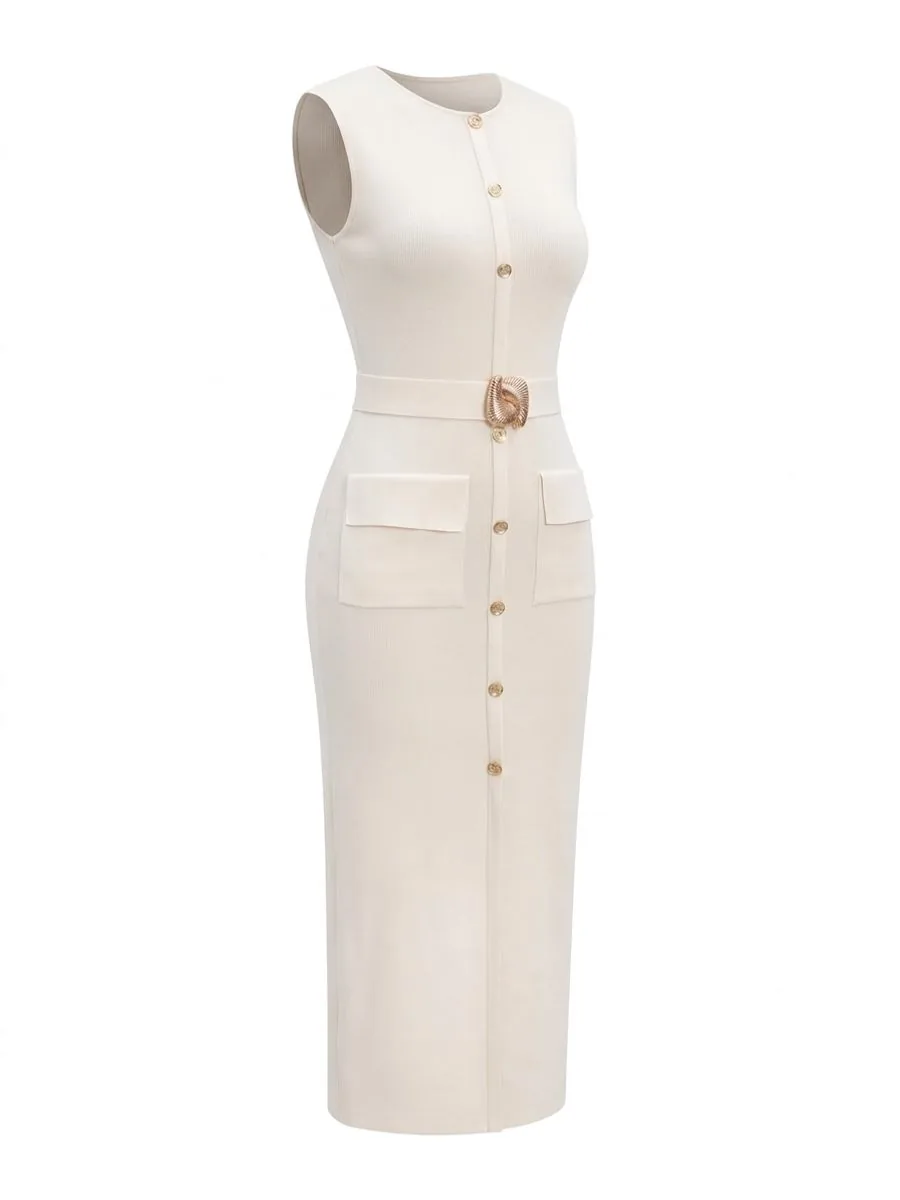
Make the white-background main photo with Ghost Mannequin: the garment holds a worn shape with nobody in the shot, ready in about half a minute
For items that deserve more photos, generate an Image set, with the same model if you like, and get 7 shots in different scenes and poses
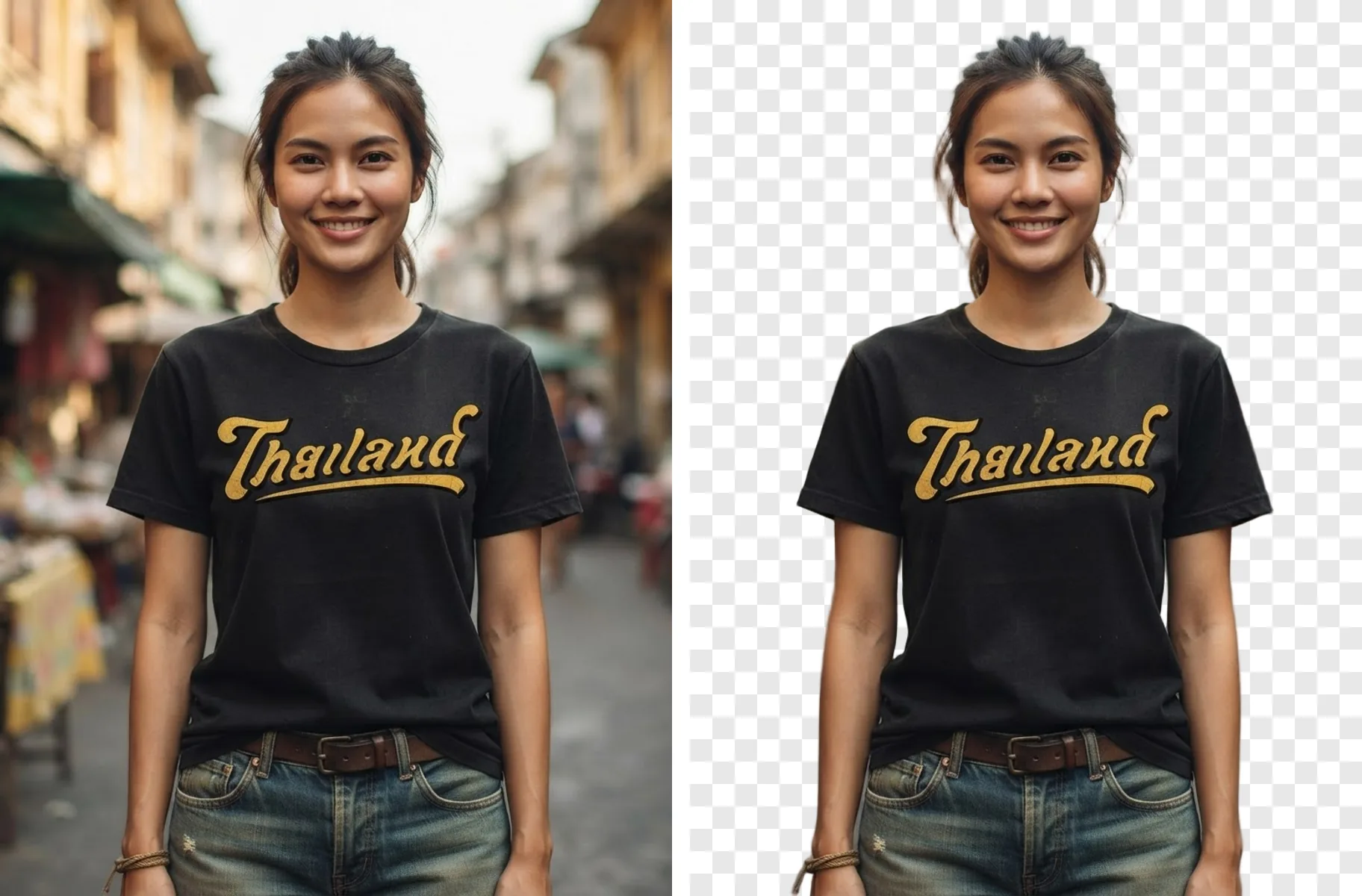
Pass the shot you want for a banner on to Remove Background and get a transparent file to place on your shop's own design
Send old photos that are too small to Upscale, which enlarges each side up to four times
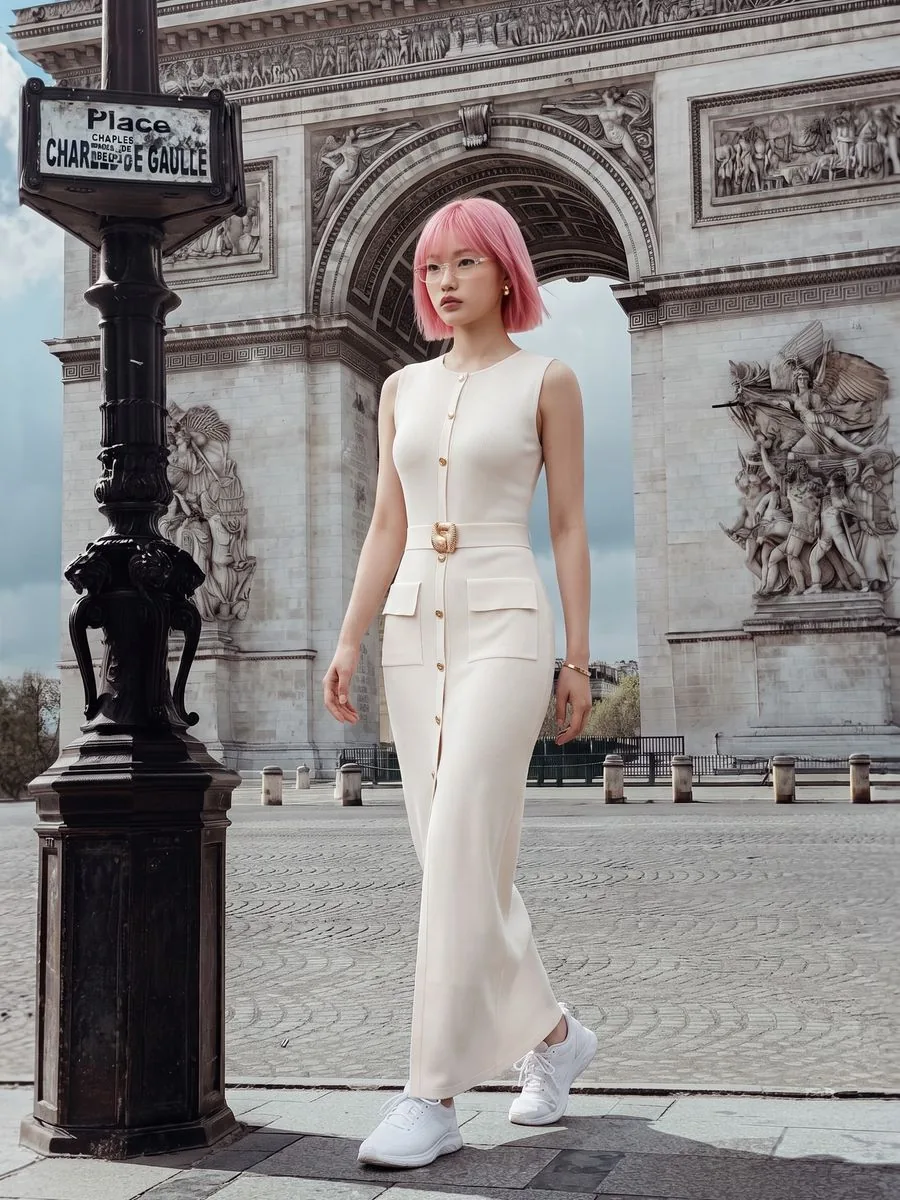
Batch: a whole drop in one queue
Set it up once, choosing the model, photos per product and quality, and the system works through the items one by one
One photo per product allows up to 20 products a run; a full 7-photo set per product allows up to 5
The same model across the whole queue, so the shop reads as one catalogue; scenes, poses and framing are chosen for every shot
With one photo per product, from 8 products up, a flat rate applies: 3 credits an image at Standard 1K, 4 at 2K and 5 at Premium, with the scene and model charges included
The screen shows the total before you start, and credits are only taken as each product actually starts
Banners need a transparent file
Banners and promotional images put the product on a background the shop designs itself. Remove Background cuts away the original background and returns a transparent PNG the same size as the photo you uploaded, for 1 credit. On real jobs, half finish within about 12 seconds. Transparent is not white: if you need a real white background, place the file on white yourself, or use Ghost Mannequin, which gives you white from the start. And don't save over it as a JPEG, because the transparent area turns black.
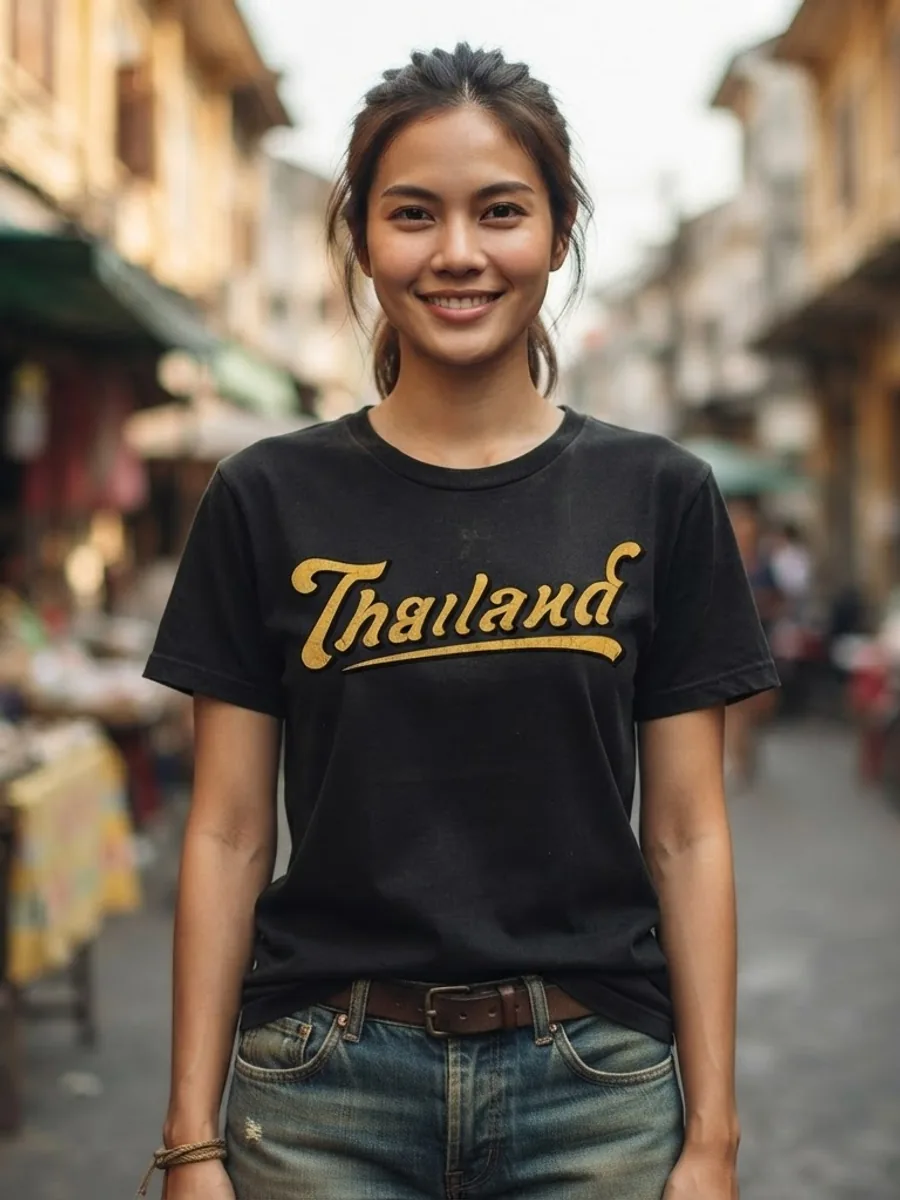
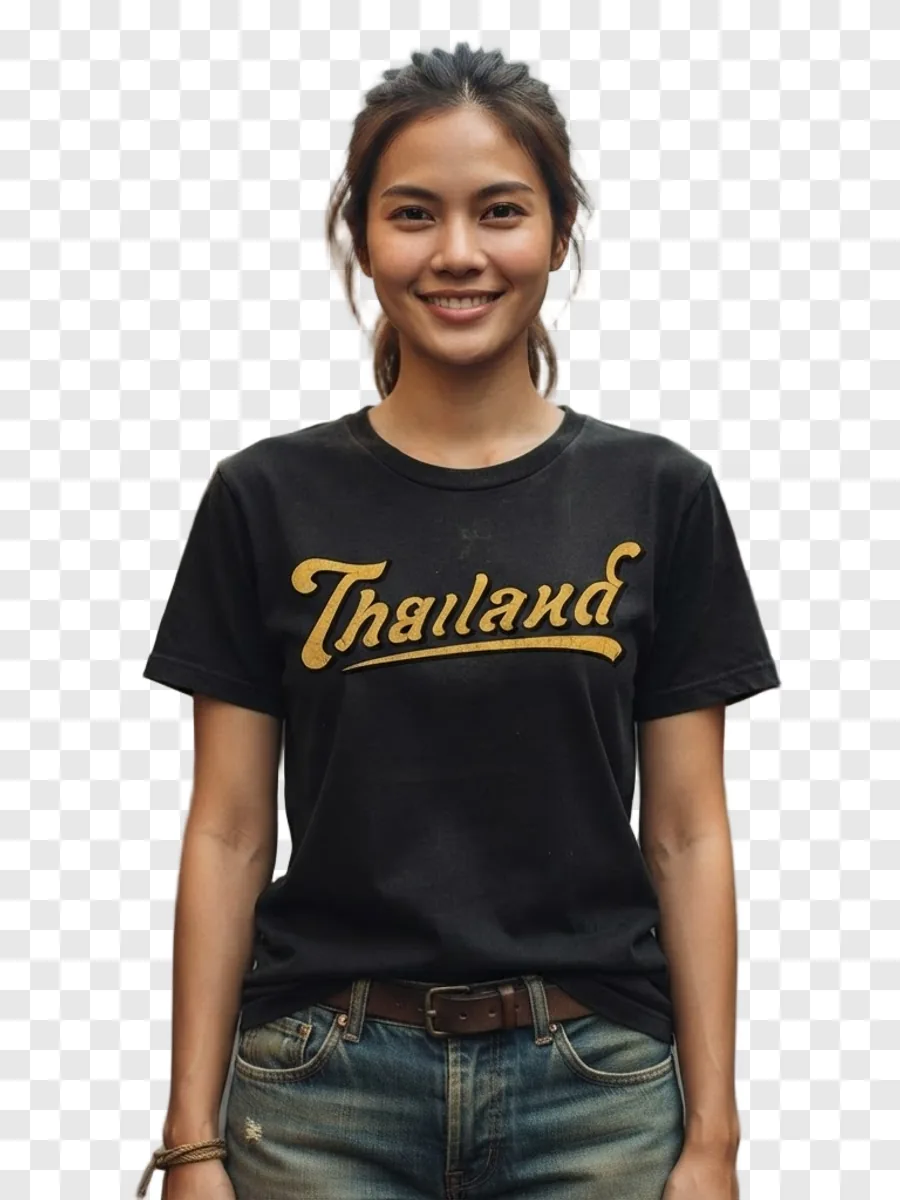
Image sizes for each channel
Studio tips for a batch that's ready to sell
Batch works while its page is open. Closing it loses no credits, products that haven't started aren't charged, and you can come back and press continue
One item per photo, front side. If a photo has several items, or the front and back together, crop it down to one before uploading
A clothing queue has no product-type button, so it suits clothing; shoes, bags and jewellery come out better in the studio, where you can set the type
If an item fails, only that item's credits are returned. If an item's result misses, redo it as a single job in the studio
The system-wide generation ceiling is 60 images an hour per shop
Upscale doesn't add detail that isn't in the original, and it doesn't suit lace, knits or fine embroidery; make those again at Premium instead
Some marketplaces have started setting rules about disclosing AI-generated images, so check the rules wherever you sell
The AI creates a new image every time, so the same product run twice won't come out exactly the same. Check every image against the real item before you list it, especially lettering, buttons and small hardware. If one misses, generate it again or change the source photo.
Frequently asked questions
How much does an AI product photo cost per image?
It depends on the tool and your plan. Remove Background is 1 credit, about ฿2.09–฿3.50 an image. Ghost Mannequin at Standard 1K is 2 credits, about ฿4.17–฿7.00 an image. In a Batch of 8 products or more, a Standard 1K model shot is 3 credits, about ฿6.26–฿10.50 an image. The baht ranges come from real plan prices, from Premium yearly up to the smallest credit top-up. Basic is $18 a month for 180 credits and Premium is $39 a month for 465 credits (฿590 and ฿1,290 on the Thai site), and jobs that fail get their credits back automatically.
Can I make product photos for many items at once?
Yes, with Batch. You set it up once and the system works through the items one by one: up to 20 products a run at one photo each, or up to 5 products at a full 7-photo set each. The model stays the same across the queue. With one photo per product, from 8 products up, a flat 3 credits an image applies at Standard 1K, including the scene and model charges. The queue works while its page is open; closing it loses no credits, and you can come back and continue.
Can I put the images straight onto Shopee or Lazada?
Images from a paid plan carry no watermark and can go on your shop, but they still have to meet that platform's own rules. Each platform wants different sizes and aspect ratios and changes them, so follow the help pages of the place you actually sell. Virtual Try-On, Product to Model and Ghost Mannequin let you choose the aspect ratio before generating. Use Ghost Mannequin for a white-background main photo; Remove Background gives a transparent file, not a white one. Some platforms have also started setting rules about disclosing AI-generated images. On the free plan, the first image has no watermark and the images after it do.
Plien Roob
Ready for your first product photo?
Sign up free for 10 credits, given once, with no card needed. The first image you make on the free plan has no watermark; the images after it do.