AI Tools
Can you make on-model photos of your own clothes with Canva?
Last updated 2026-09-27From Plien Roob — AI model photography for online stores
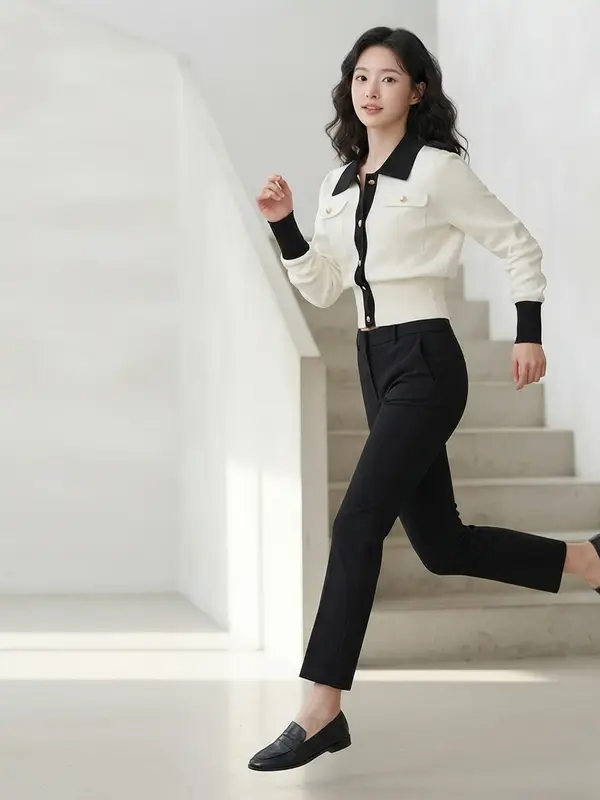

The short answer is that you can get a photo of someone wearing an outfit, but that isn't quite what a clothing shop needs, because the garment in the photo has to be the one you sell, down to its pattern, lettering and cut. According to the Canva help pages Plien Roob read on 27 September 2026, Canva's AI tools create images from a description and edit images from the words you type, trying clothes on a model happens through apps made by other companies in Canva's Apps Marketplace, and none of those pages says your real garment will be kept intact. Canva fits the step after that: taking the model photo you already have and laying it out, adding text, building banners and resizing it for each channel.
What Canva's AI tools actually do
They fall into two groups. Everything below is summarised from Canva's own help pages, and the feature names are the English ones those pages use. The first group creates new images.
Dream Lab creates images from a description, four at a time. You can add a reference image to guide the style or composition, then type follow-up edits, such as asking for a different colour.
Magic Media sits inside the design editor and creates images, graphics or short videos from a description, in the style and shape you choose: square, landscape or portrait.
Canva AI is a chat-style assistant that helps create and edit designs, images and videos, and you can attach files to your request.
The second group works on a photo you already have, and some of these pages also say which plans include them.
Magic Edit · brush over an area of the photo, then type what to add or replace there.
Magic Grab · lifts an object out of the photo so you can move or resize it, while the original background stays.
Magic Eraser · removes things you don't want in the photo.
Magic Expand · extends the image beyond its original edges, for example turning a portrait shot into a landscape one. Its help page warns that images with faces, hands or transparent backgrounds may not expand well.
Background Remover (BG Remover) · removes the background in one click, and can process a whole folder of up to 50 images at a time. Its help page says it is included with paid plans.
Your actual garment is the part to check
A clothing shop doesn't just need an attractive photo of someone in an outfit. It needs a photo where the garment is the same one the customer will receive: the pattern, print, lettering, buttons, length and cut all have to match, because the customer decides from the photo. Marketplaces expect the same: Shopee's quality listing criteria page, which we read on 20 September 2026, says a cover image must not be edited so the product looks different from reality.
Canva's help pages are straightforward about their own tools. Dream Lab uses a reference image to guide style or composition, and its results depend on the description you type. Magic Edit's tips say to avoid adding flags, text, faces or hands because they may not look right, and its listed limitations say the light, colour or style of what it generates may not match, the result may differ from what you intended, and the edited area may be more pixelated than the rest of the photo. Canva's AI Product Terms add that Canva has not verified the accuracy of what its AI produces, and that you are responsible for evaluating it yourself.
None of these pages says the tools will copy your actual garment in full. So the images suit work that doesn't have to show the real item, such as mood images or illustrations for a post. If you want to use one as a product photo, zoom in and compare it with the real garment at every point, as you would with an AI image from any tool.
 Illustration
We have not tested Canva's tools ourselves, and we are not saying they can't do this. What we can say is that Canva's official pages don't promise it. If you want to try, use the hardest garment in your shop, such as one with lettering or a fine print, and zoom in to compare point by point.
When it has to be your actual garment: what you can make
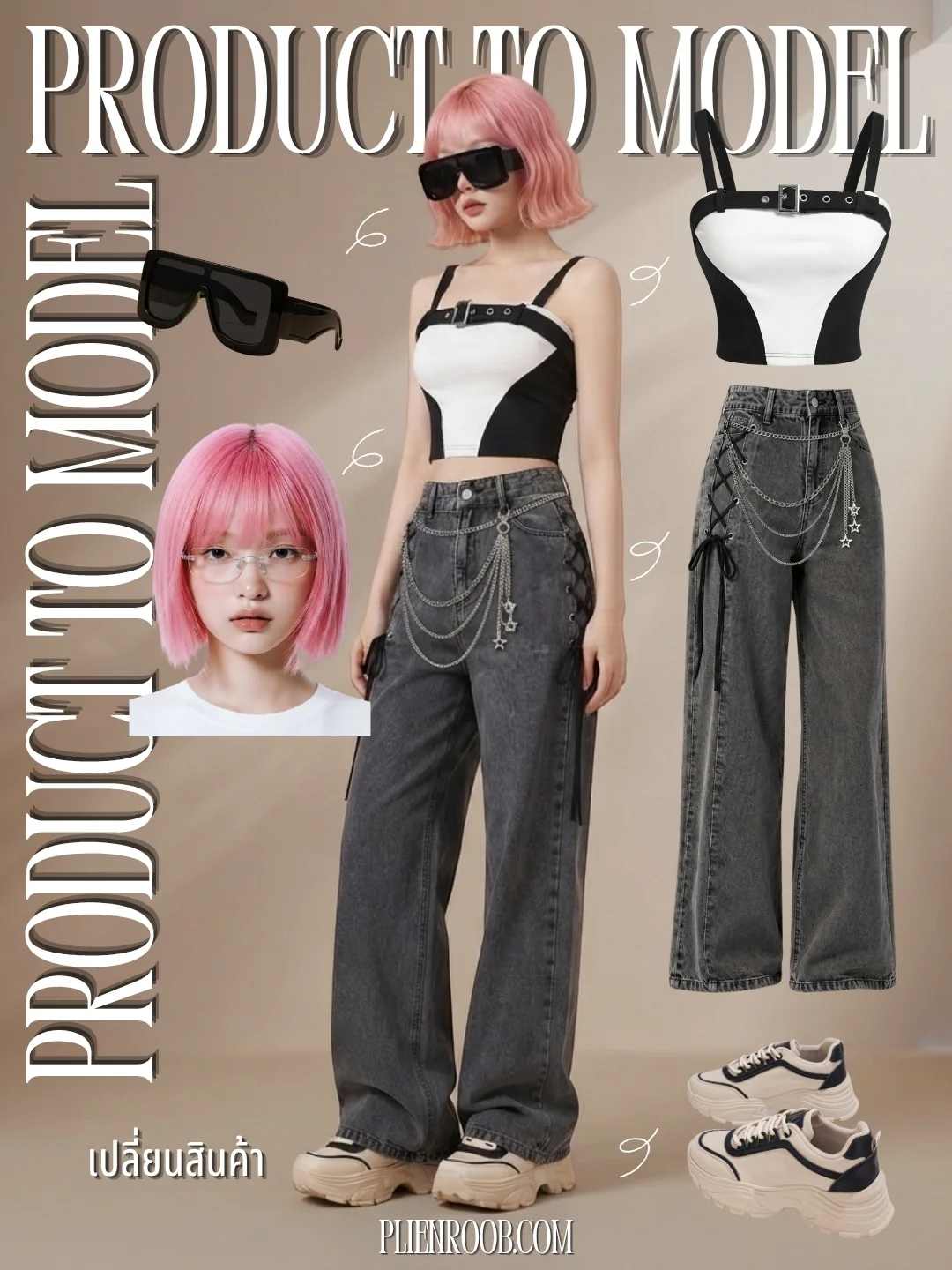
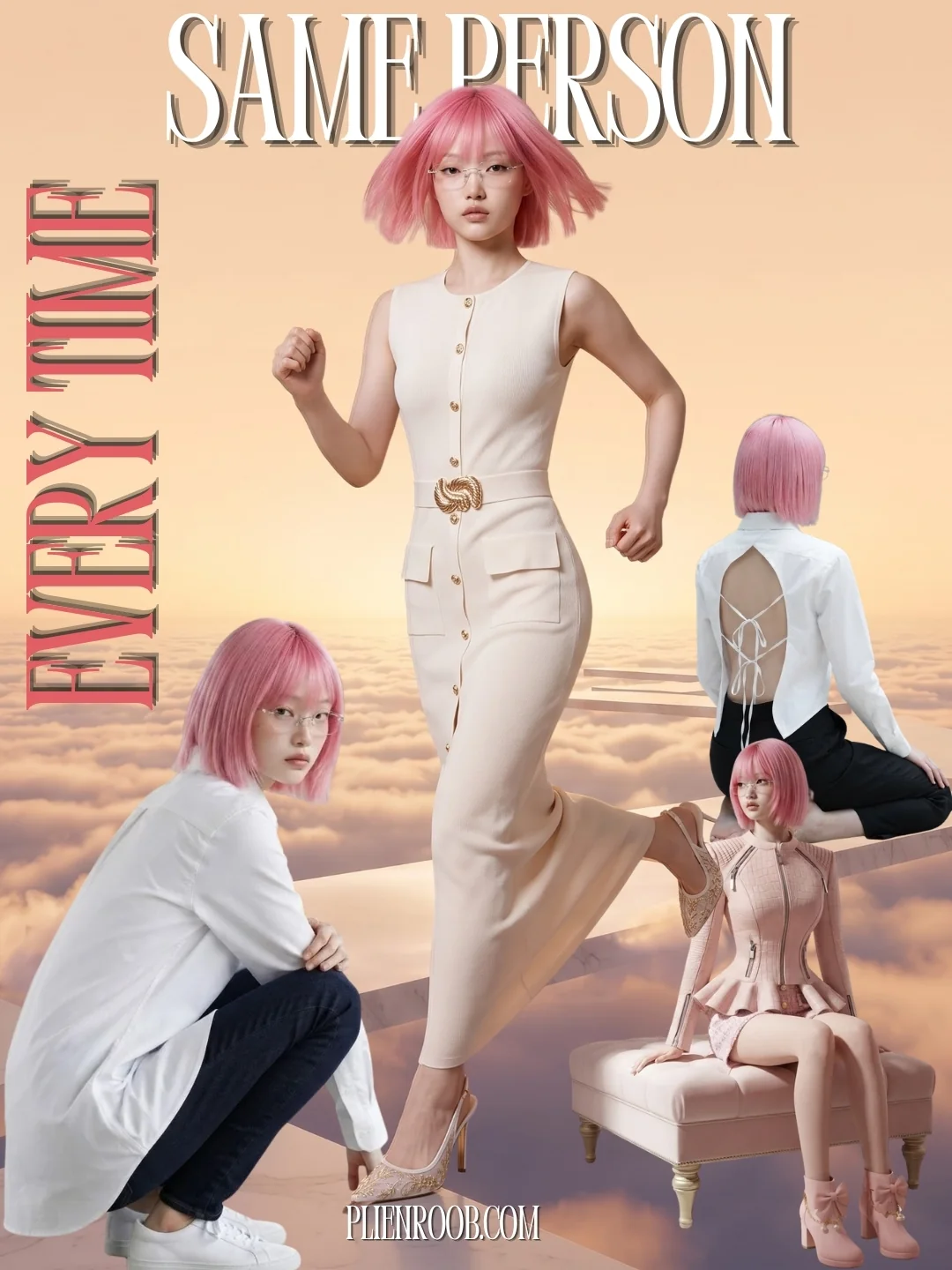
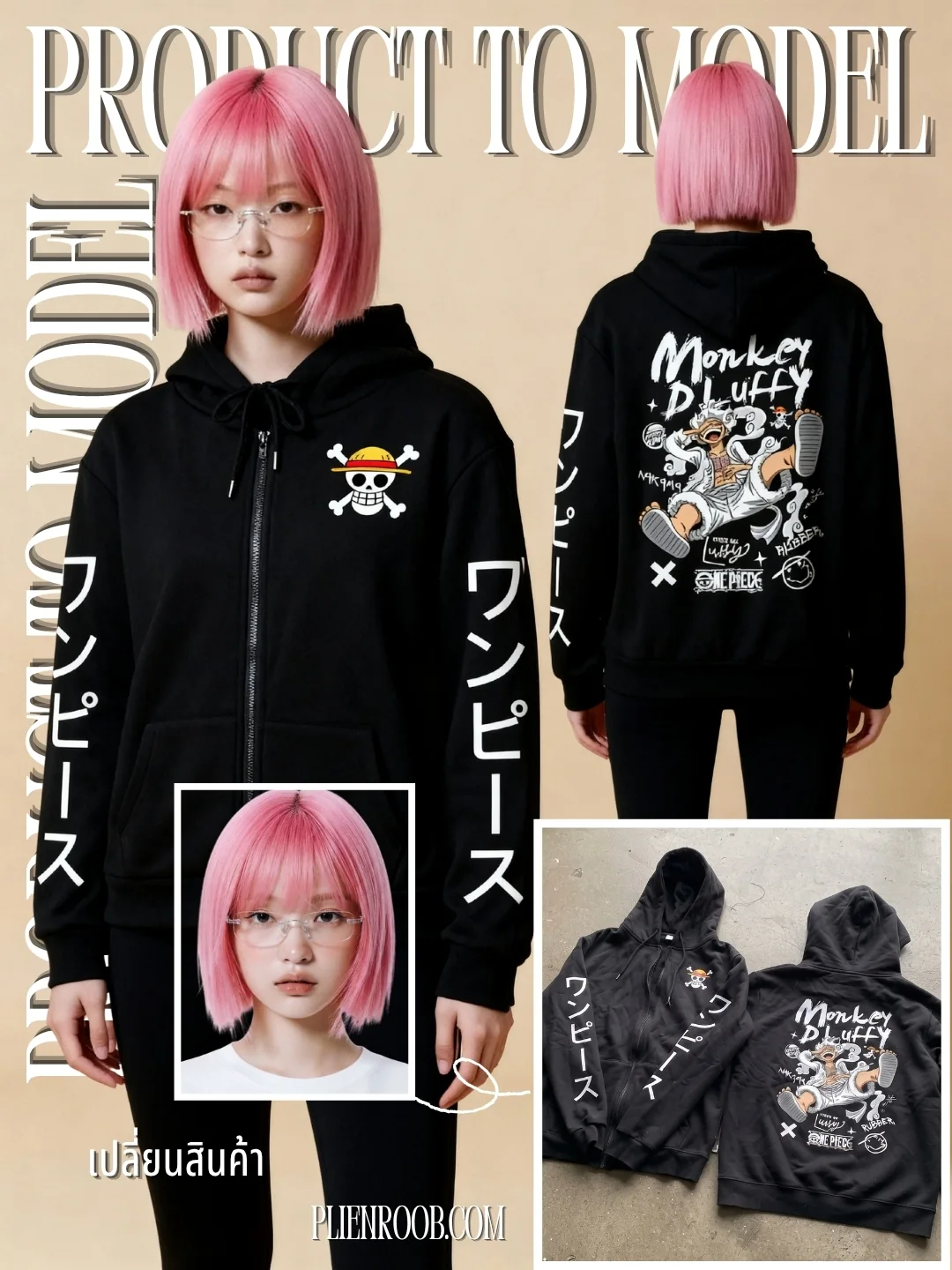
What you can do with an AI model on this site. Each card is that tool's cover image; tap it to read how the tool works.
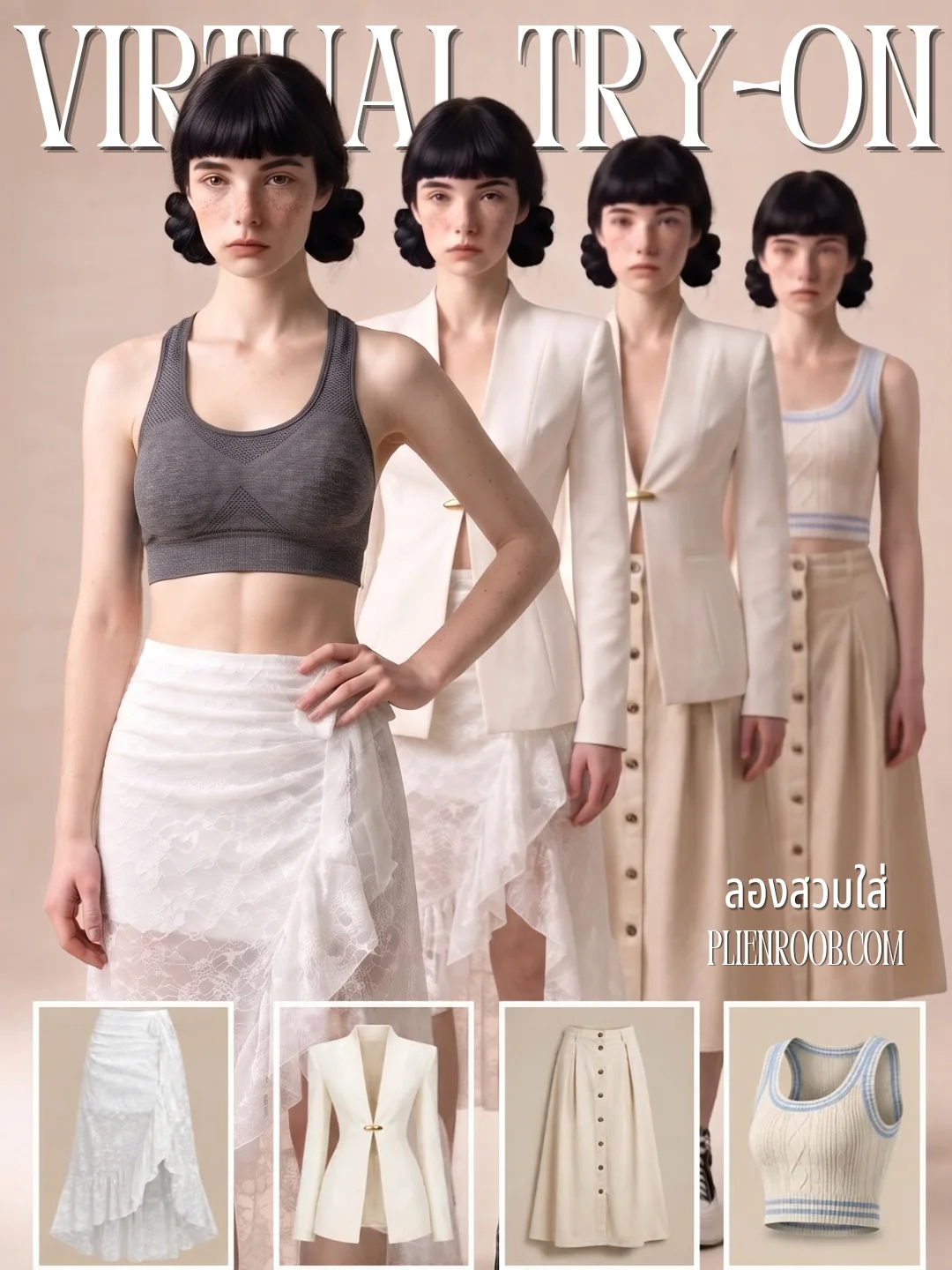
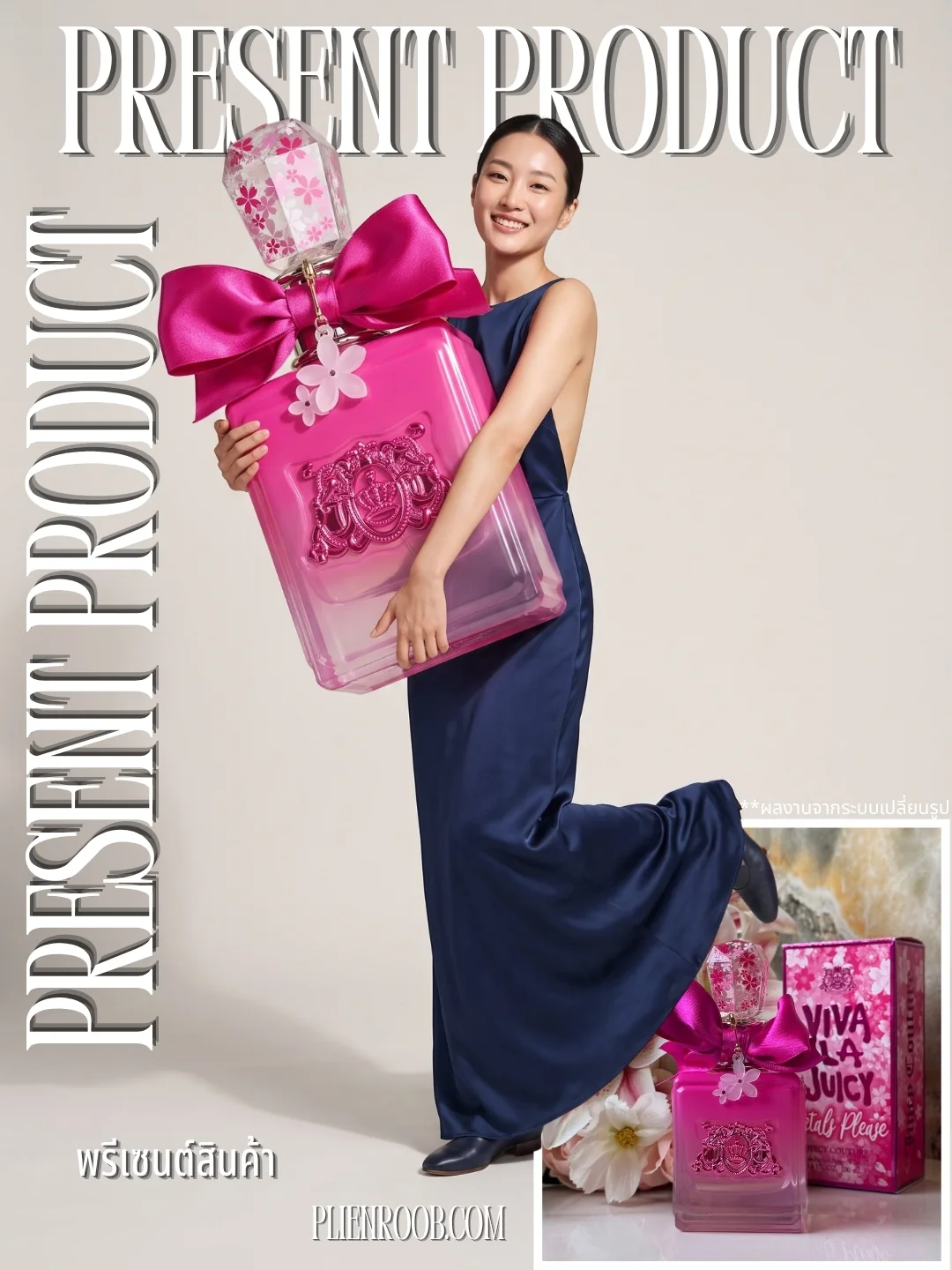
Who makes the try-on apps in Canva
Canva has a Virtual Try-On page that invites you to upload a photo and try outfits on. When we checked on 27 September 2026, the button on that page led to an app in Canva's Apps Marketplace whose app page names another company as the developer. The Apps Marketplace has several more try-on apps; each app page names its developer and links to that developer's own terms and privacy policy. In the Canva help pages we read, we did not find a try-on tool that Canva makes itself.
Canva's help page on connecting apps says some apps are developed and supported by other companies, and that you may need to agree to the developer's terms and privacy policy before using them. Canva's page on AI usage adds that images made through third-party AI apps don't count toward your Canva AI allowance, that the app's own subscription or limits may apply, and that Canva's support team can't help with those apps' policies. One try-on app's own listing even warns that AI may alter colours, shapes and fit.
Check who made the app. The app page names the developer; if it isn't Canva, questions about the app's limits and policies go to that developer.
Read that app's terms: whether you can use the images commercially, and where the photos you upload are kept and for how long.
If you upload a photo of a real model, you need that person's permission. Canva's own guide to using its AI tools safely says the same about editing photos of a recognisable person.
Try it on your hardest garment first, then zoom in and compare the pattern, lettering and buttons with the real thing.
Can you sell with AI images made in Canva?
Canva's AI Product Terms, in the version effective from 26 June 2026, say that as between you and Canva you own what you generate, and you may use it for any lawful purpose at your own risk. There are exceptions and conditions a seller should know:
These terms are written for Canva's own AI tools. If an image came from another company's app in the Apps Marketplace, such as a try-on app, read that developer's terms on image rights and commercial use.
If you use AI to edit a photo from Canva's library, you won't own the result — for example, changing the outfit on a model photo taken from Canva's library.
Results may not be unique: other users may get similar images.
You need the rights to whatever you upload, and you are responsible for checking that the result is accurate.
You must not mislead anyone that AI-generated content was made by a person, or remove the metadata that shows where an AI image came from.
Whether AI-generated work is protected by copyright depends on the country. Canva's help page says you may not be able to stop others from using or copying it.
One more point that ties into marketplace rules: Canva's Background Remover help page says Canva adds AI-generated-content metadata when a feature creates new content or changes an image significantly, such as Magic Media and Magic Edit, while Background Remover doesn't. If a product photo has been through an AI feature that creates something new, label it as AI as the marketplace you sell on requires. This summarises pages we read on 27 September 2026 and is not legal advice.
Which jobs go to Canva, and which to a model tool
Canva has the templates, fonts and layout tools a shop needs every week. This table splits the jobs according to what Canva's official pages describe.
A model wearing your actual garment
- What to use
- An AI model-photo tool that takes your product photo
- Why
- Canva's official pages don't say your garment's pattern and cut will be kept; whichever tool you use, zoom in and compare every image
Changing the outfit on a model photo you have
- What to use
- A try-on tool, or a try-on app in Canva's Apps Marketplace
- Why
- The try-on apps we found are made by other companies, so read that app's terms
Mood images and illustrations for posts
- What to use
- Canva: Dream Lab or Magic Media
- Why
- Created from a description; they don't have to show the real item
Shop banners, promo posts, prices
- What to use
- Canva
- Why
- Templates, fonts and free placement of text
One design in several sizes for several channels
- What to use
- Canva: Magic Resize
- Why
- Several sizes in one go; not on the Free plan
Removing backgrounds from many photos
- What to use
- Canva: Background Remover
- Why
- A whole folder of up to 50 images at a time; its help page says paid plans
A print shop showing its design on a shirt
- What to use
- Canva: Mockups
- Why
- Places your design on the shirt in a mockup photo, but the shirt belongs to the mockup
Cover images on Shopee and TikTok Shop
- What to use
- A real product photo with no text
- Why
- Shopee's cover must have no watermark, logo or text over the product; TikTok Shop wants a solid background on the main image
| Job | What to use | Why |
|---|---|---|
| A model wearing your actual garment | An AI model-photo tool that takes your product photo | Canva's official pages don't say your garment's pattern and cut will be kept; whichever tool you use, zoom in and compare every image |
| Changing the outfit on a model photo you have | A try-on tool, or a try-on app in Canva's Apps Marketplace | The try-on apps we found are made by other companies, so read that app's terms |
| Mood images and illustrations for posts | Canva: Dream Lab or Magic Media | Created from a description; they don't have to show the real item |
| Shop banners, promo posts, prices | Canva | Templates, fonts and free placement of text |
| One design in several sizes for several channels | Canva: Magic Resize | Several sizes in one go; not on the Free plan |
| Removing backgrounds from many photos | Canva: Background Remover | A whole folder of up to 50 images at a time; its help page says paid plans |
| A print shop showing its design on a shirt | Canva: Mockups | Places your design on the shirt in a mockup photo, but the shirt belongs to the mockup |
| Cover images on Shopee and TikTok Shop | A real product photo with no text | Shopee's cover must have no watermark, logo or text over the product; TikTok Shop wants a solid background on the main image |
Make the model photo first, then open Canva
The two work well together: a model-photo tool handles the step that starts from a photo of your real garment, and Canva handles the step that needs text and layout. This is the order we suggest:
Photograph the real garment sharply, with all of it in frame, and use the original file from the device that took it, not one forwarded through a chat app, which compresses away detail.
Make the model photo in a tool that takes your product photo, then zoom in and compare it with the real garment point by point: pattern, lettering, buttons, length and colour.
Make the first image of the listing a product photo on a plain background with no text, and put the model photo after it.
Take the model photo into Canva for shop banners, promo posts and ads. That is where prices and text belong.
If your plan includes Magic Resize, turn the design into each channel's size in one go, then check the product isn't cropped or covered by text.
If you edit the photo further with Magic Edit or generate anything new in Canva, zoom in and check again, and label it as AI as the marketplace requires.
What Plien Roob does, and doesn't
Plien Roob is our own site, and it covers only step two of the order above. Its Product to Model tool takes a single product photo, whether laid flat, on a hanger or on a mannequin, and creates a photo of a model wearing that item, while Virtual Try-On puts a new garment onto a model photo your shop already has. Neither tool has a box to type instructions into, and both start at 2 credits per image.
There are no design templates. The site only has a simple image editor for cropping, drawing lines and typing text, so banners and ads are still better done in Canva.
AI results differ every time, and if the source photo is small or blurred, lettering on the garment can be guessed as new words. Zoom in on every image before you list it.
Sign up free for 10 credits, given once, with no card needed. Your first free-plan image has no watermark; the images after it do.
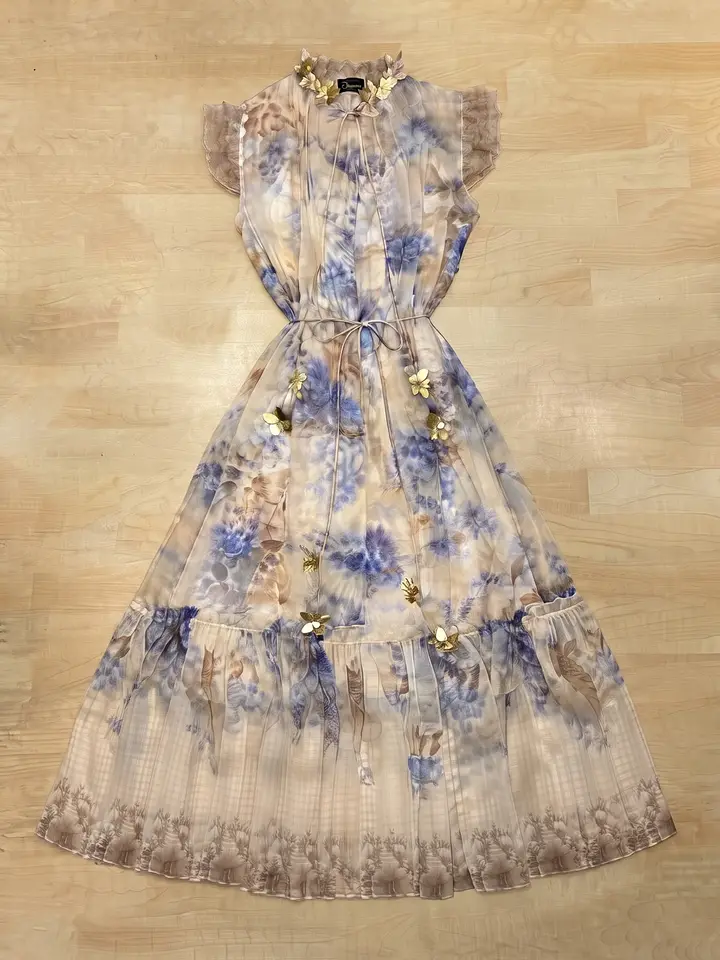
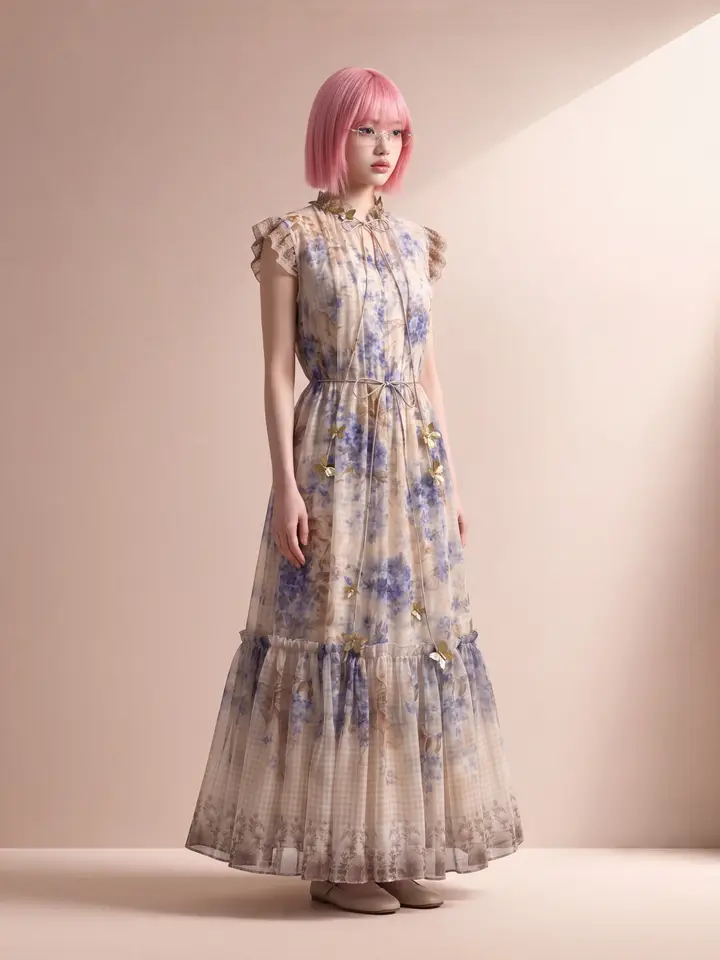
The photo at the top of this page was made with our Product to Model tool, not in Canva.
Frequently asked questions
Can I use Canva to make photos of a model wearing my clothes?
You can get a photo of someone wearing an outfit, but not always the product photo a clothing shop needs. Canva's Dream Lab and Magic Media create images from a description and can take a reference image to guide style or composition, Magic Edit changes a brushed area based on the words you type, and trying clothes on a model happens through apps made by other companies in Canva's Apps Marketplace. None of the Canva help pages Plien Roob read on 27 September 2026 says the pattern, lettering and cut of your actual garment will be kept intact. If you use the result as a product photo, zoom in and compare it with the real garment at every point before you list it.
Does Canva have a virtual try-on feature for clothes?
Canva has a Virtual Try-On page, but when Plien Roob checked on 27 September 2026, its button led to an app in Canva's Apps Marketplace whose app page names another company as the developer, and the Apps Marketplace has several more try-on apps made by other companies. Canva's help pages say apps made by other companies may require you to agree to the developer's terms and privacy policy first, that images made through them don't count toward your Canva AI allowance, and that the app's own subscription or limits may apply.
Can I sell products using AI images made in Canva?
Canva's AI Product Terms, effective from 26 June 2026, say that as between you and Canva you own what you generate and may use it for any lawful purpose at your own risk. The exception is output that edits or incorporates Canva library content: if you use AI to edit a photo from Canva's library, you won't own that output. These terms cover Canva's own AI tools; for an image made with another company's app, check that developer's terms as well. The same terms say results may resemble other users' results, that Canva has not verified their accuracy, and that you must not remove the metadata showing an image came from AI. The marketplace has its own rules too: clause 3.3 of the Shopee AI Terms of Service requires AI-generated content from outside tools that is used on Shopee, including on product listings, to be identified as AI-generated. This summarises pages Plien Roob read in September 2026 and is not legal advice.
Can I put prices or text on my product cover image?
Not on the cover. Shopee's quality listing criteria page, which Plien Roob read on 20 September 2026, says a cover image must not have a watermark, logo or text covering the product, and TikTok Shop's listing guidelines want the main image on a solid background. Put the text, prices and promotions you make in Canva on shop banners, posts and ads instead, and make the first image of the listing a product photo on a plain background with no text.
How do I use Canva together with an AI model-photo site?
Give each one its own step. Use an AI model-photo tool that takes your product photo to make the photo of a model wearing your real garment, then zoom in and compare the pattern, lettering, buttons and length with the real thing. After that, take the photo into Canva for banners, posts and ads, put prices and text there, and use Magic Resize for each channel's size if your plan includes it. Keep the first image of the listing a product photo on a plain background with no text.
Plien Roob
Ready for your first product photo?
Photos by XinYing Lin on Unsplash