AI Tools
Product photos with a model, without typing instructions for the AI: upload and tap
Last updated 2026-09-16From Plien Roob — AI model photography for online stores


If you've tried getting an AI to make a product photo and got stuck on what to type, Plien Roob's Product Showcase has no box to type into at all. Every step is a tap, from uploading the photo to getting the image back.
Why there's no box for instructions
A good instruction for one product photo has to cover a lot at once: how the product sits in the hand, how big it is, whether the side you sell faces the camera, where fingers must not cover it, light that doesn't shift the product's colour, and no invented logos. Miss one of those and the product can change how it looks.
So those instructions are already written for every category, and you just choose. Someone who has never used AI can do it, and every time you tap the same category, the same rules about the product go with it.
From upload to finished image
Open Product Showcase in the studio
Upload a product photo, or pick one you uploaded before — one item per photo, cropped so the product fills the frame
Tap a product category, such as Plated food or Dumbbells & kettlebells
Choose a size, if the category has size buttons
For beauty products, drinking cups and water bottles, choose Product only or With its box. With its box needs the box in your photo — without it, the AI draws a box itself, with lettering that isn't real
Pick a model from the library, or skip it
Check the credit count on the generate button, then press it
When the image is ready, zoom in and check the product before downloading it
The one thing you never choose is the pose. The system picks a pose that shows the product clearly, and if you generate again it picks a pose different from the previous image. You can leave the scene and the aspect ratio for the system to choose too.
Product-and-model photos with no prompt: what you get
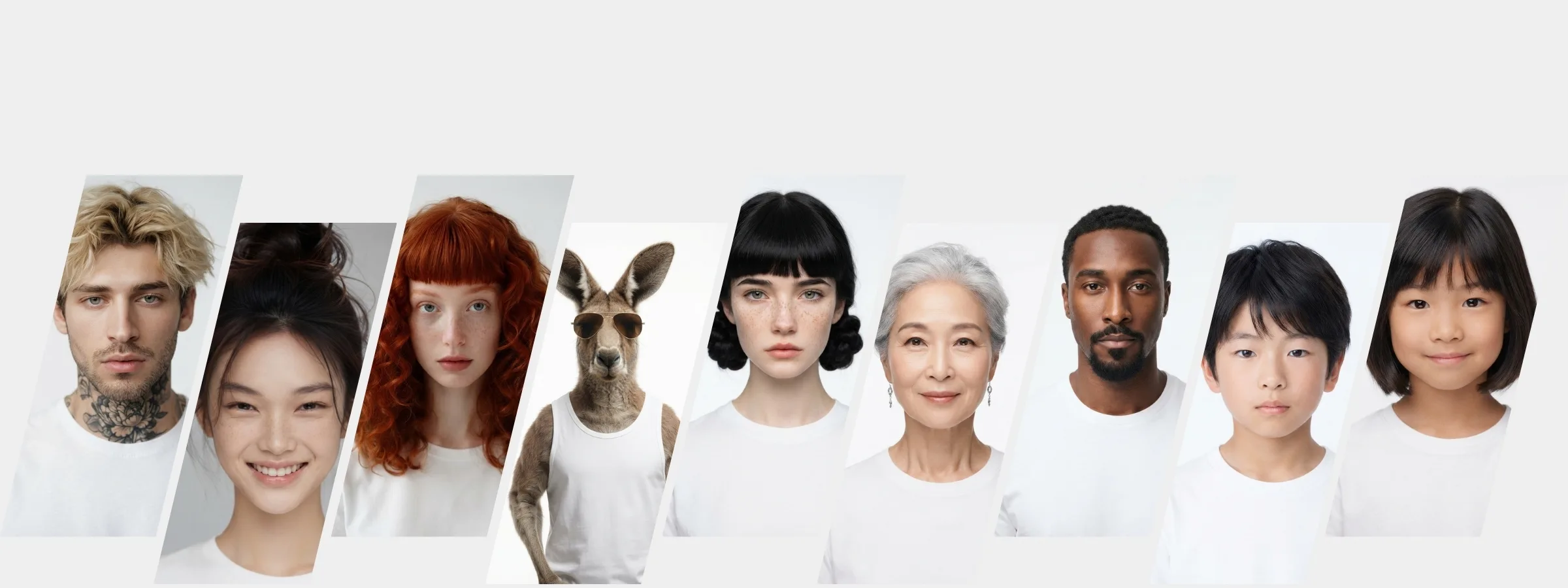
What you can do with an AI model on this site. Each card is that tool's cover image; tap it to read how the tool works.
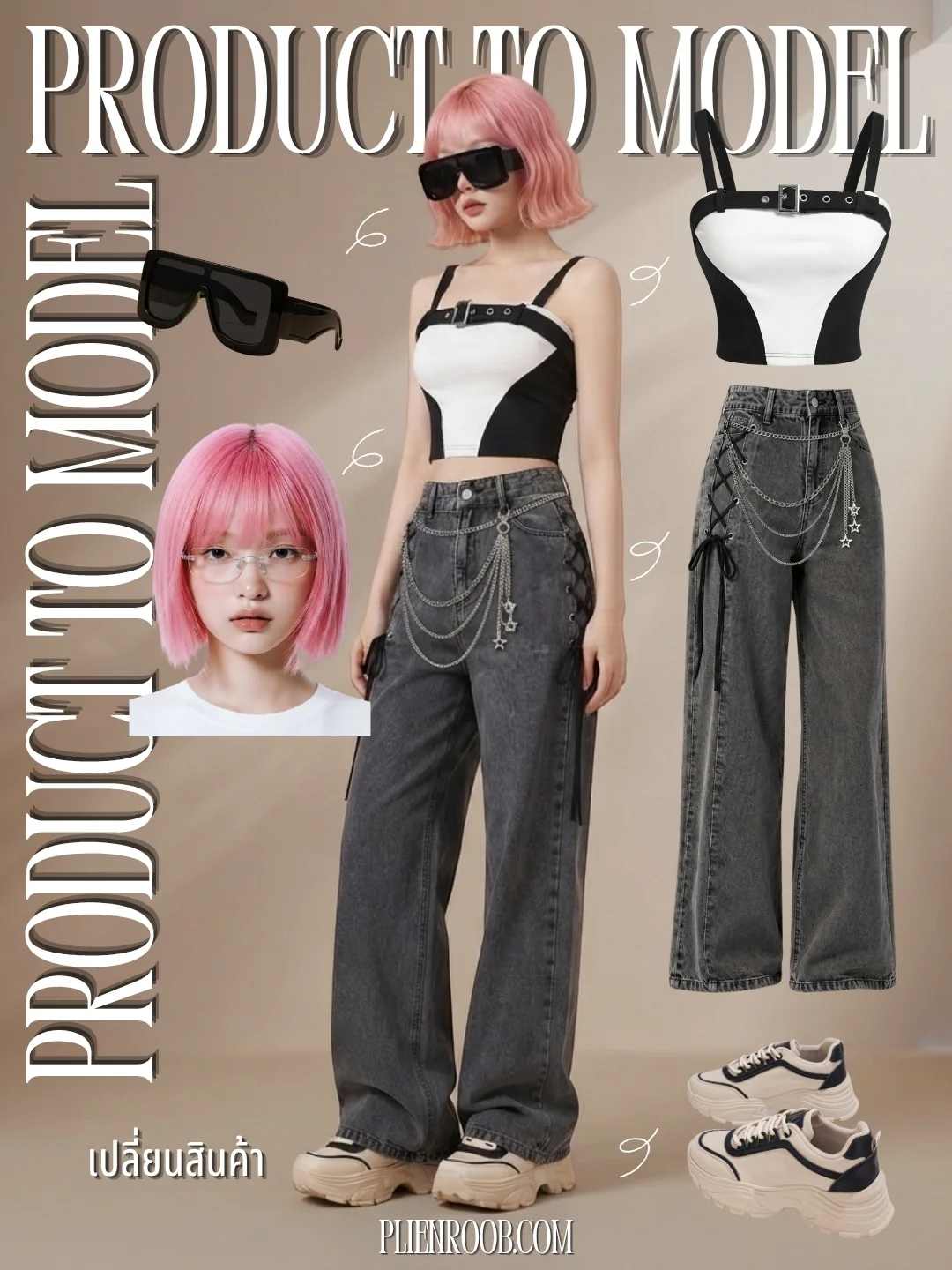
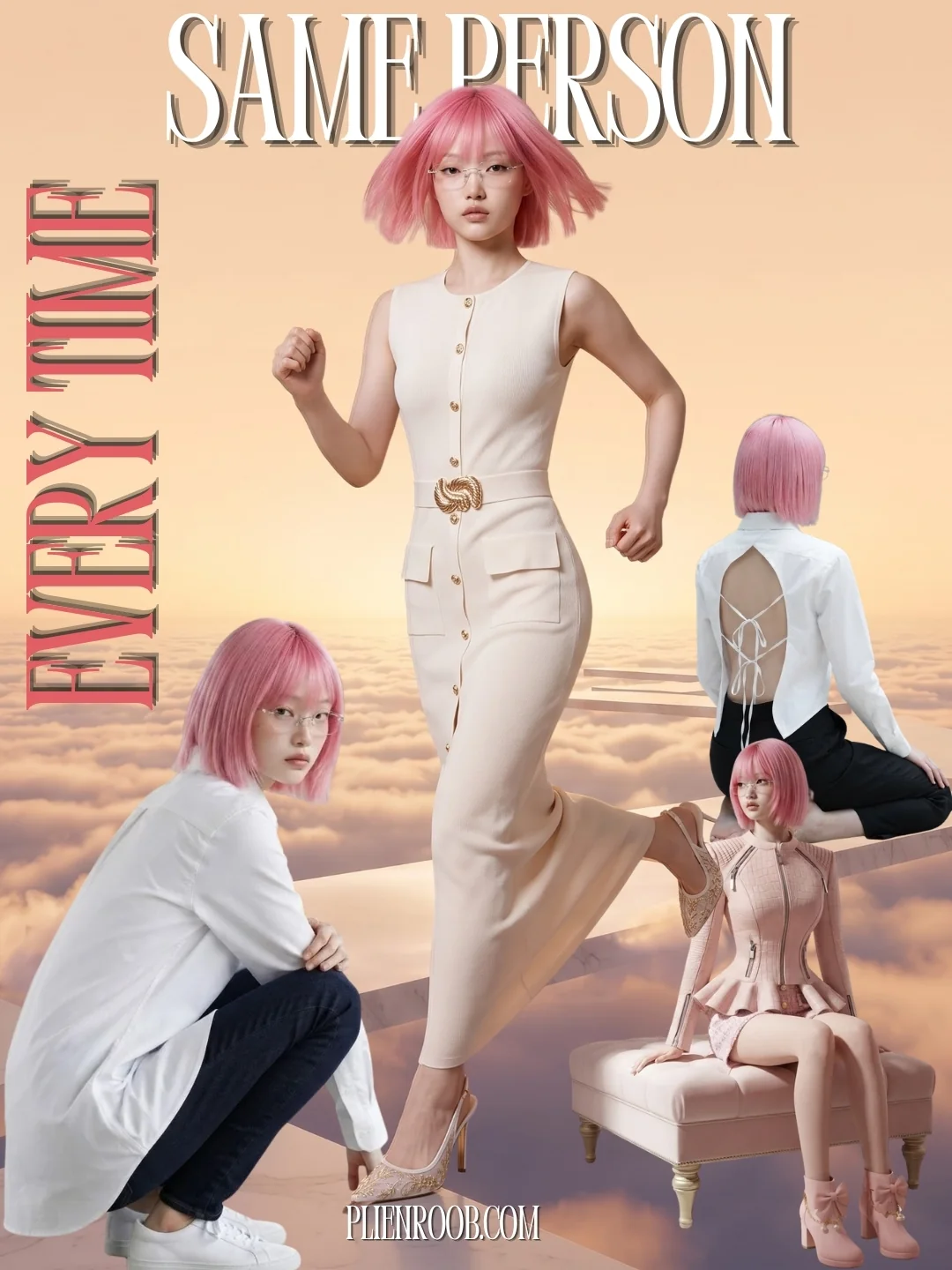
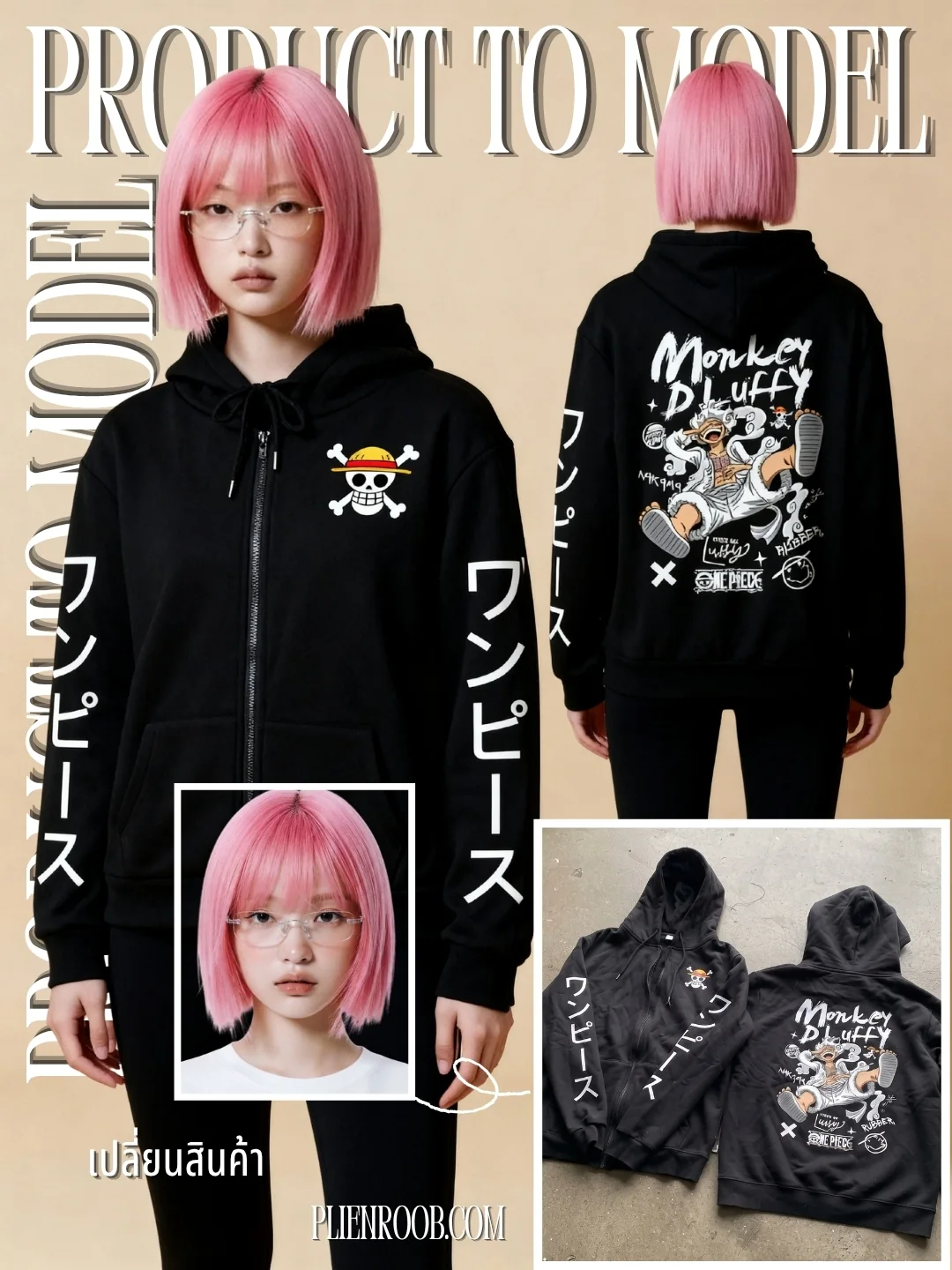
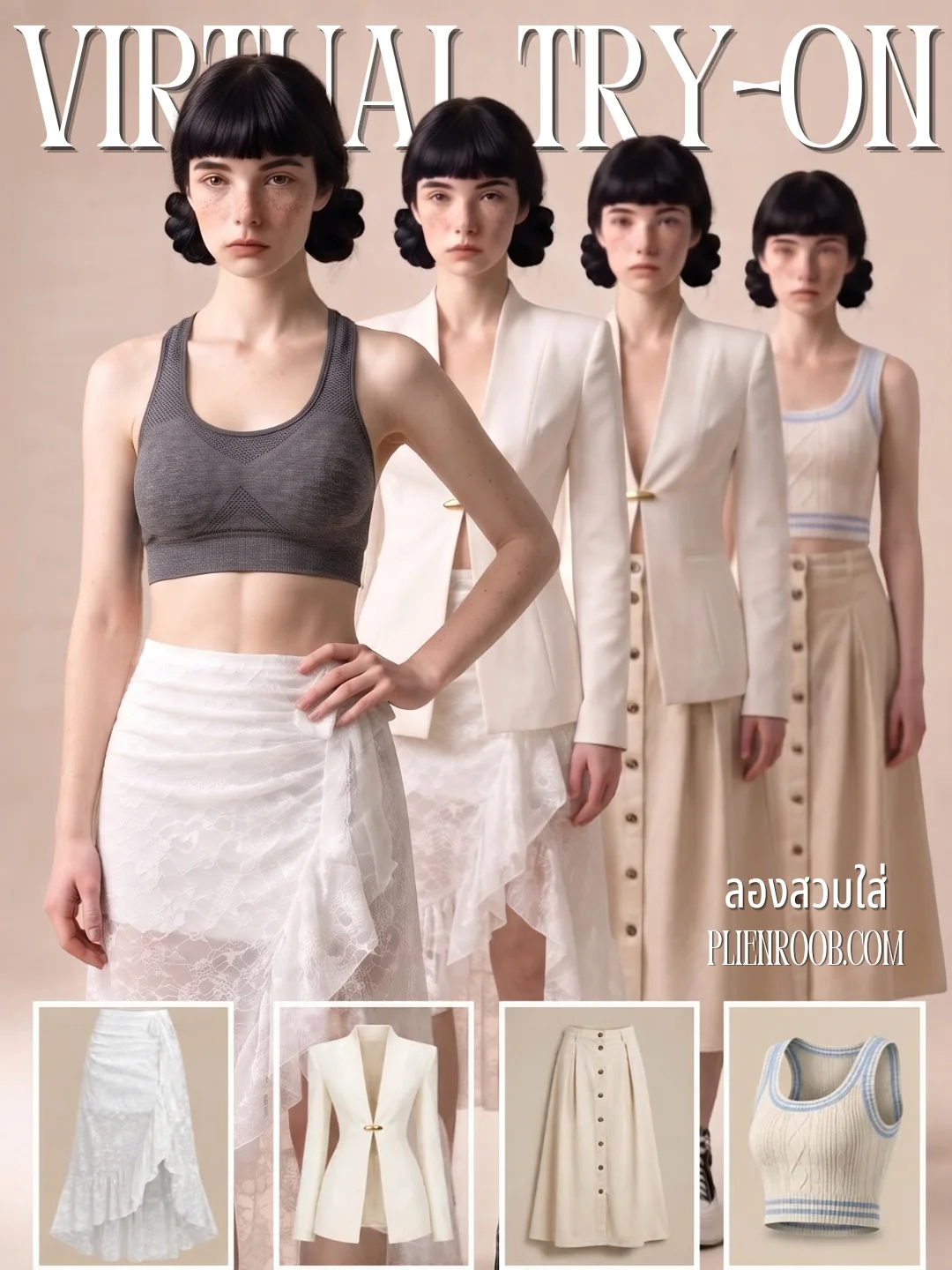
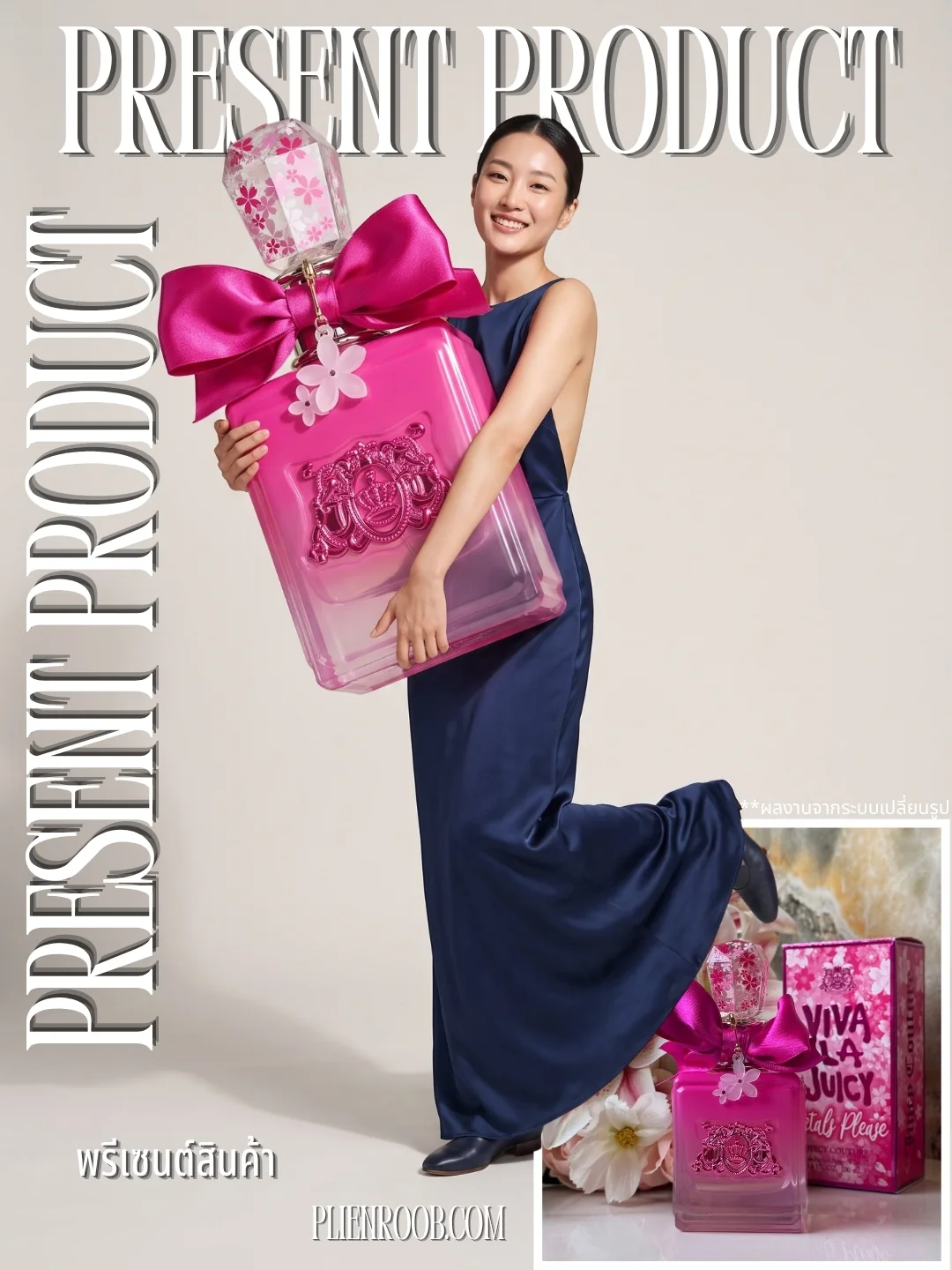
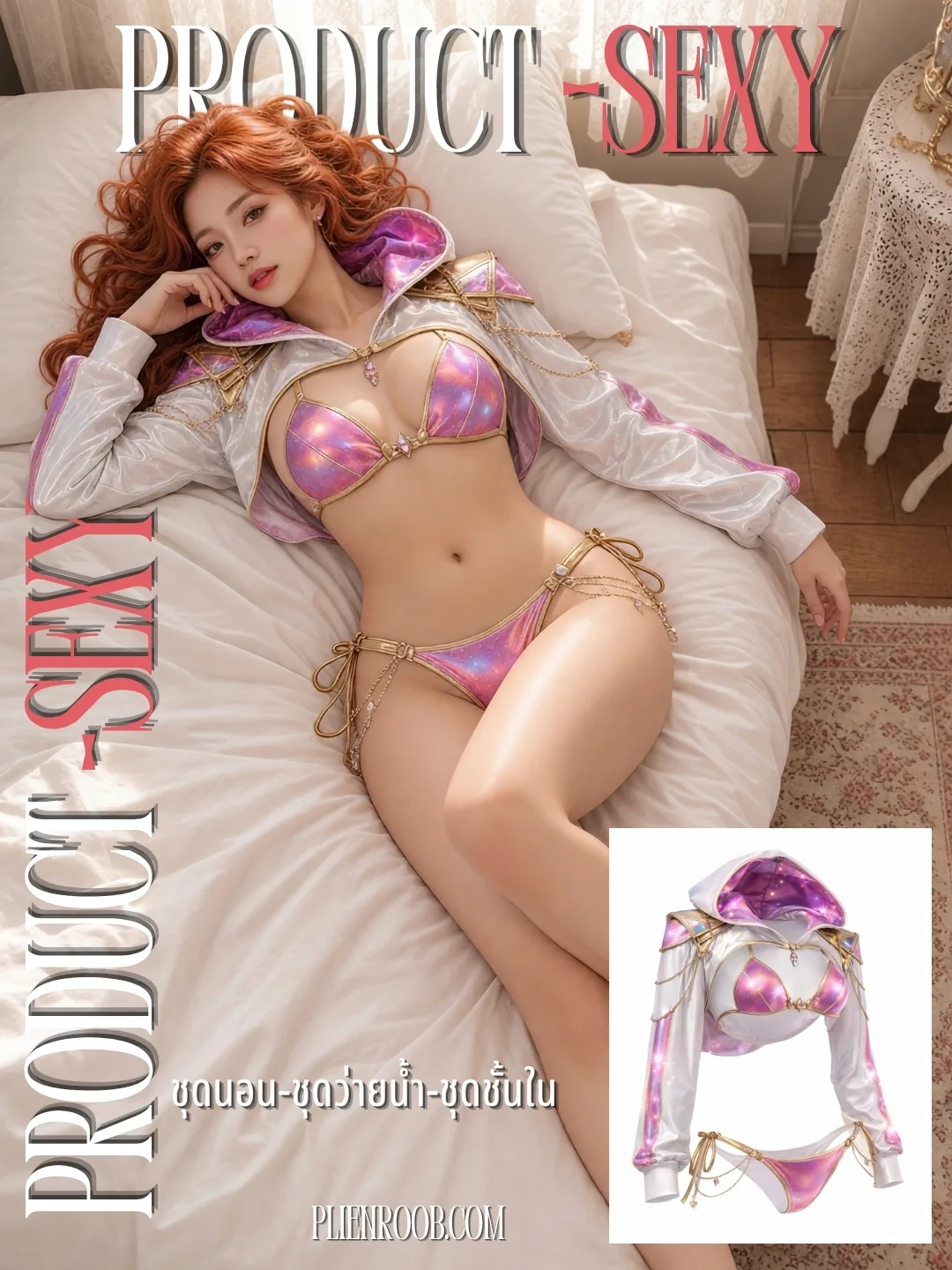
What you get from tapping alone
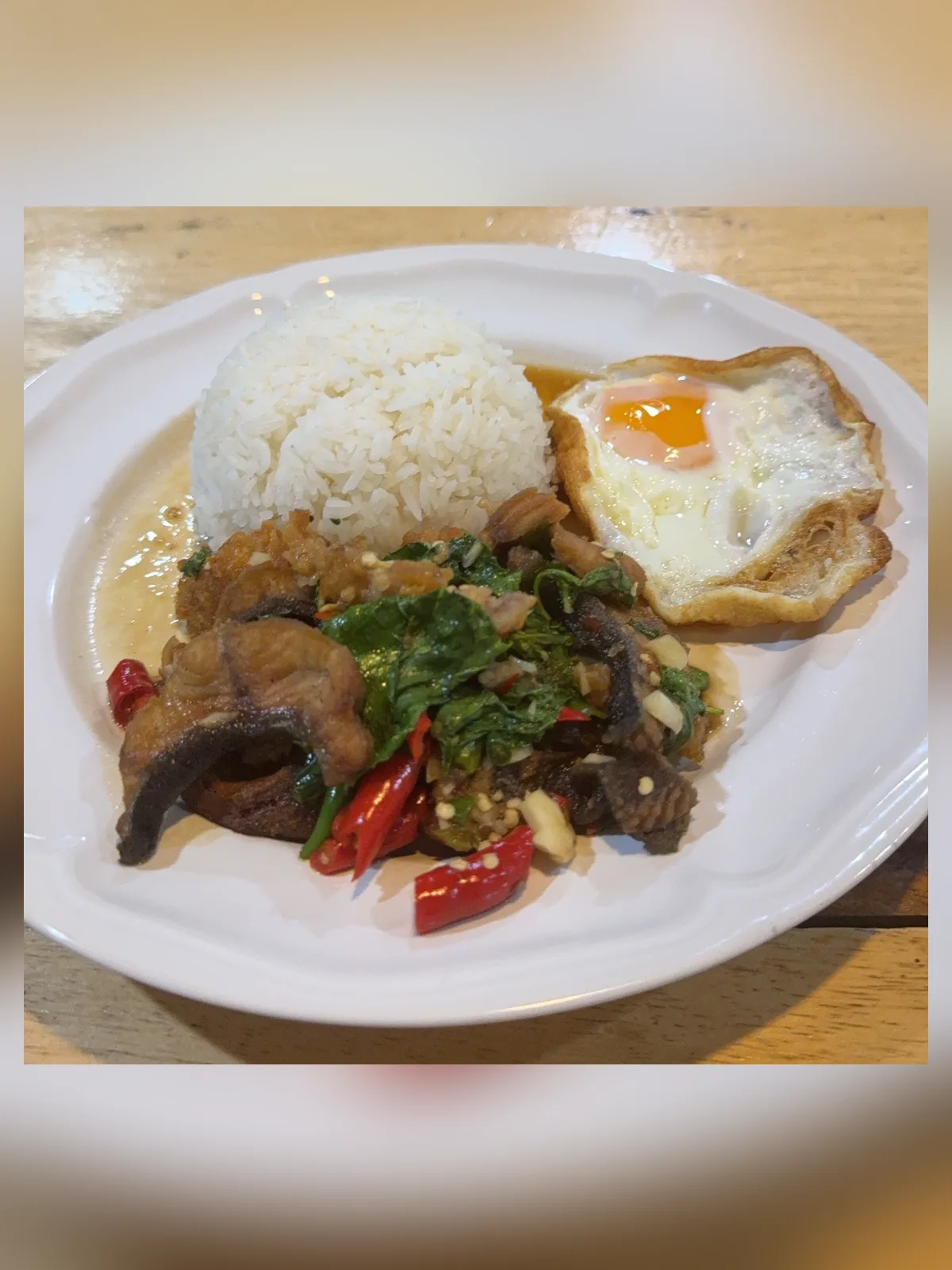

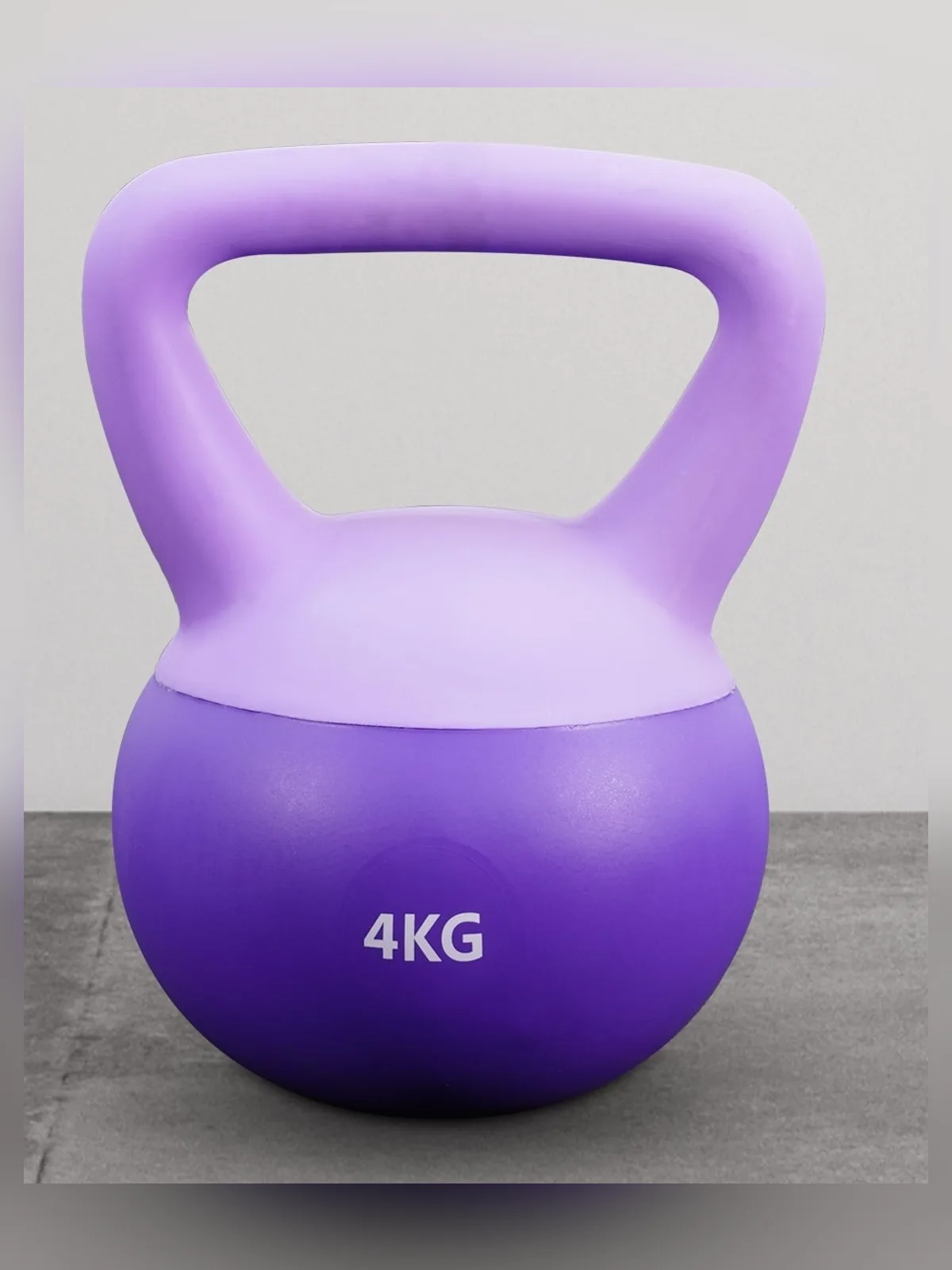

The credit cost is on screen before every press
The generate button carries the credit count, so you always see the total before you press. Only a few choices move that number:
Standard 2K: 3 credits per image
Premium 4K: 5 credits per image
A model from the library adds 1 credit at 2K; Premium adds nothing
Picking a scene from the library yourself adds 1 credit
A 6-image set at 2K costs 18 credits
If a job fails, the credits come back automatically
What you get back
A photo of a model with your product, at 2K or 4K
Poses, sizing and settings that suit the category, without you working them out
A product the system instructs the AI to keep in the shape, colours and lettering of your photo
AI output is probabilistic: the same product photo run twice will not come back identical. If the first result misses, run it again or change the source photo before concluding it does not work.
Frequently asked questions
Do I have to type instructions to make a photo of a model holding my product with AI?
Not in Product Showcase — there is no box to type instructions into at all. You upload a product photo, tap a category, choose a size and generate. The system picks a pose that shows the product clearly and sends the category's written instructions to the AI itself.
I've never used AI. Will I be able to use it?
The tool is designed so that people who have never used AI can work it: every step is a button, with nothing to type.
How do I know how many credits I'll spend?
The generate button shows the credit count before every press. Standard 2K is 3 credits per image and Premium 4K is 5. A model from the library adds 1 credit at 2K, picking a scene from the library yourself adds 1 credit, and if a job fails the credits come back automatically.
If I sign up now, can I use this tool straight away?
Yes. Sign up free for 10 credits, given once, with no card needed — enough for 3 Product Showcase images at 2K. Your first free-plan image has no watermark; the images after it do.
Plien Roob
Ready for your first product photo?
Sign up free for 10 credits, given once, with no card needed — enough for 3 Product Showcase images at 2K. Your first free-plan image has no watermark; the images after it do.