AI Tools
AI models holding your product: non-clothing items, and why you pick a category first
Last updated 2026-09-16From Plien Roob — AI model photography for online stores
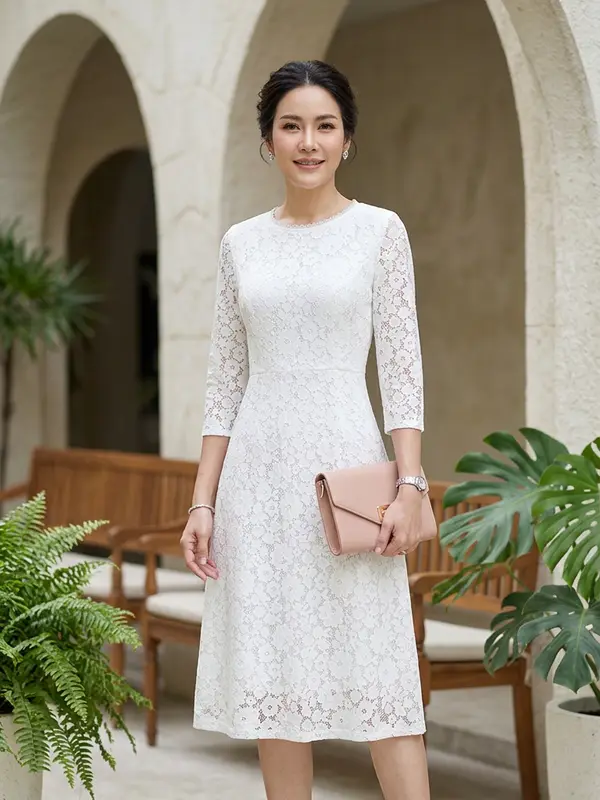

Shops selling skincare, food or sports gear want photos of a person with their product just as much as clothing shops do. Product Showcase makes that kind of photo from a single product shot: upload it, pick a category, press generate. There is no box to type instructions into.
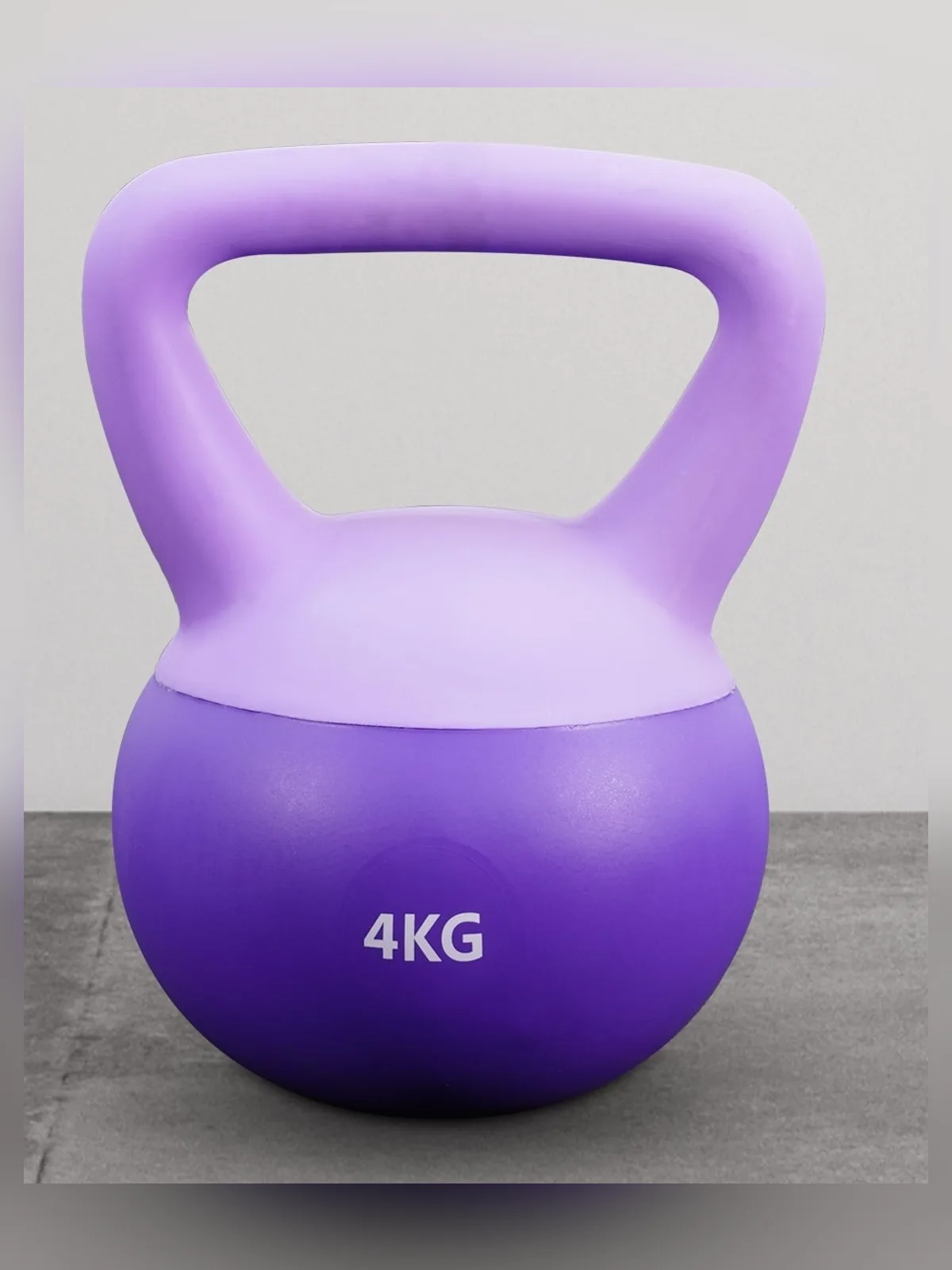
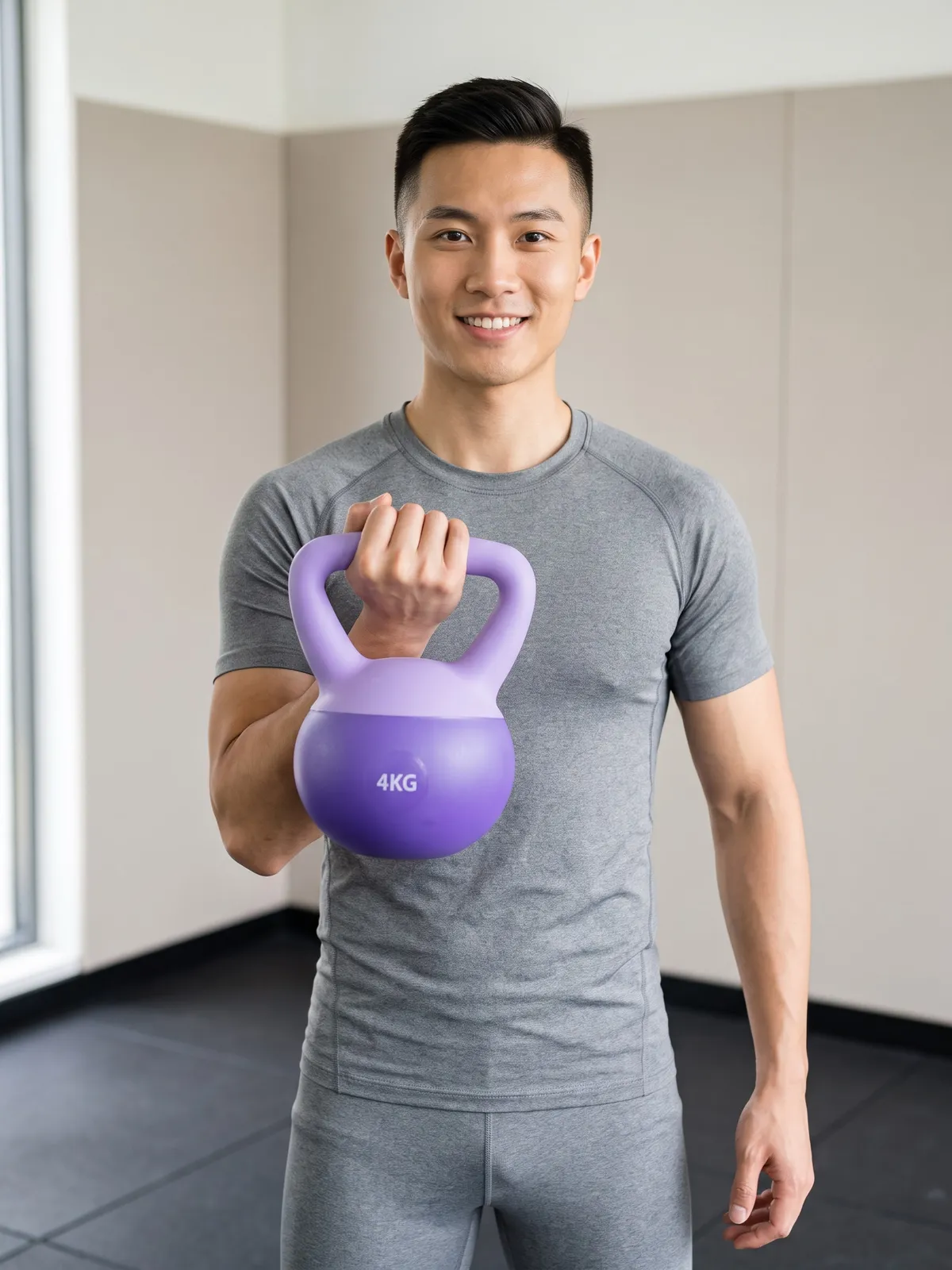
Why you pick a product category first
Different products are held, placed and used in different ways, and Plien Roob treats each of them as its own category. A tiny perfume bottle is pinched between the fingertips. A plate of food is supported from underneath or set down on a table. A car is parked on the ground, with the person standing or sitting beside it. So every category comes with its own poses, sizes and settings already written. Tap the category and the system knows how that product should be photographed.
That is also why these items should not go through Product to Model. That tool's instructions are written for products a model wears, so something that isn't meant to be worn, such as a perfume bottle, can end up drawn as if it were jewellery.
15 categories in 4 groups
Beauty · perfume, serum, cream tube, cream jar, lipstick
Food & home · plated food, drinking cup, water bottle, books and notebooks
Sport · dumbbells and kettlebells, yoga mat, fishing rod
Vehicles · car, motorcycle, bicycle
Dumbbells and kettlebells share one button, and so do books and notebooks. Most categories have size buttons — for example 7.5–10, 30, 50 or 100 ml for perfume, and a 6, 8, 10 or 12 inch plate for plated food. The size is described to the AI against the model's hand or body, with an instruction never to enlarge the product beyond its real size. Cars and motorcycles have no size button; the system uses the real size of the vehicle in your photo.
What you tap
Upload a product photo, or pick one you uploaded before
Tap the product category
Choose a size, if the category has size buttons
For beauty products, drinking cups and water bottles, choose Product only or With its box — With its box needs the box in the photo you upload
Pick a model from the library, or skip it
Check the credit count on the button, then generate
You never choose a pose: the system picks one that shows the product clearly, and if you picked a model, it only picks poses that show the face. You don't have to choose a scene either — the system uses settings that suit the category, or you can pick a scene from the library yourself. Nowhere along the way is there a box to type into.
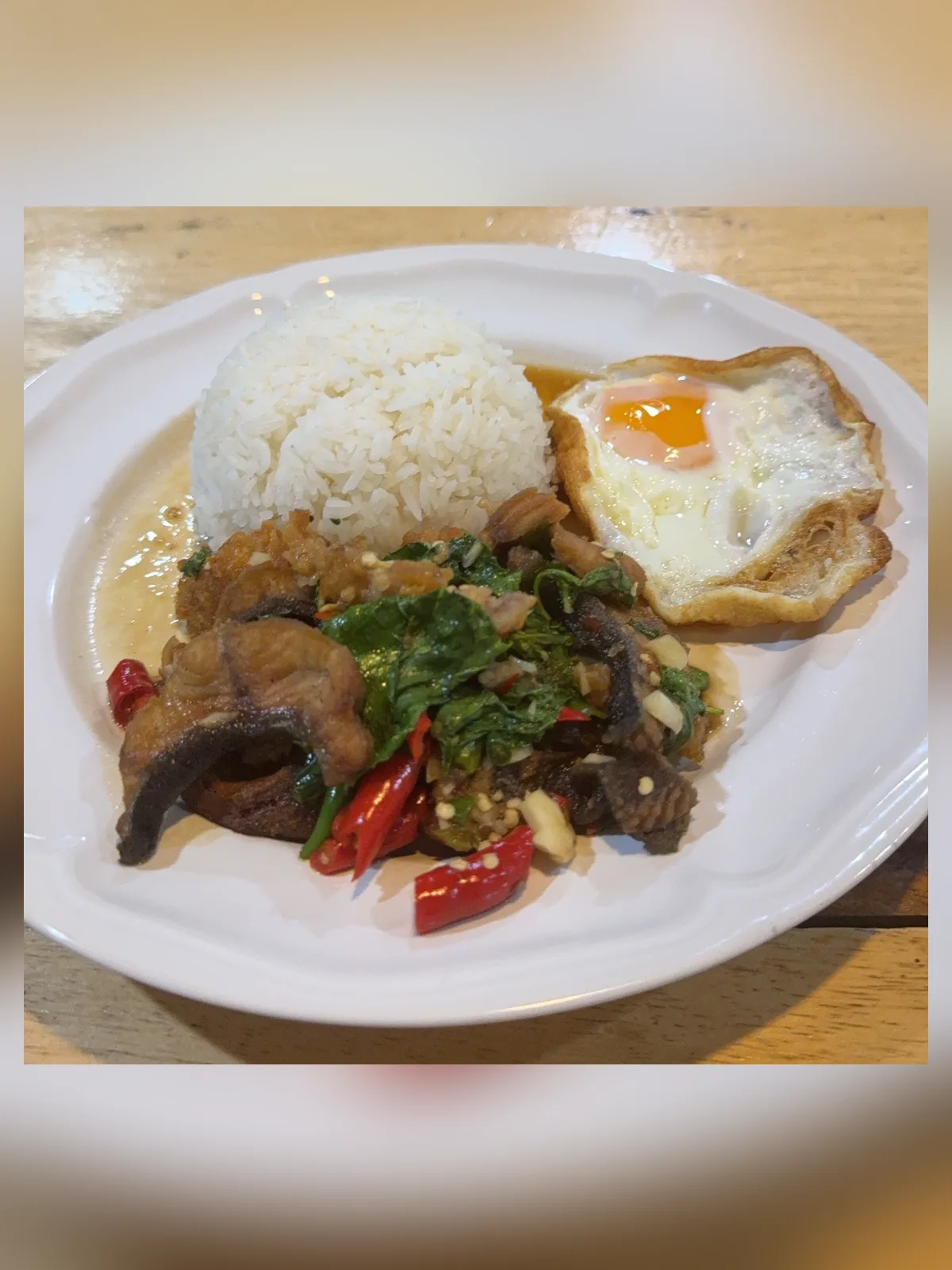

Beyond holding a product: what else an AI model can do
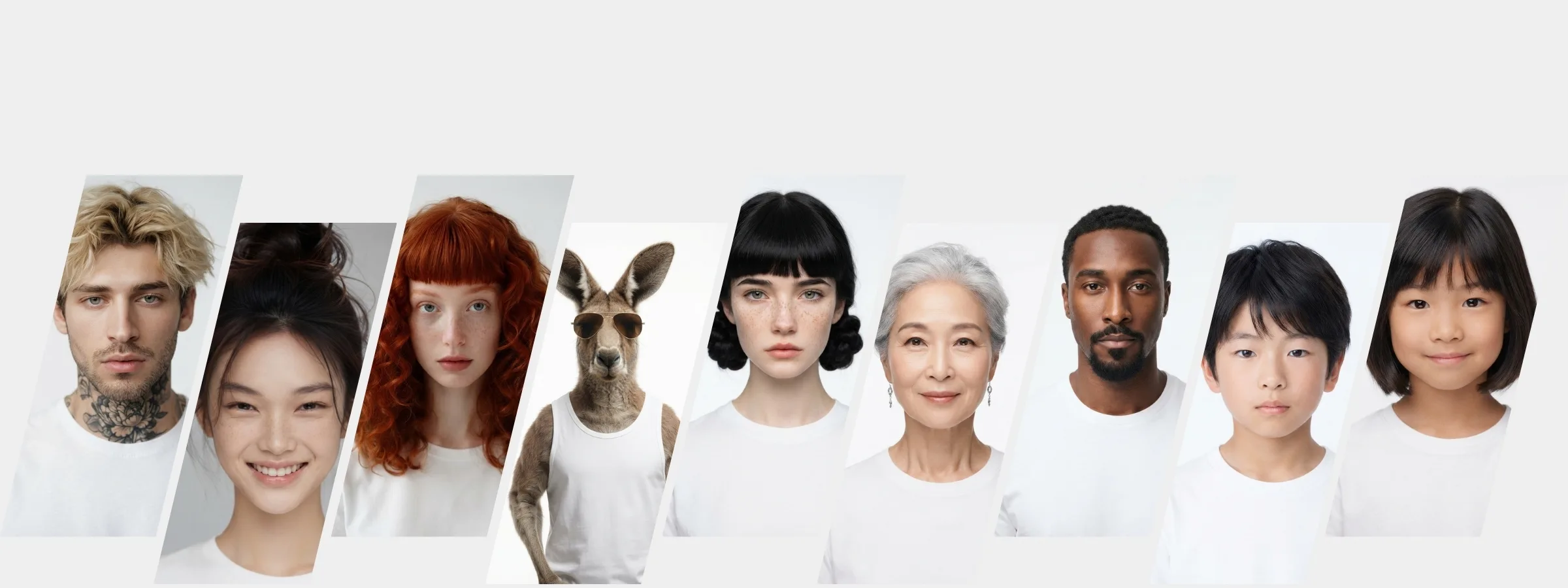
What you can do with an AI model on this site. Each card is that tool's cover image; tap it to read how the tool works.
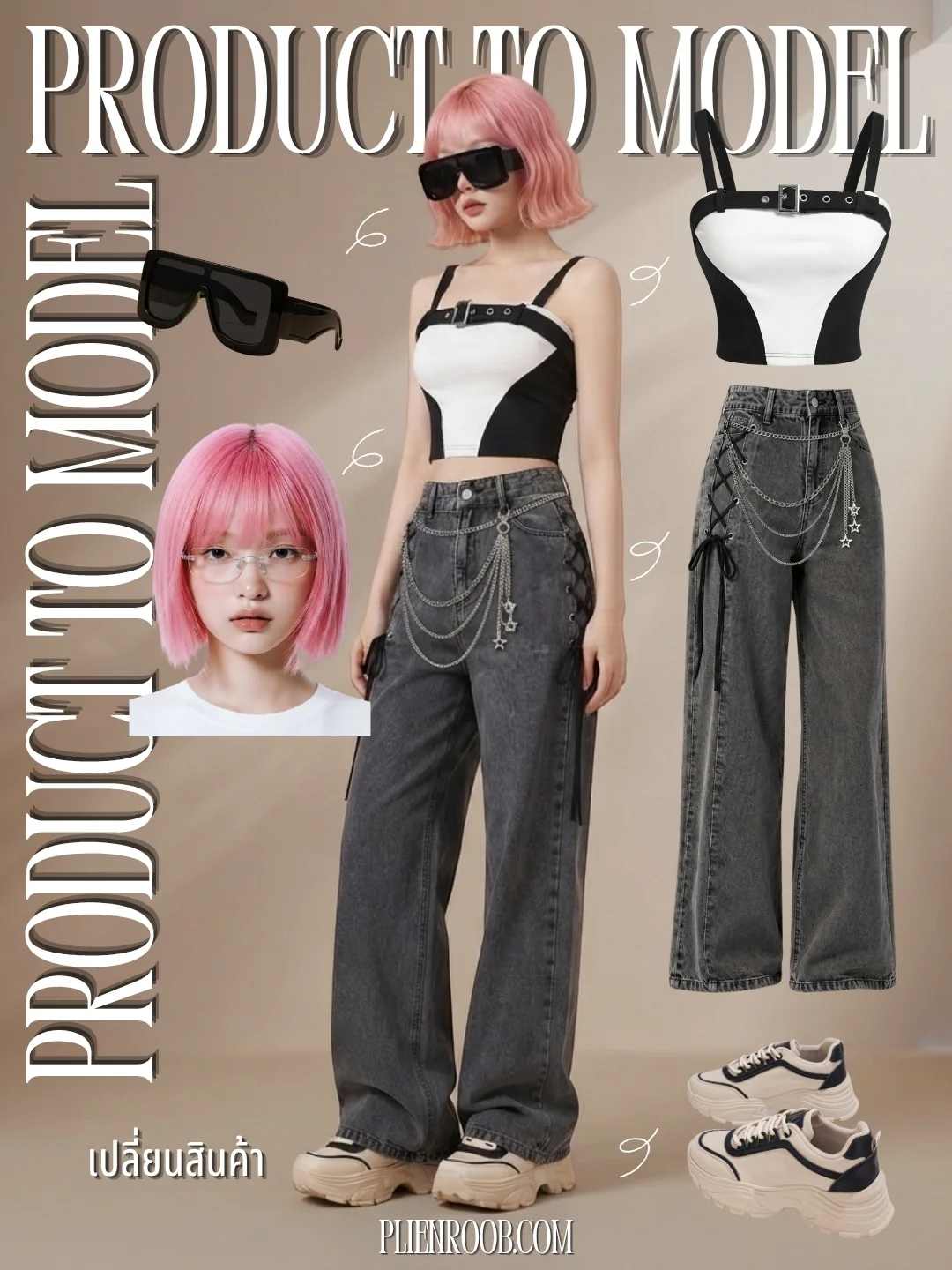
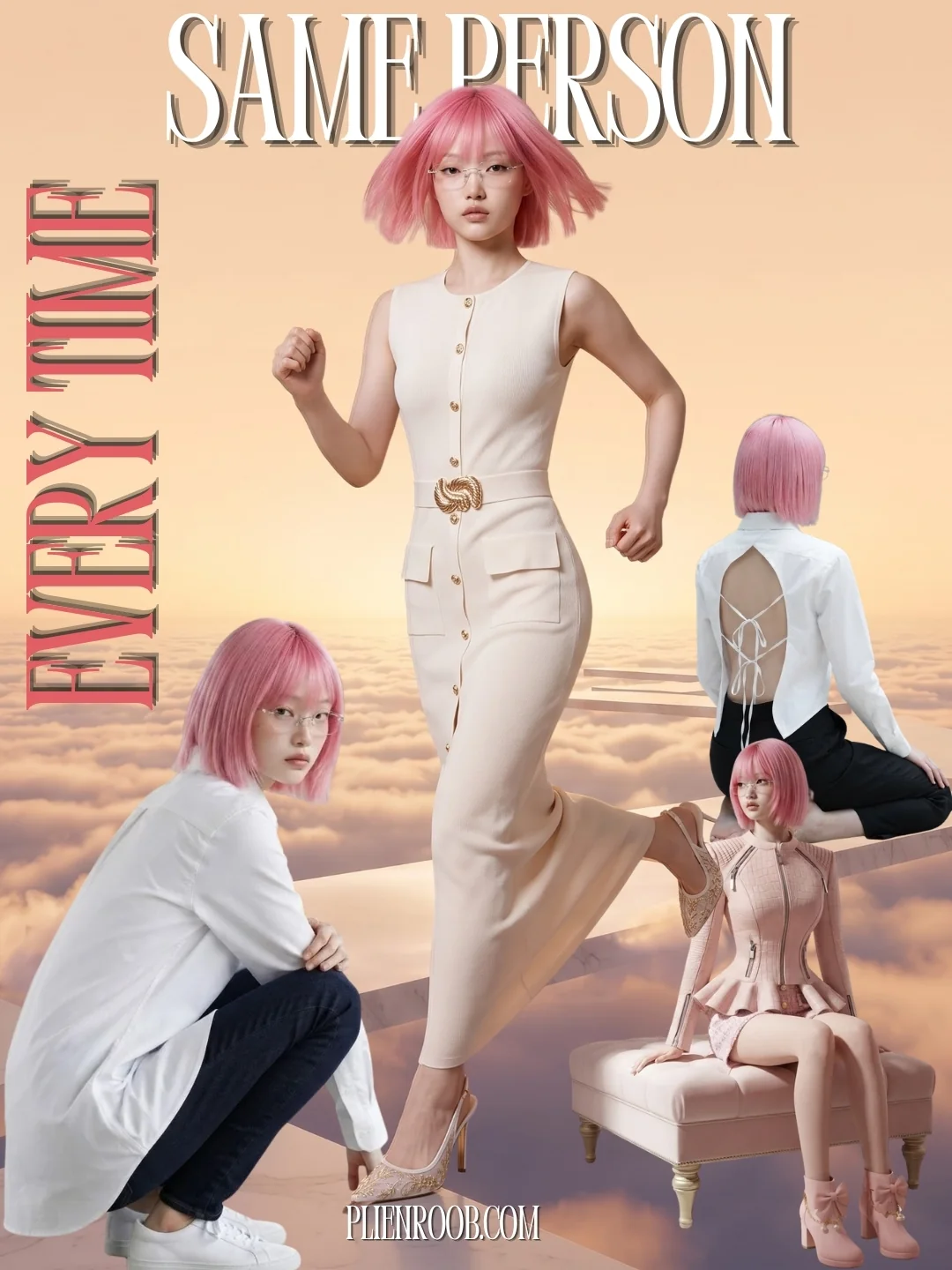
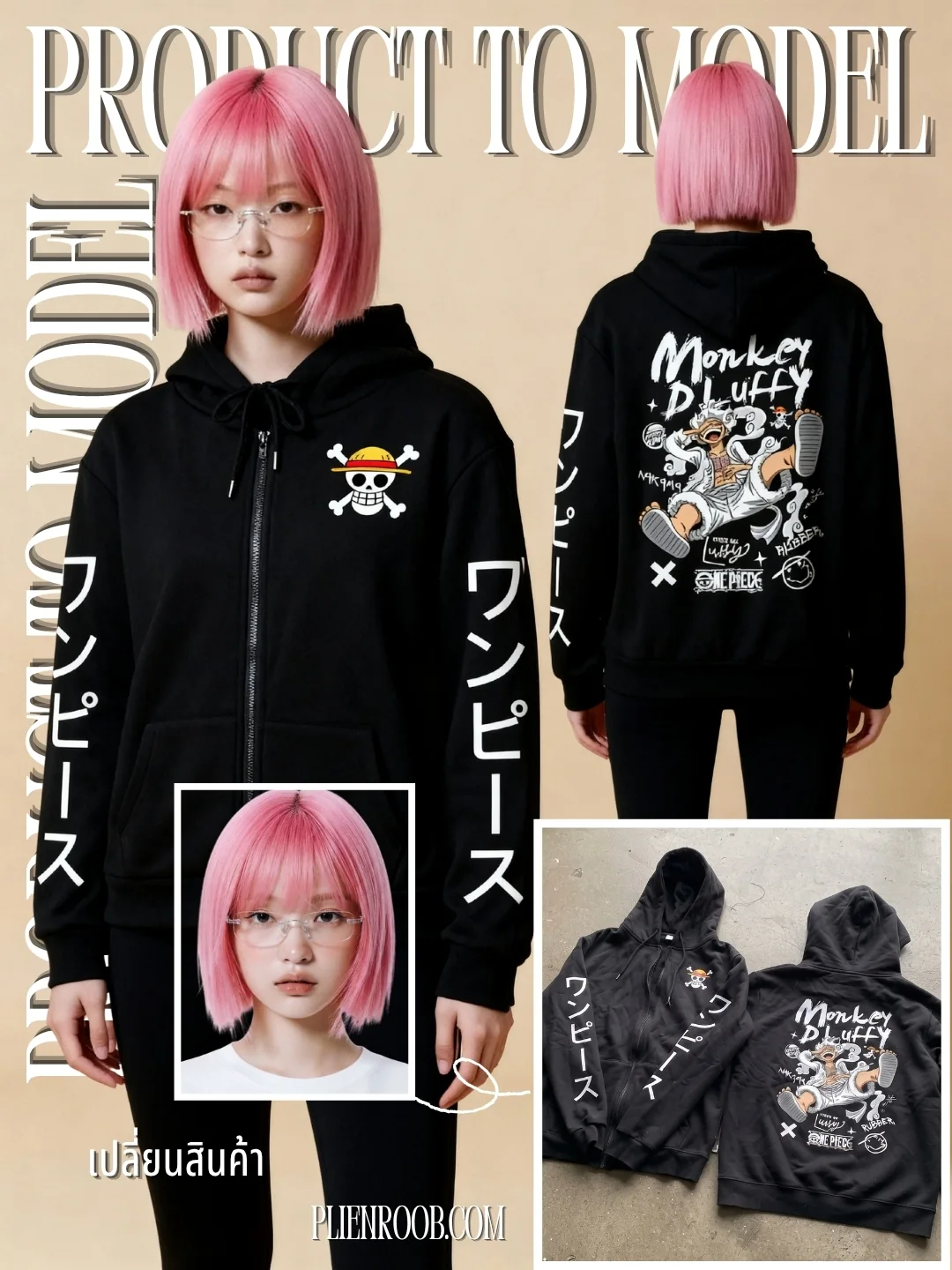
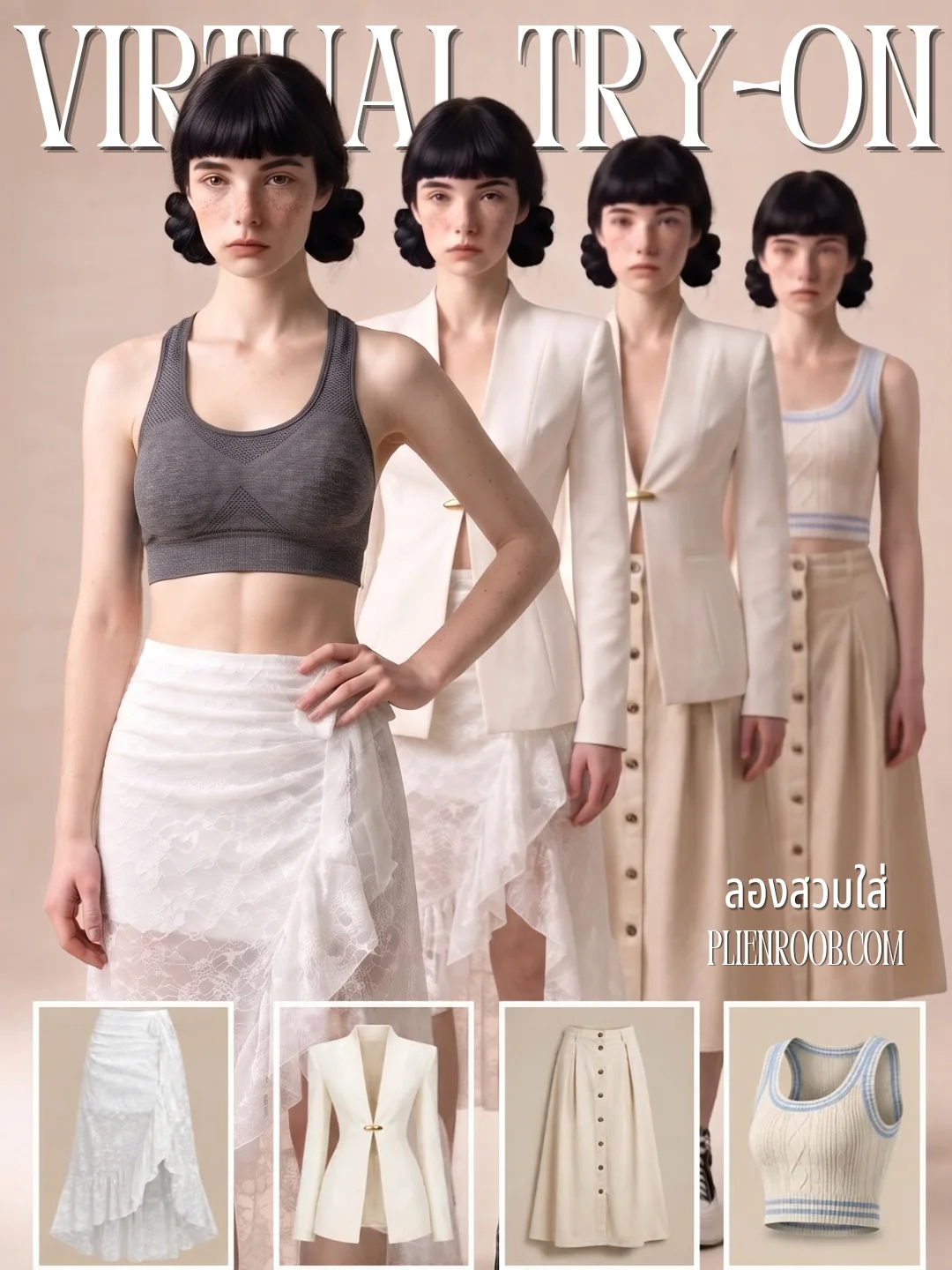
What you get back
A photo of a person holding, placing or using your product, in a setting that suits it
A product the system instructs the AI to keep in the shape, colours and lettering of your photo, with no logo or lettering added that your photo doesn't show
A 2K image, or 4K if you choose Premium
Vehicles come out in landscape 4:3 by default
AI output is probabilistic: the same product photo run twice will not come back identical. If the first result misses, run it again or change the source photo before concluding it does not work.
Before you sell with it, check these three things
Small print on the label, such as volume or ingredients, can come out wrong — especially when the uploaded photo isn't sharp. Upload a sharp photo that shows the whole label, then zoom in and check every character.
The product's colour and shape must match the real thing. If an image drifts, don't list it.
The uploaded photo must match the category you picked. If it doesn't, the AI draws a product of its own, and the credits are already spent.
Credits
Standard 2K: 3 credits per image
Premium 4K: 5 credits per image — a larger image, but it does not make the lettering on the product more accurate
A model from the library adds 1 credit at 2K; Premium already includes it
Picking a scene from the library yourself adds 1 credit
If a job fails, the credits come back automatically
Frequently asked questions
Can I use AI models holding my product right now?
Yes. Sign up free for 10 credits, given once, with no card needed — enough for 3 Product Showcase images at 2K. Your first free-plan image has no watermark; the images after it do.
Do I have to write instructions for the AI?
No. Product Showcase has no box to type instructions into. You upload a product photo, tap a category, choose a size and generate. The poses, the size description, the lighting and the rules against changing how the product looks are already written into each category.
I sell perfume. Can I use Product to Model in the meantime?
We don't recommend it. Product to Model's instructions are written for products a model wears, so a perfume bottle can end up drawn as if it were jewellery. Product to Model is meant for clothing, shoes, bags, glasses, hats and jewellery.
How many credits does a photo of a model holding a product cost?
Standard 2K is 3 credits per image and Premium 4K is 5. A model from the library adds 1 credit at 2K and nothing on Premium, and picking a scene from the library yourself adds 1 credit. The total is shown on the button before you generate, and if a job fails the credits come back automatically.
Plien Roob
Ready for your first product photo?
Sign up free for 10 credits, given once, with no card needed — enough for 3 Product Showcase images at 2K. Your first free-plan image has no watermark; the images after it do.