AI Tools
One product photo, many model shots: the 6-image set mode
Last updated 2026-09-16From Plien Roob — AI model photography for online stores
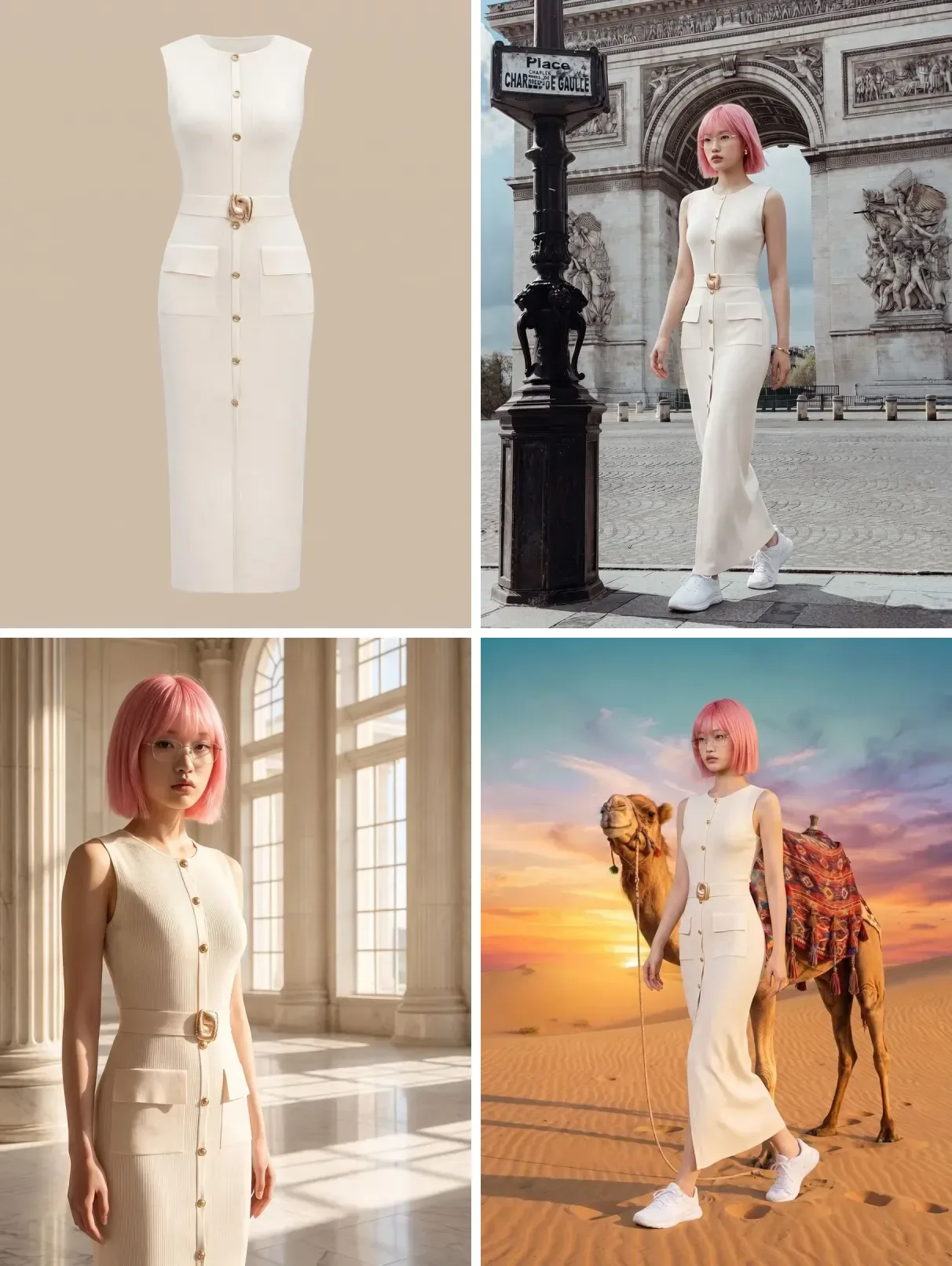

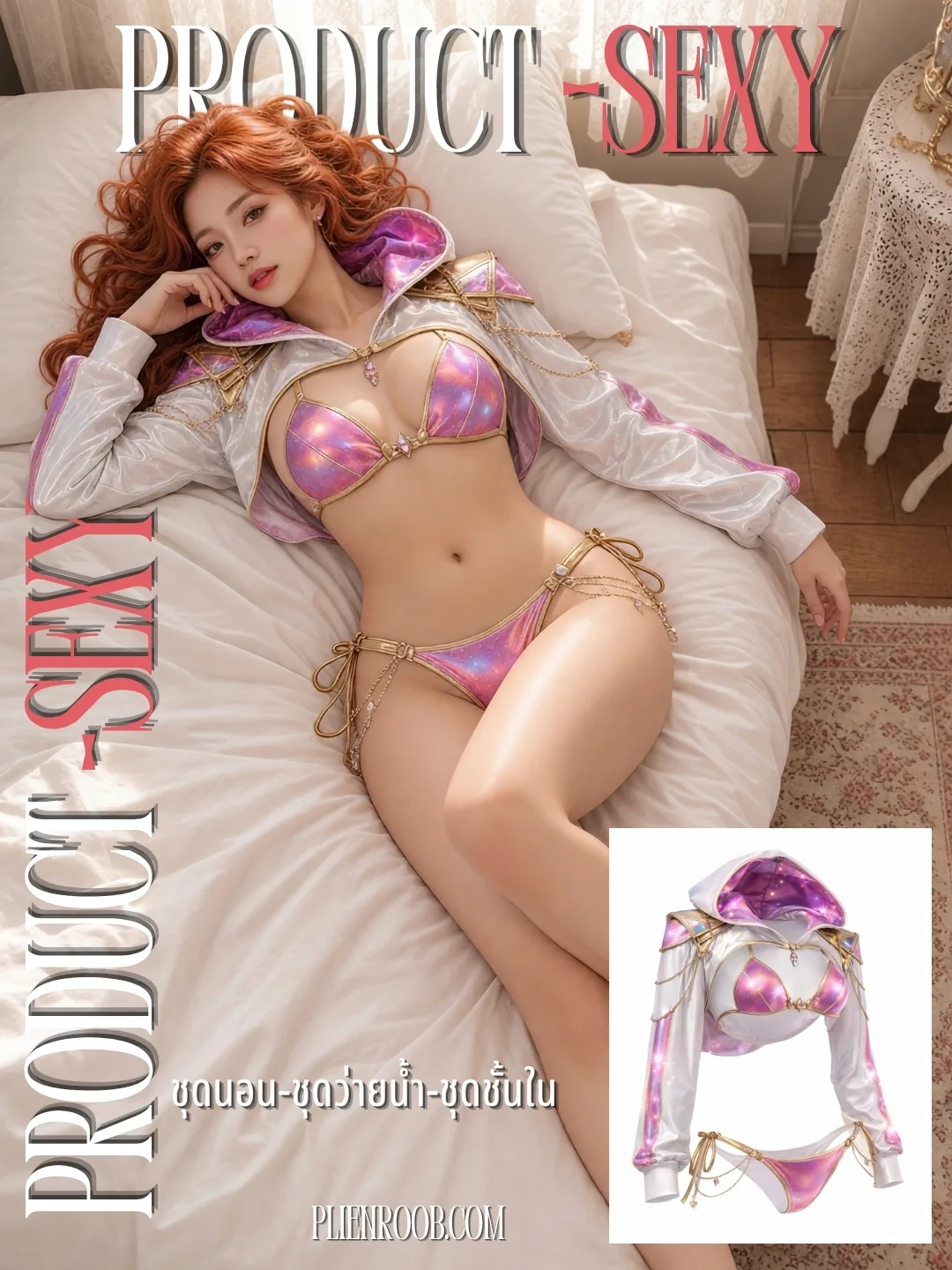
One product usually needs several photos: a main shot, a close-up, one in use. Shooting them yourself means re-arranging the person, the setting and the light every time. Plien Roob's Product Showcase can make several images from one product photo in two ways: generate them one at a time, or use the set mode to get six from a single press. The image at the top of this page is an example of the same set mode used on clothing: one dress photo, one press, seven images. Products that aren't clothing get six per set.

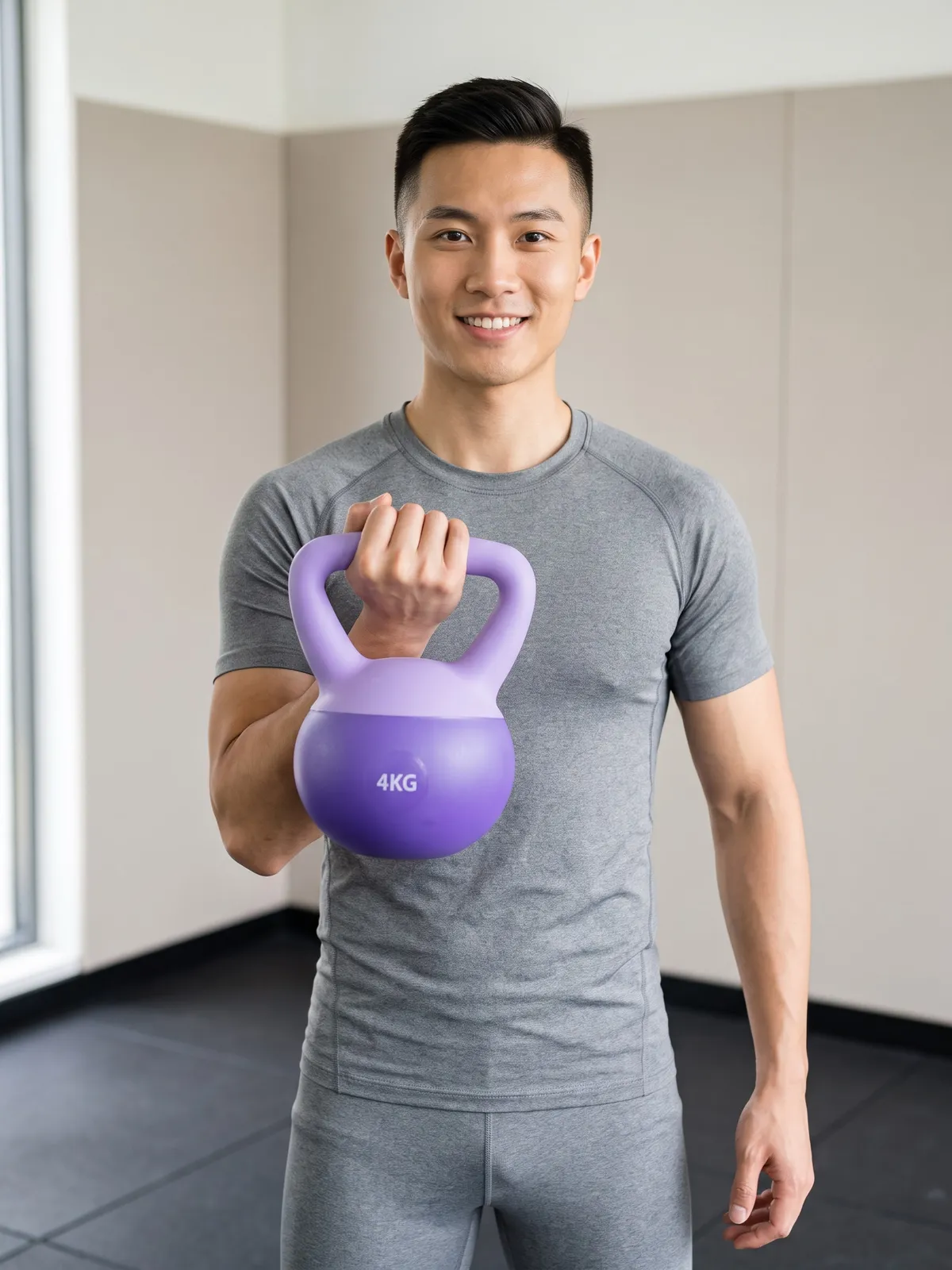
What you get back
Six images from one product photo, in a single press
Nothing to type for the whole set — the poses and settings are arranged from the category you tap
No repeated poses, spread across framings — close-up, half body, full body or a hand filling the frame, depending on what the category has
No repeated settings — one per image, chosen from those that suit the category. Every setting is generated by AI, not a real place
No model needed — without one, the system gives every image a different face
Pick a model from the library and the system uses that person's photo for every image in the set, and skips poses that show only a hand
How to run it
Open the Image set tab in the studio
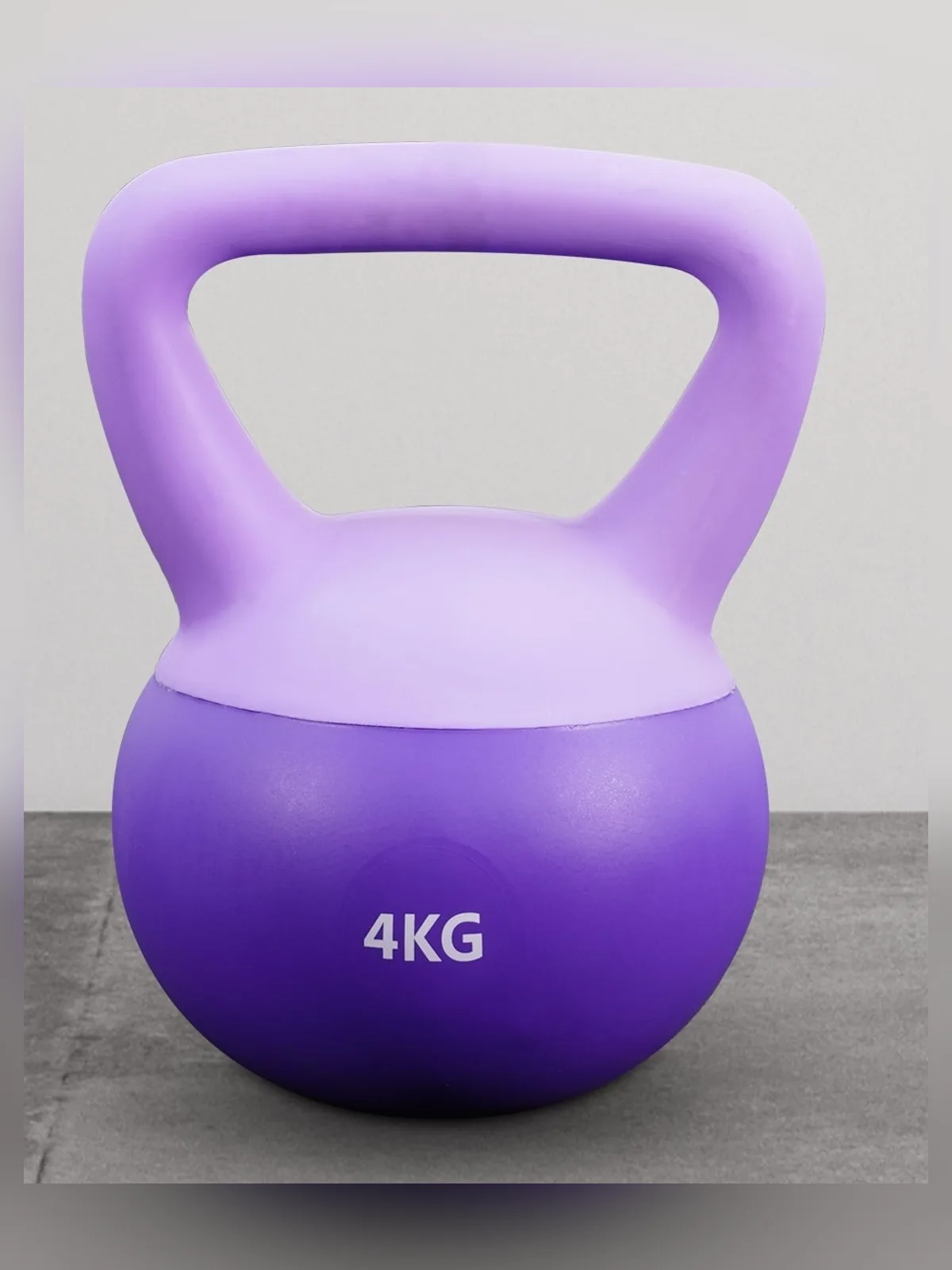
Choose the product photo — one item per photo, cropped so the product fills the frame
Tap a product category. Without one, the system makes the standard clothing set instead
Choose a size, and With its box if the category has it
Pick a model from the library, or skip it
Choose the quality tier, check the credits on the button, then generate the set
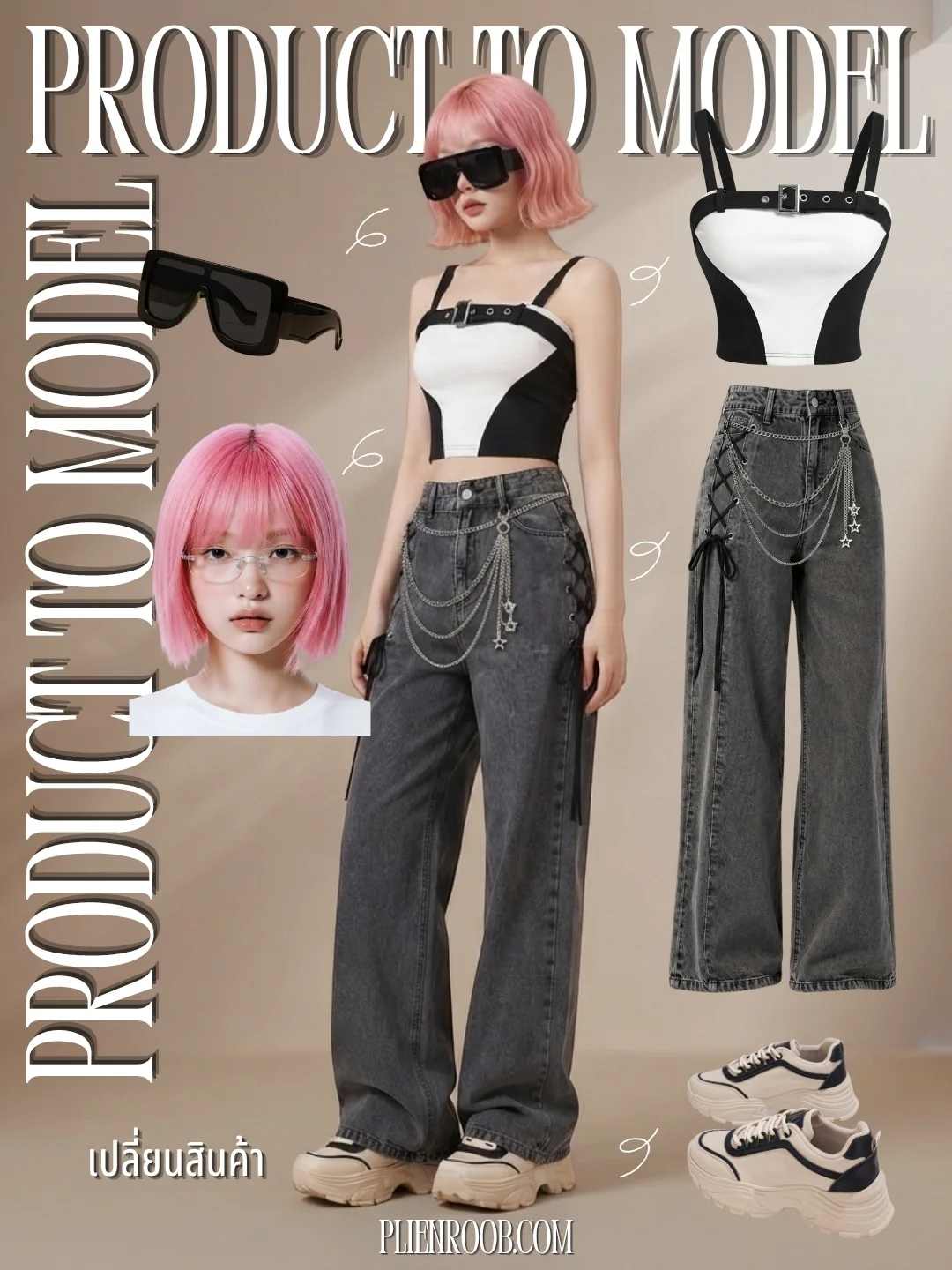
Beyond image sets: what else you can make
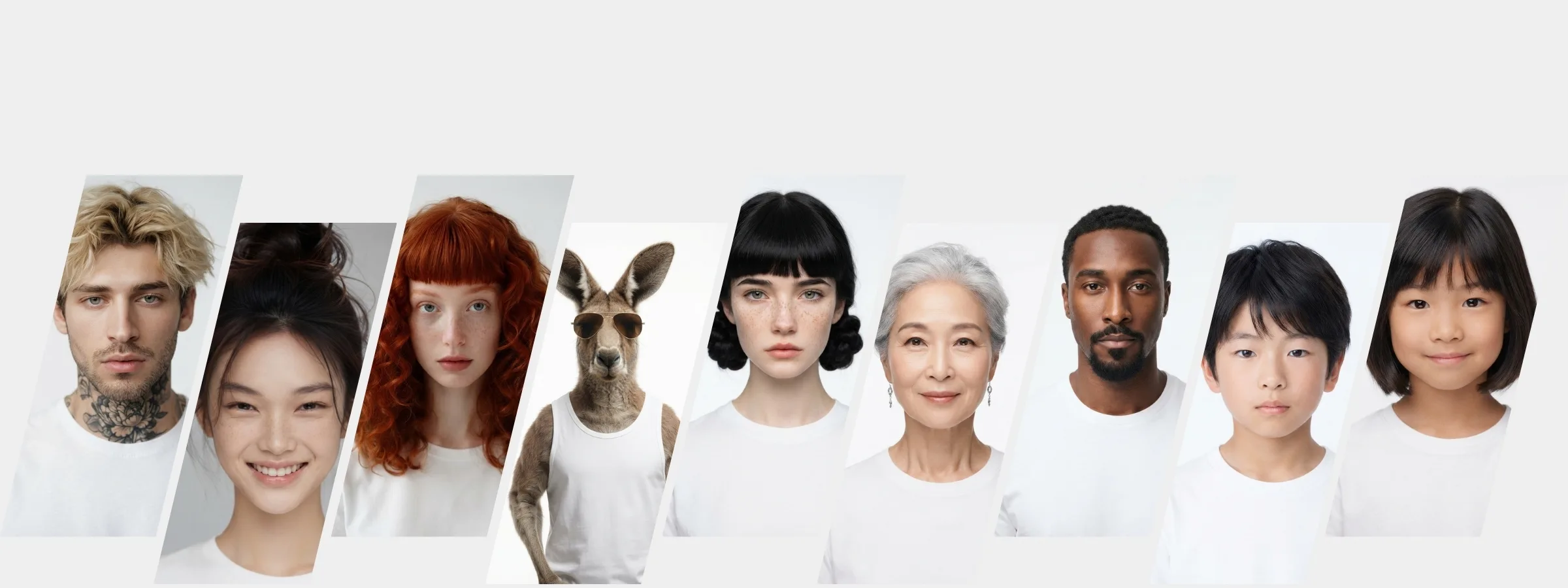
What you can do with an AI model on this site. Each card is that tool's cover image; tap it to read how the tool works.
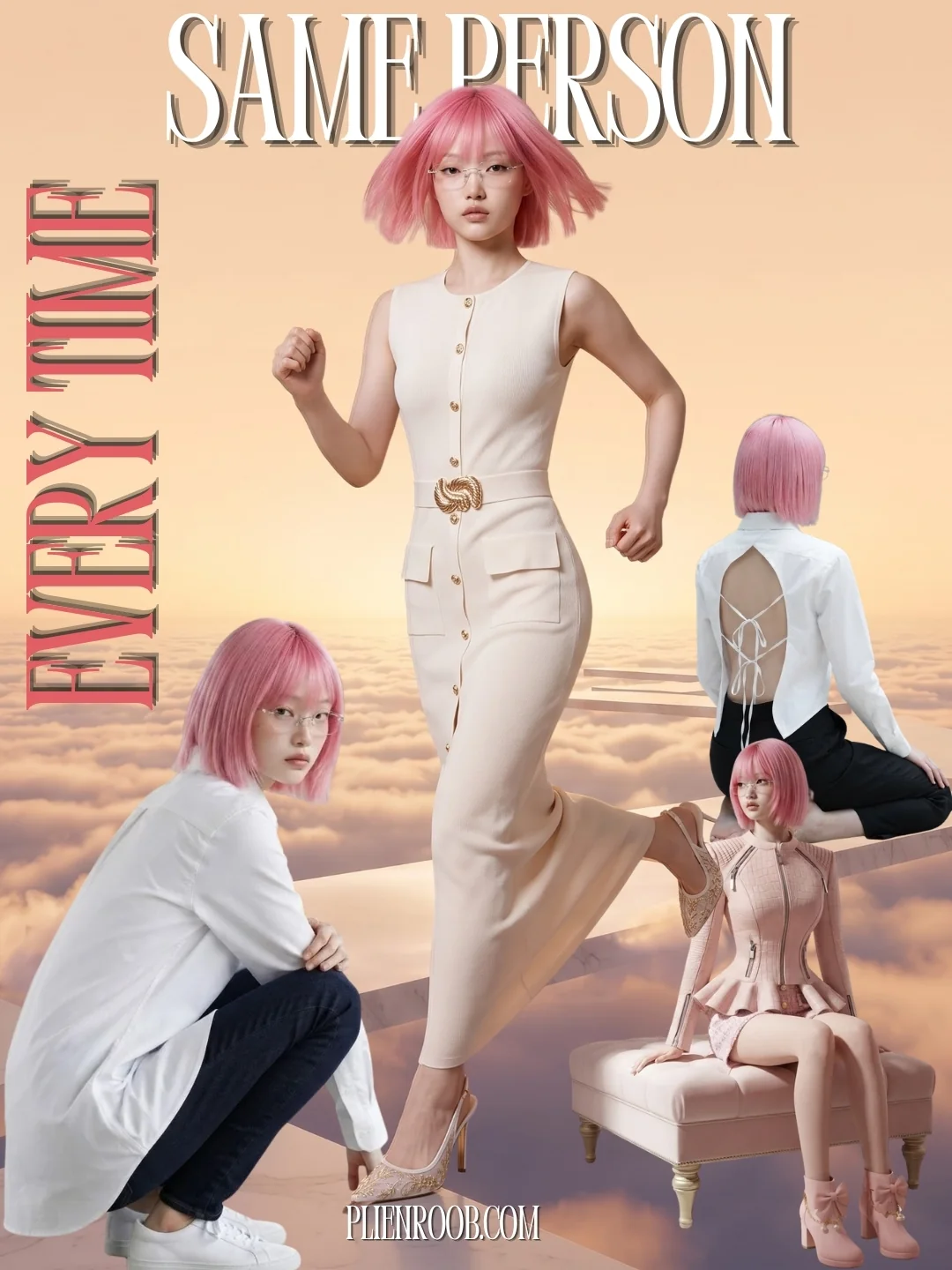
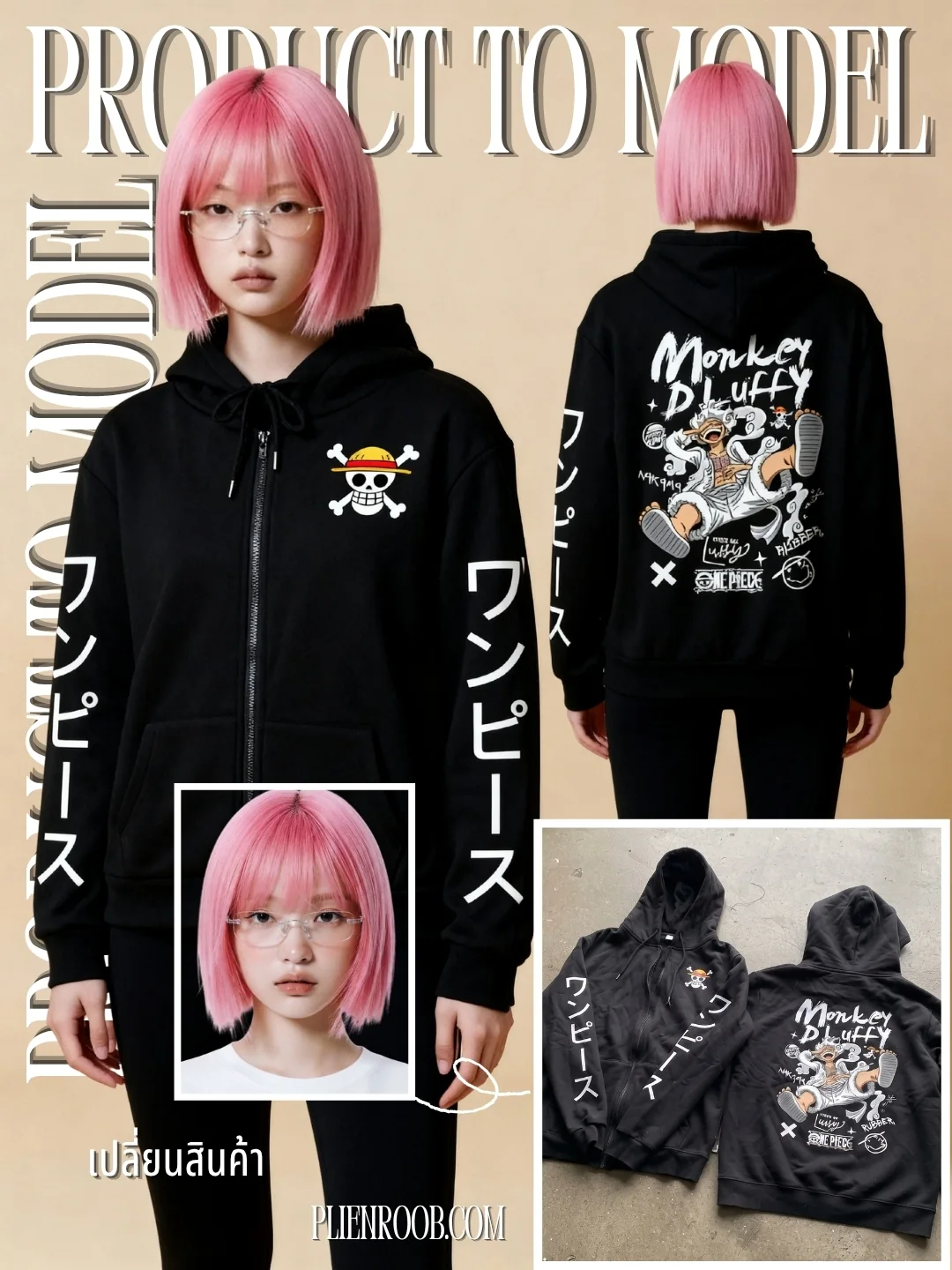
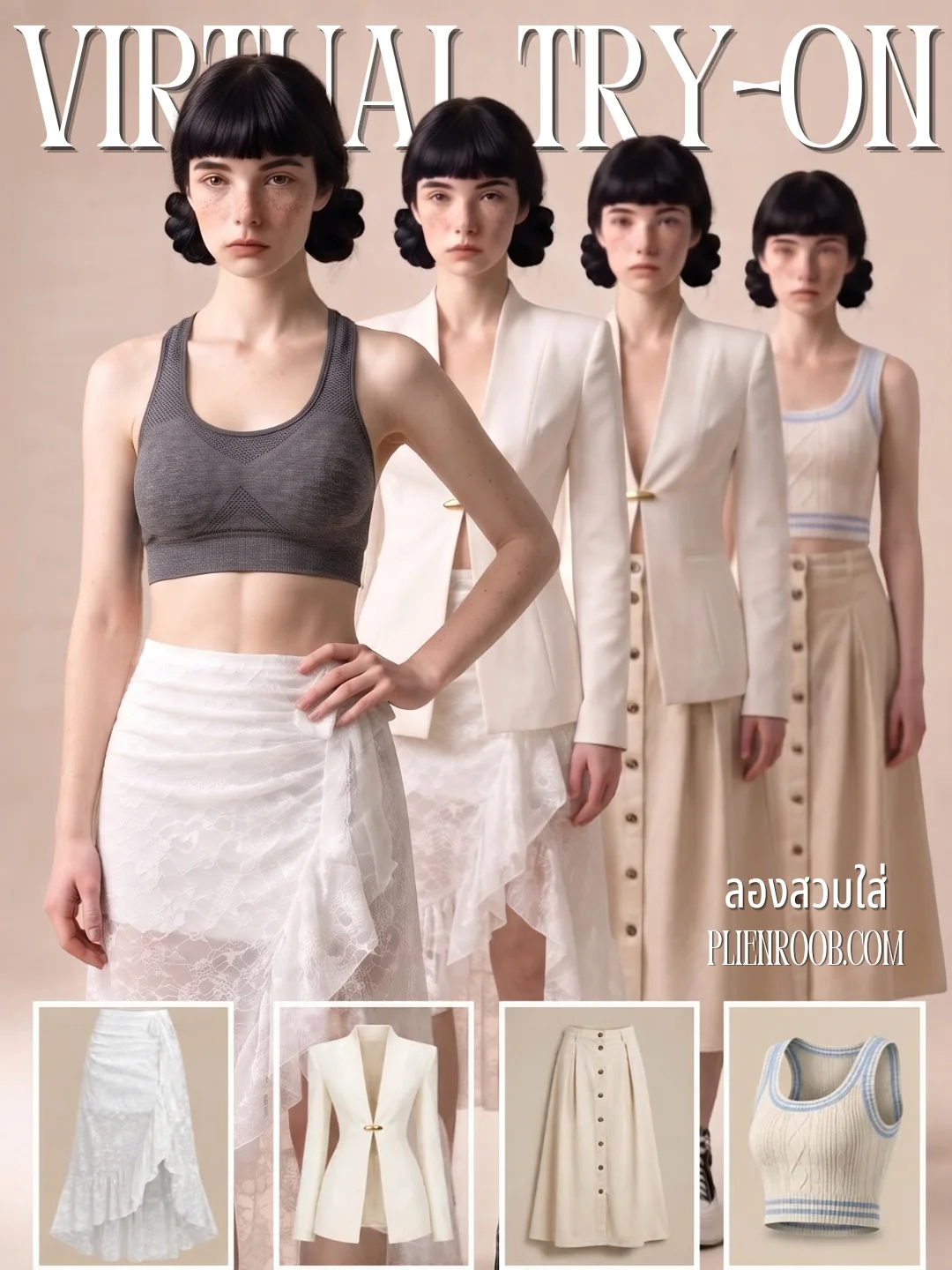
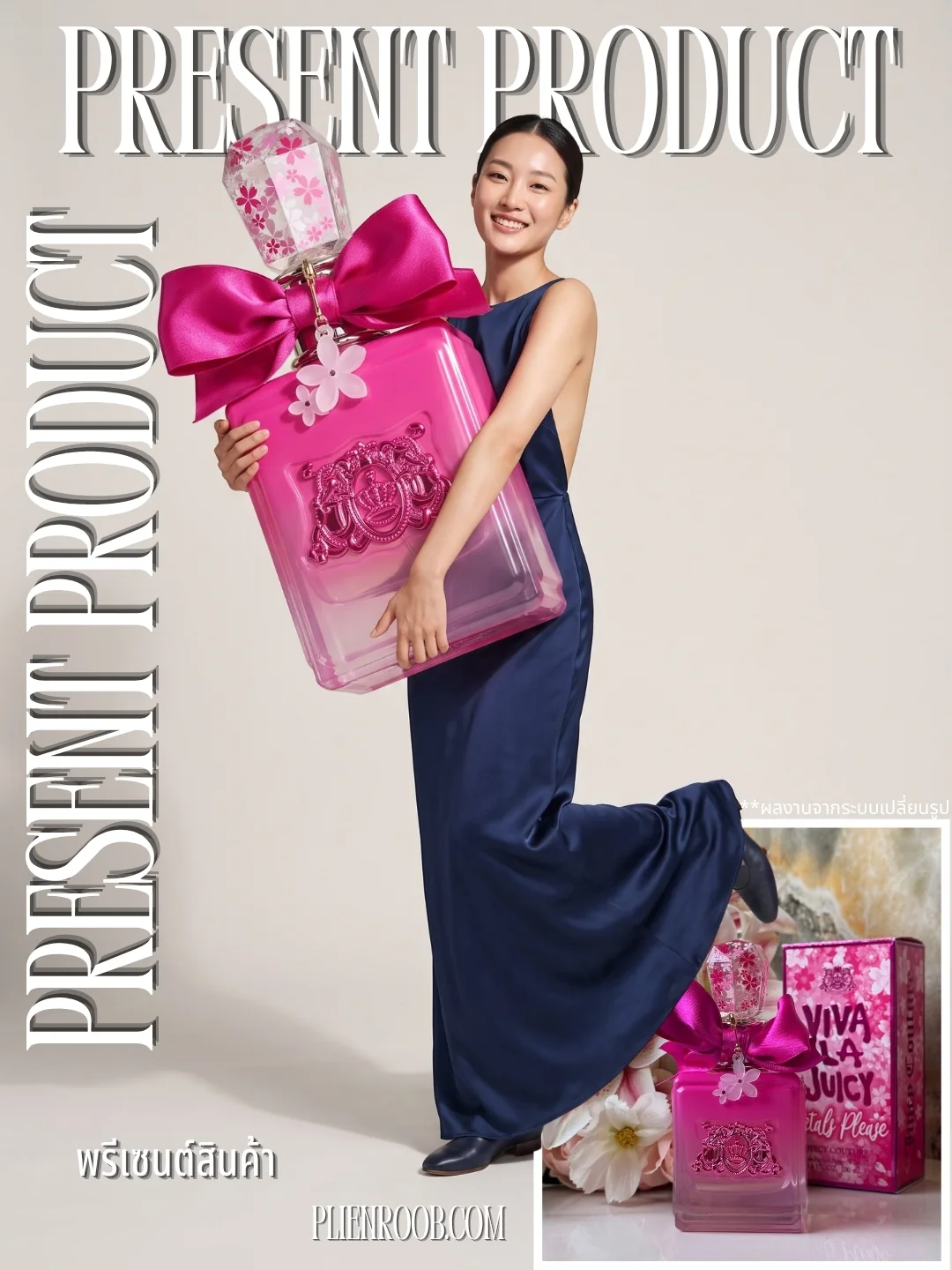
Credits
A 6-image set at 2K: 18 credits
At Premium 4K: 30 credits
A model from the library adds 1 credit per set at 2K; Premium adds nothing
Settings in a set carry no scene charge
If any image fails, the credits for that image come back automatically
When to generate one image at a time instead
If you only need one image, or you want to pick a scene from the library yourself, generate one at a time — the set mode doesn't use the scene library. One more thing: with With its box turned on, fewer poses can hold or place the box than usual, so a set may repeat a pose.
AI output is probabilistic: within one set, some images may come out better than others. Before you list anything, check the product in every image — its colour, its shape and the lettering on it.
Frequently asked questions
Can I get model photos in several poses from one product?
Product Showcase does it two ways. Generate one image at a time and the system picks a pose different from the previous image, or use the set mode for six images in one press, each in a different setting and with no repeated pose — except with With its box turned on, where a pose may repeat.
Is every image in a set the same model?
It depends on whether you pick one. Without a model, the system gives every image a different face. With a model from the library, the system uses that person's photo for every image in the set and skips poses that show only a hand.
How many credits does a 6-image set cost?
18 credits at 2K and 30 at Premium 4K. A model from the library adds 1 credit per set at 2K, and settings in a set carry no scene charge. The button shows the total before you press, and any image that fails has its credits returned automatically.
Can I use the Product Showcase set mode now?
Yes. Open the Image set tab in the studio and tap a product category. A 6-image set costs 18 credits at 2K, more than the 10 free credits, so you need a plan first; the free credits cover 3 single images.
Plien Roob
Ready for your first product photo?
Sign up free for 10 credits, given once, with no card needed — enough for 3 Product Showcase images at 2K. Your first free-plan image has no watermark; the images after it do.