AI Tools
QR code to verify an AI product photo: scan to see the real item
Last updated 2026-10-16From Plien Roob — AI model photography for online stores
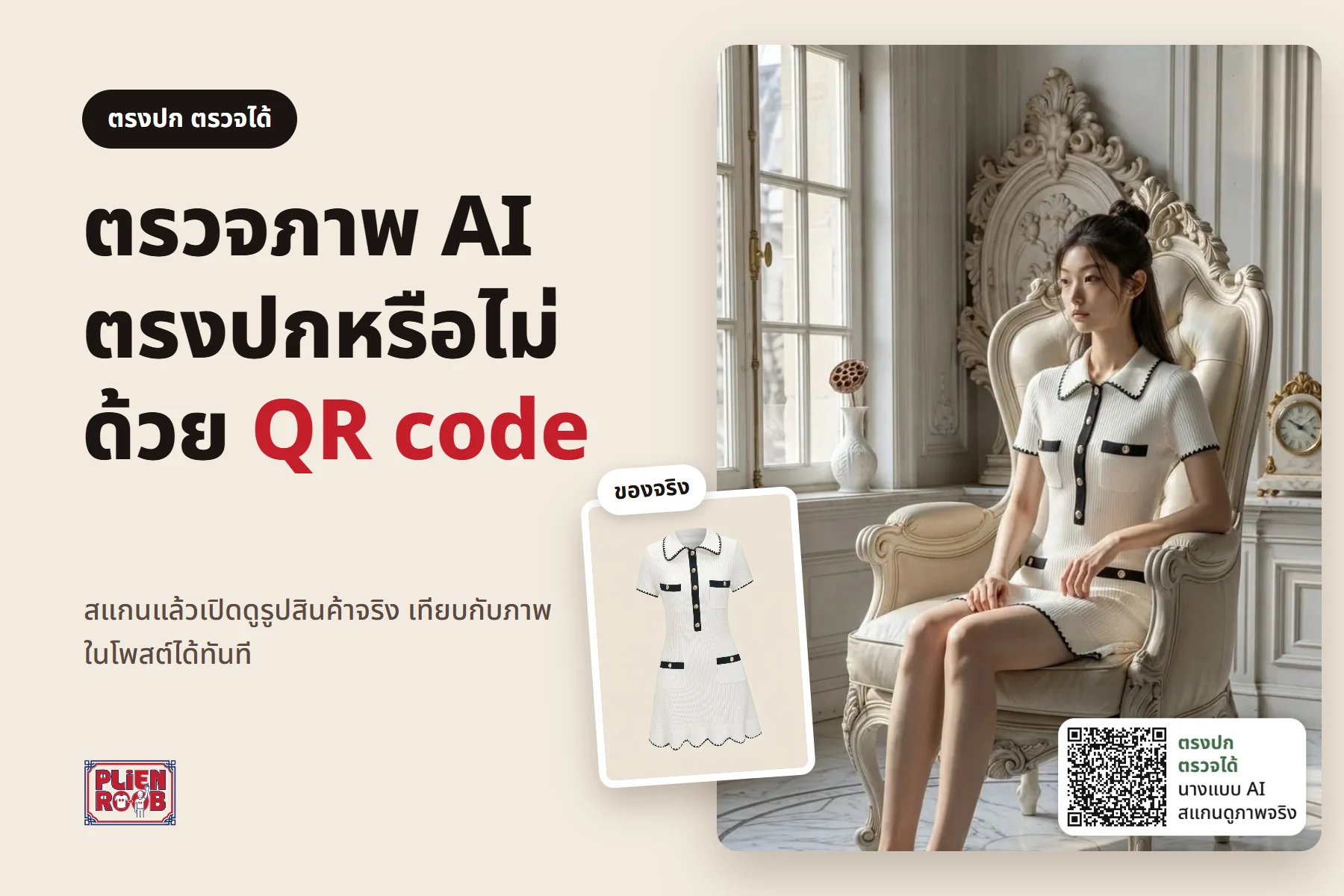

A buyer sees an AI model wearing a shirt in a post and wonders whether the real thing looks the same. A shop needs an answer. Plien Roob's answer is a check page: the shop opens it for any image, puts a QR code on the picture, and the buyer scans it to see the real product photos the shop uploaded next to the image in the post. This page explains what a scan shows, how a shop turns it on, and the limits to know first.
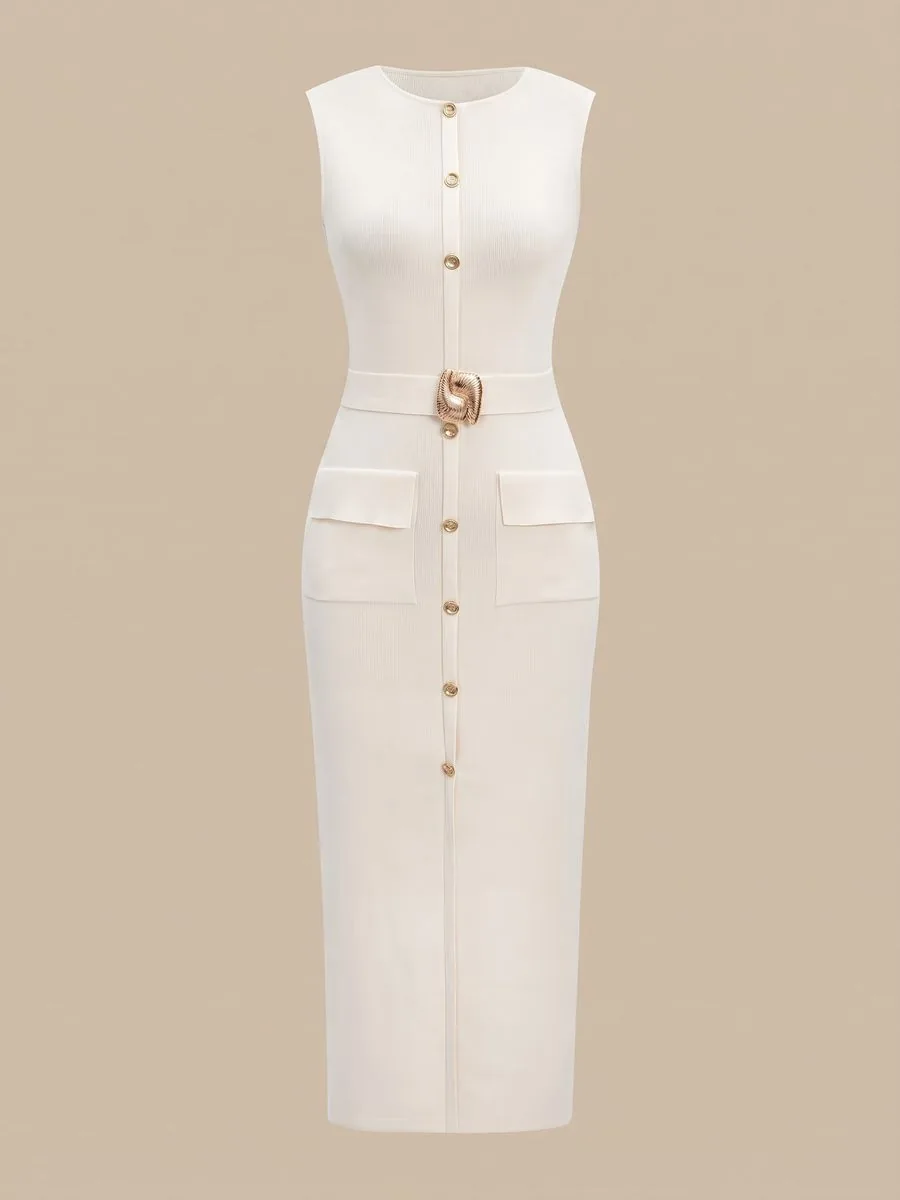 Real item
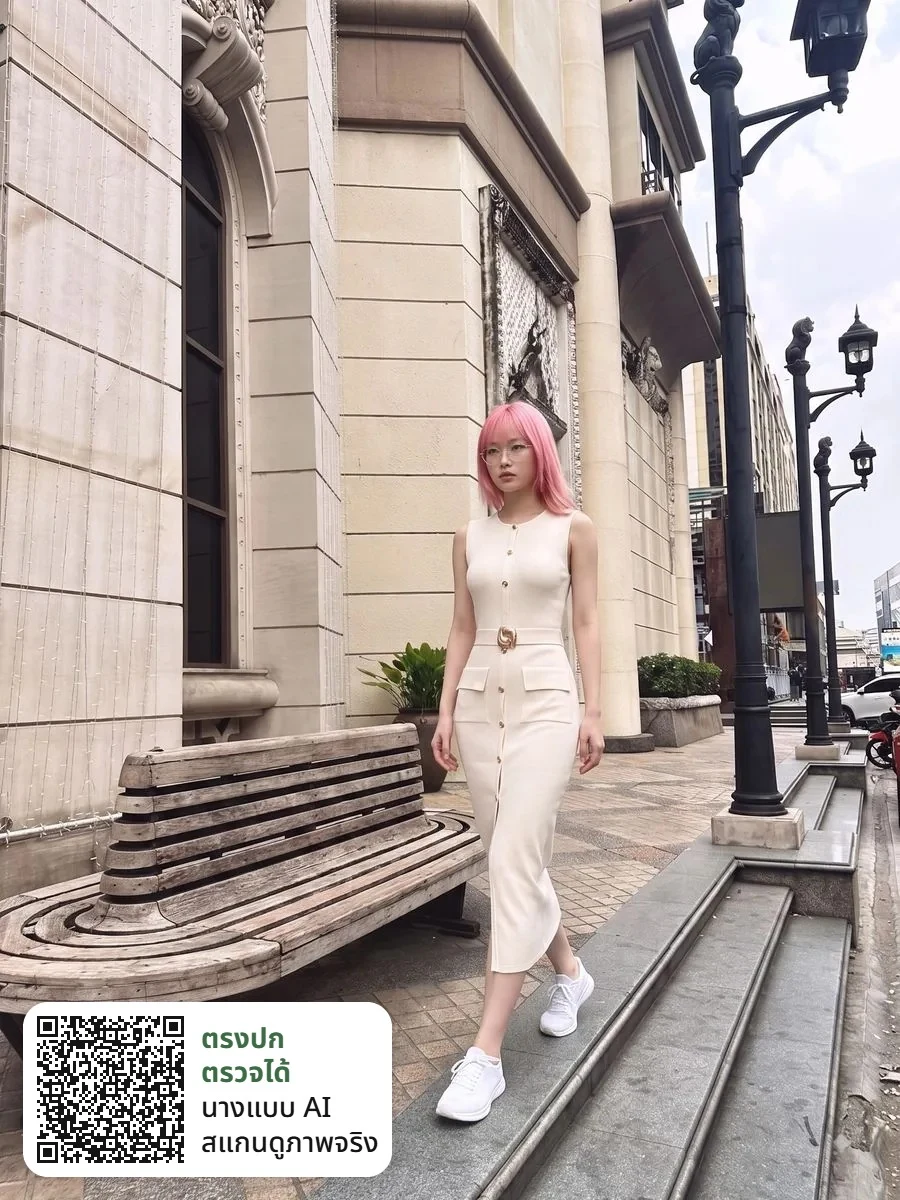 Image in the post
What a buyer sees after scanning
The QR code opens that image's check page, with no sign-up or login. It shows the real product photo beside the image from the post, and tapping zooms in on fabric, colour and lettering. Extra real photos the shop added, such as a fabric close-up or the neck label, appear underneath.
A badge reading "Shop-confirmed · compare with the real item" with the shop name and the date the image was made
What the shop confirms matches the real item: print, colour and lettering (for other products: shape, colour and label)
What the AI made new, such as the model (not a real person), the pose, the background, the light and shadow, and how the fabric drapes on the body
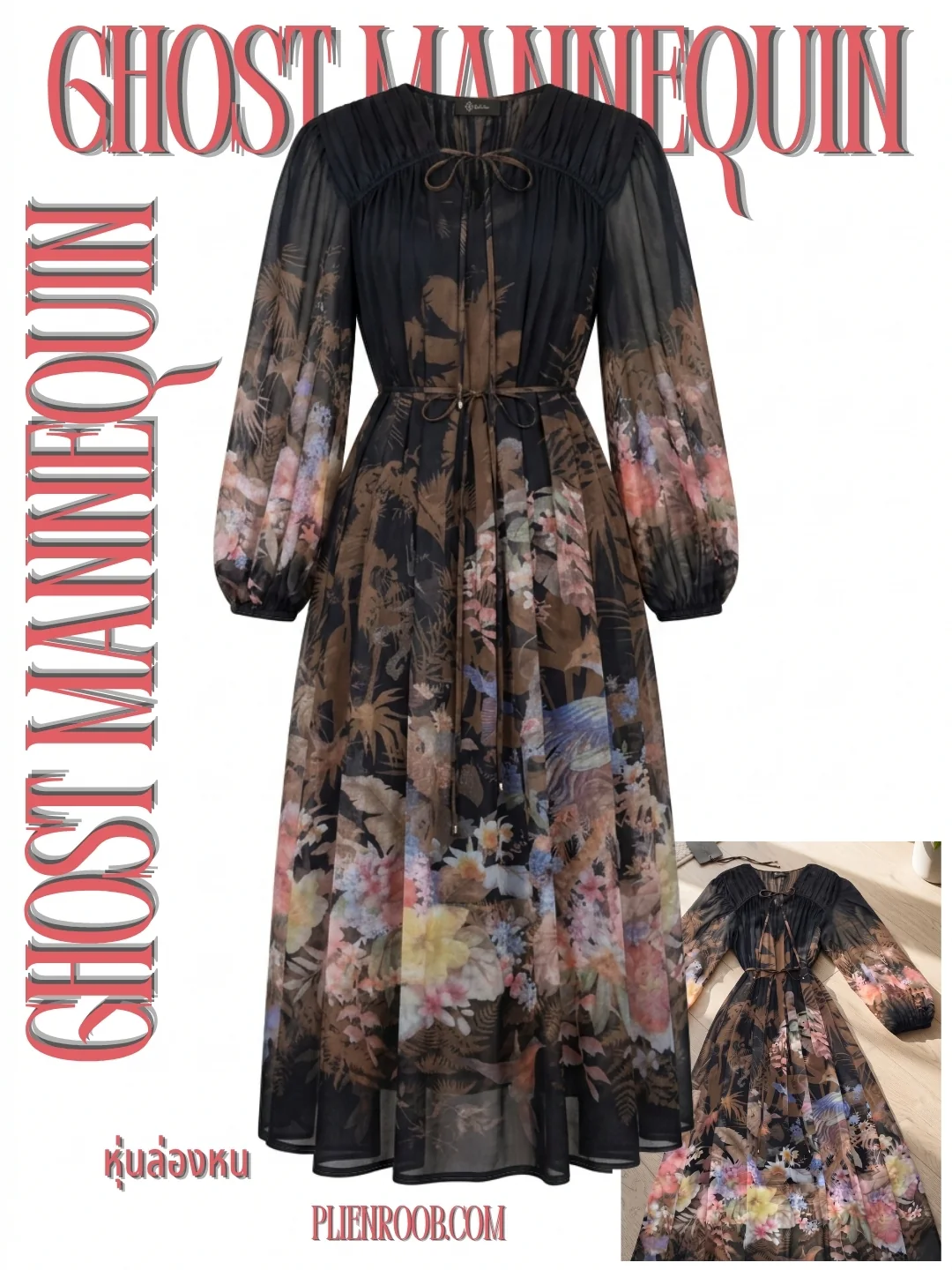
Wording that changes with the tool: Ghost Mannequin says there is no person in the image, and a Product Showcase hands-only pose says the hands and scene are AI
A note that the real fit on a body may differ slightly from the image
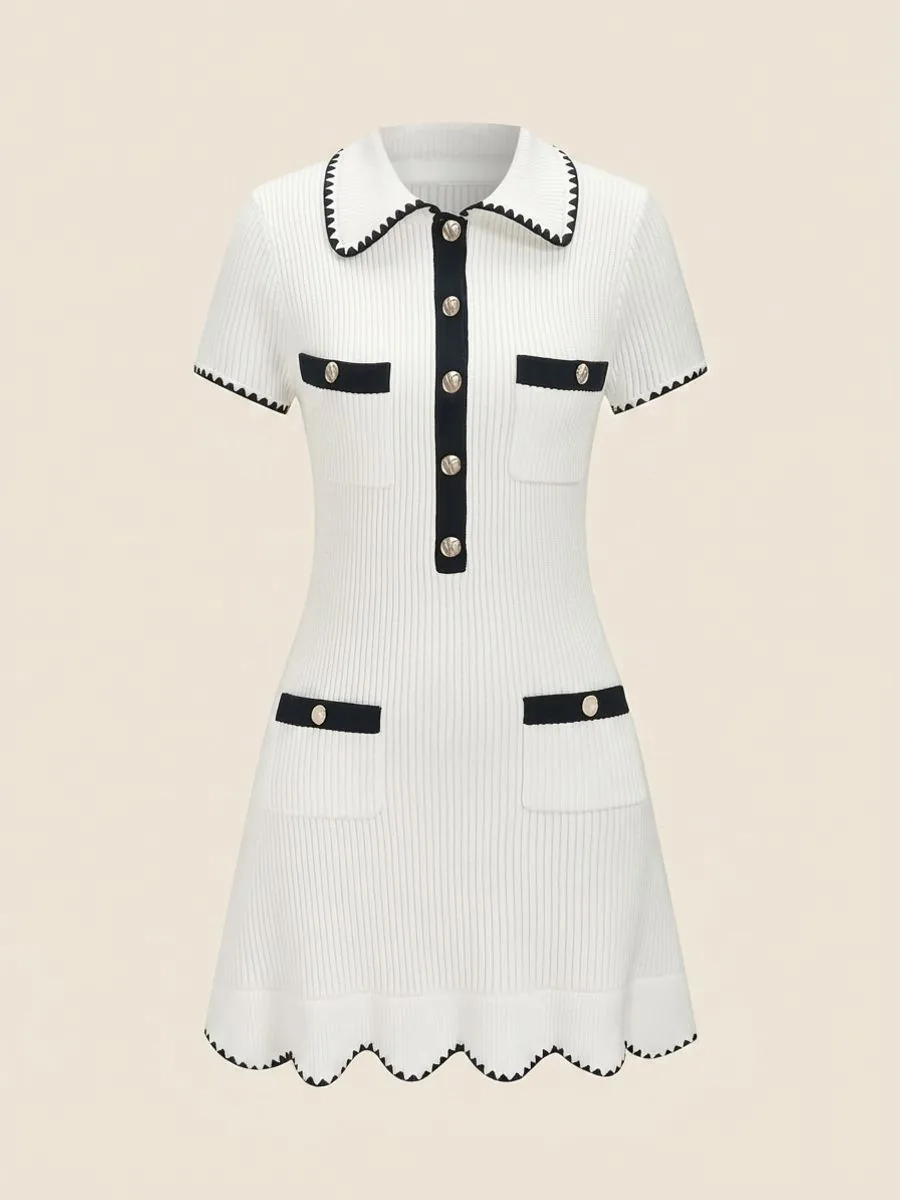 Real item
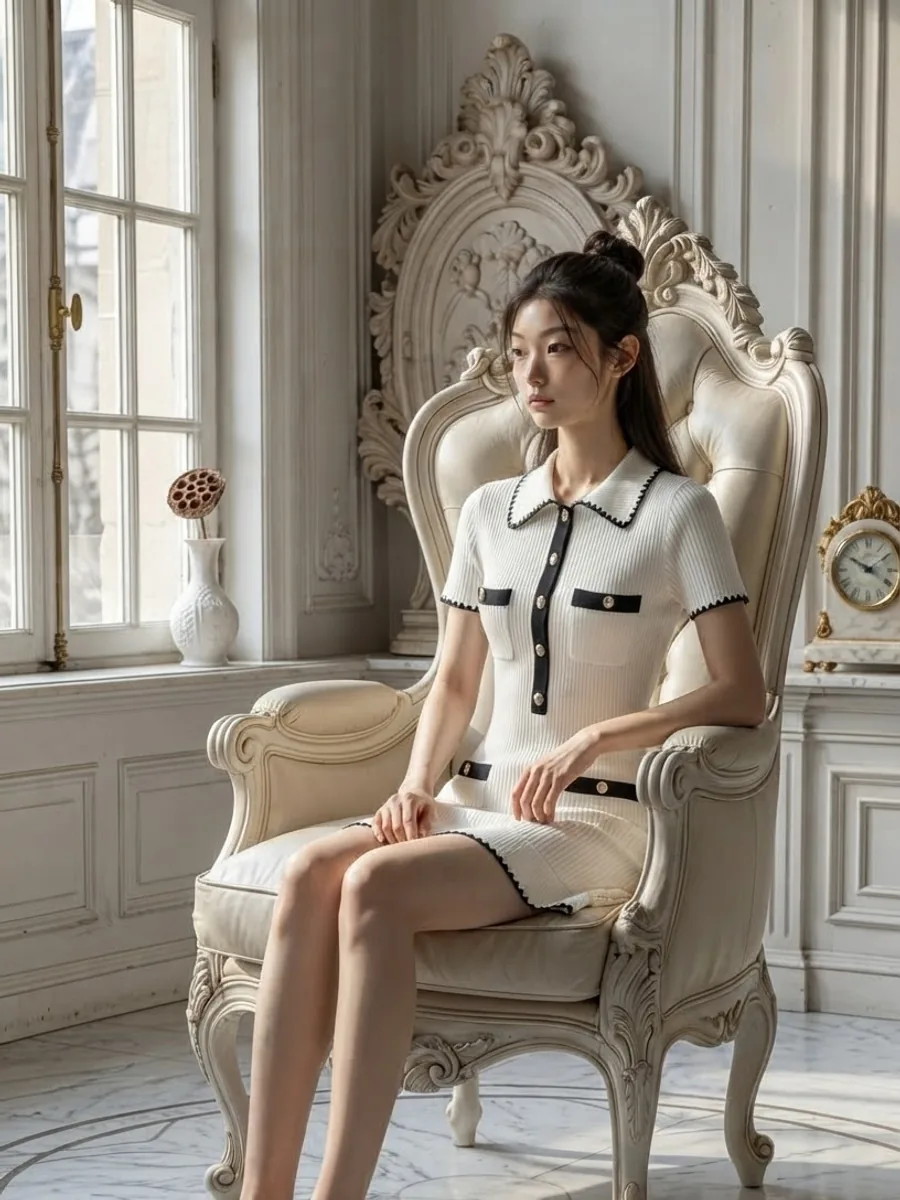 Image in the post
In this pair, the zigzag-edged collar, the black placket with gold buttons and the two chest pockets match in both photos. But the two black-trimmed pockets at the hips in the real photo appear as black bands with gold buttons at the waist in the AI image. That is the kind of thing a shop should spot before confirming: if the difference matters to buyers, generate the image again instead of confirming it. A buyer can compare the same way after scanning.
The green badge speaks for the shop. It does not mean the system checked that the product matches. Plien Roob does not compare the real photo with the AI image one by one; the shop does that itself and confirms. Print, colour and lettering are the shop's word, and a buyer who sees a difference should ask the shop directly.
How a shop turns on a check page
Make an image in the studio with Virtual Try-On, Product to Model, Product Showcase, Product-Sexy or Ghost Mannequin (upscale and background removal are not supported because they don't create a new image).
Under the result there is a "Matches the photo, verifiable" box. Switch on the toggle for making a check page for this image.
Check the shop name buyers will see (1–60 characters). If it is your own full name, change it to the shop name. The real photo on the page is the one you uploaded when you made the image, so there is nothing to upload again.
Add up to 2 more real photos if you like. They must not have a person in them.
Tick that you compared them and that the print, colour and lettering in the image match the real product, tick that you allow the image on a page anyone with the link can open, then press the enable button. It takes about 10 seconds.
Pick which corner holds the QR code (top left, top right, bottom left, bottom right) and press the button to download the image with the QR.
None of this costs credits. The image with the QR is assembled on the shop's own device, and the original AI image in the library is not changed. The downloaded image carries the card shown in the sample above. Turn it on again for the same image and the old link and QR keep working.
What the QR card on the image looks like
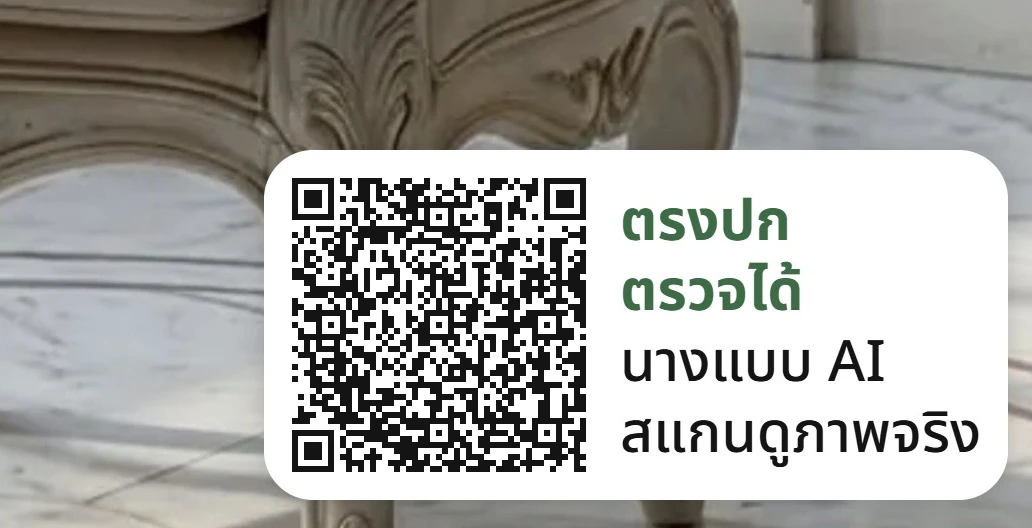
The top two bold green lines, "Matches the photo" and "Verifiable", are fixed on every image.
The third line names the image type and changes with the tool: "AI model", "AI image" (a hands-only pose), "AI-assisted try-on" (Virtual Try-On with a person photo the shop uploaded) or "AI-staged" (Ghost Mannequin).
The last line, "Scan to see the real item", tells the buyer what to do with the QR.
The QR takes about 14% of the image's short side. In our 4 October 2026 test, the image shrunk to 40% of its original size still scanned.
The QR uses the highest error-correction level (H) in case the image is recompressed when posted, and points to a link of the form plienroob.com/v/ followed by 8 random characters.
The shop can pick any of 4 corners. The default is bottom right; the sample above uses bottom left so it doesn't cover the shoes.
7 things you can do in Plien Roob
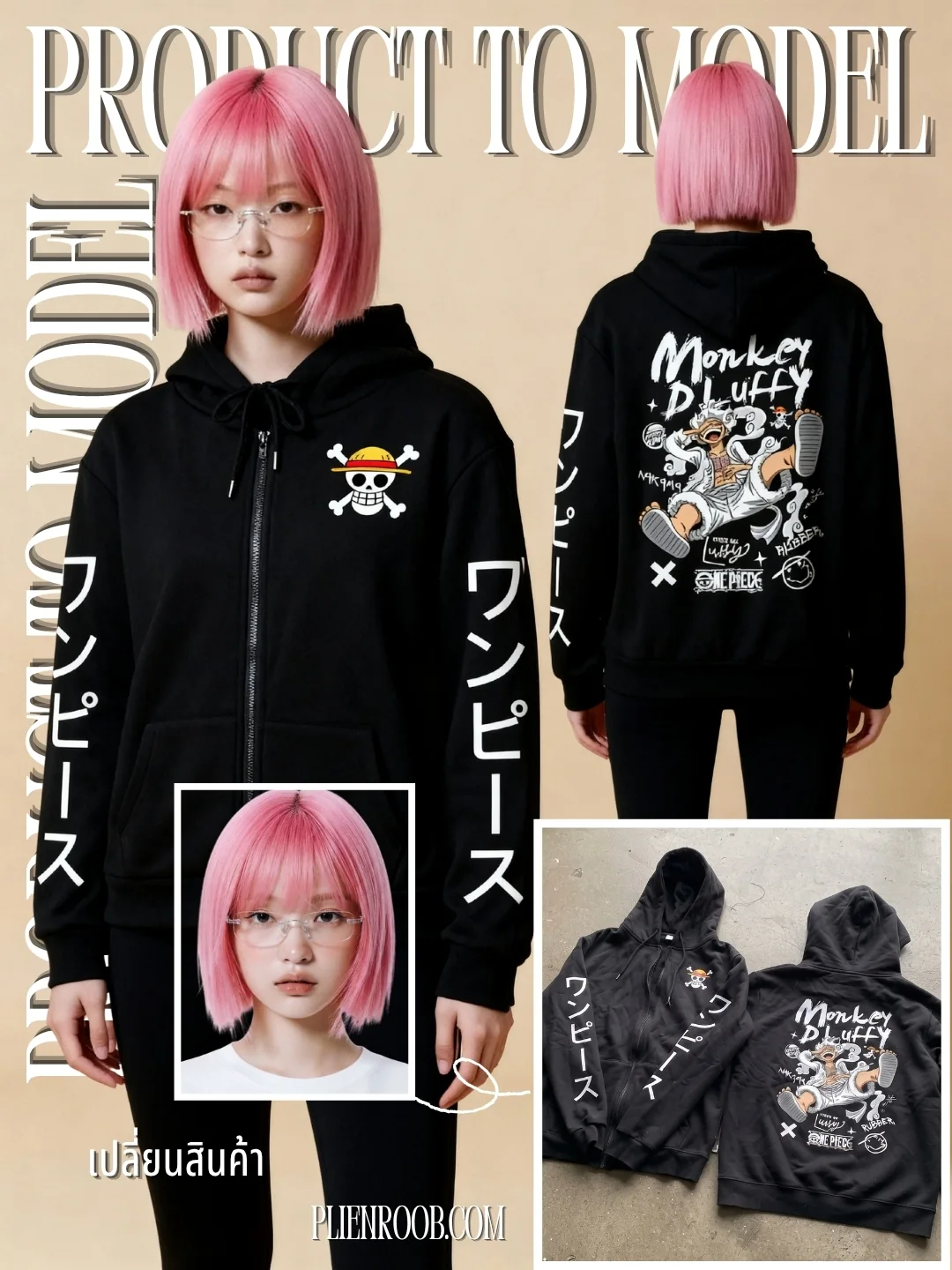
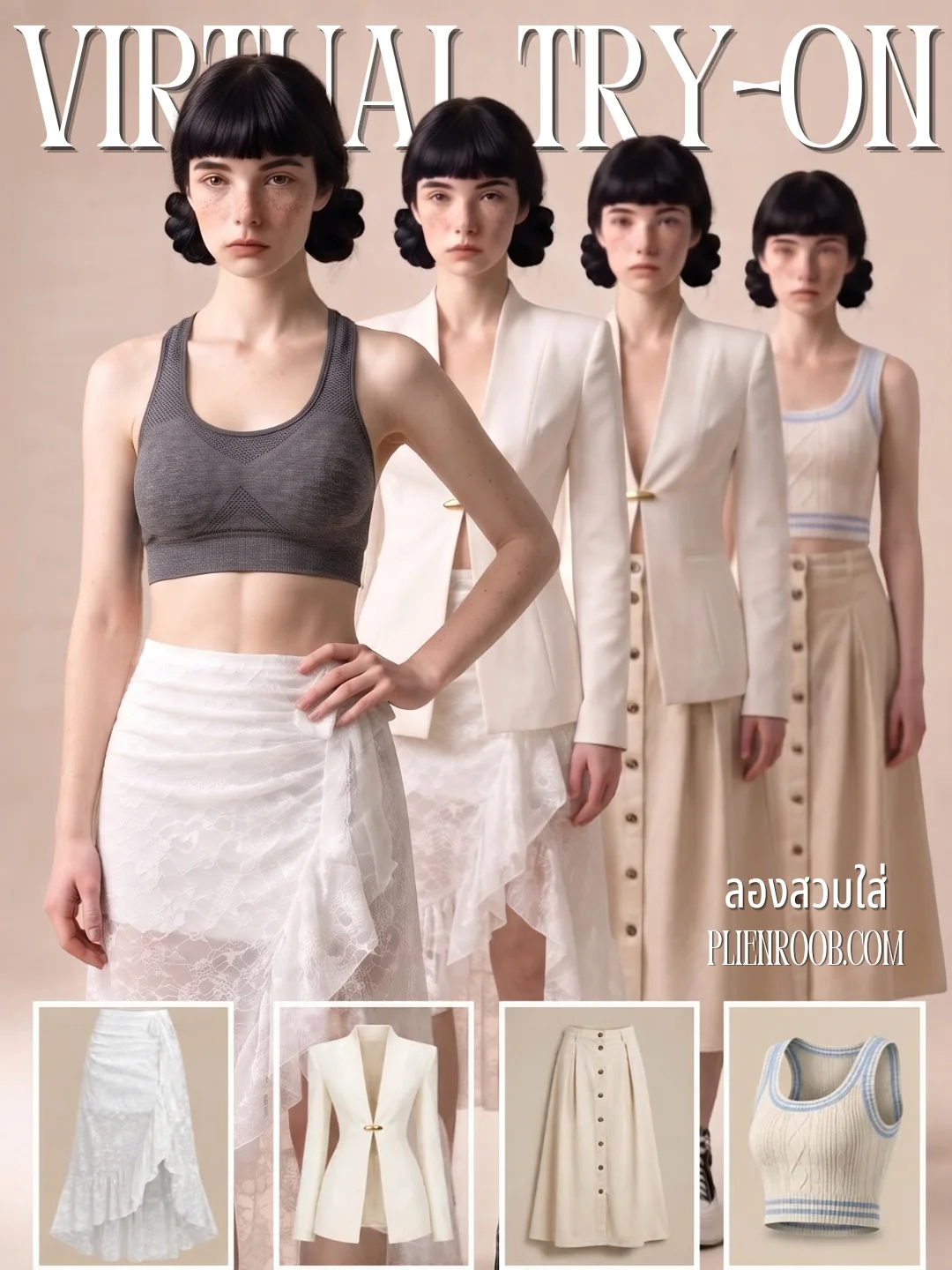
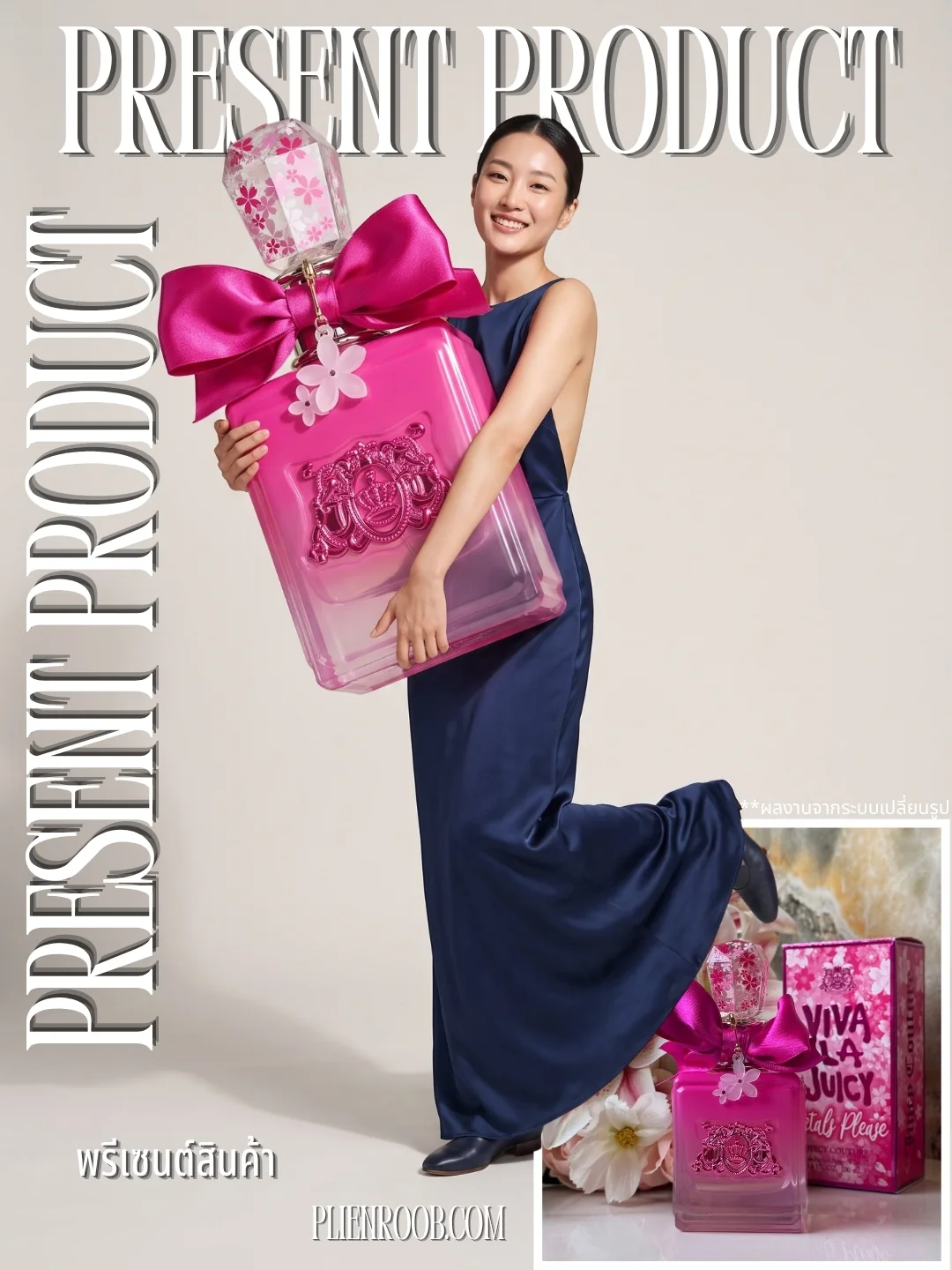
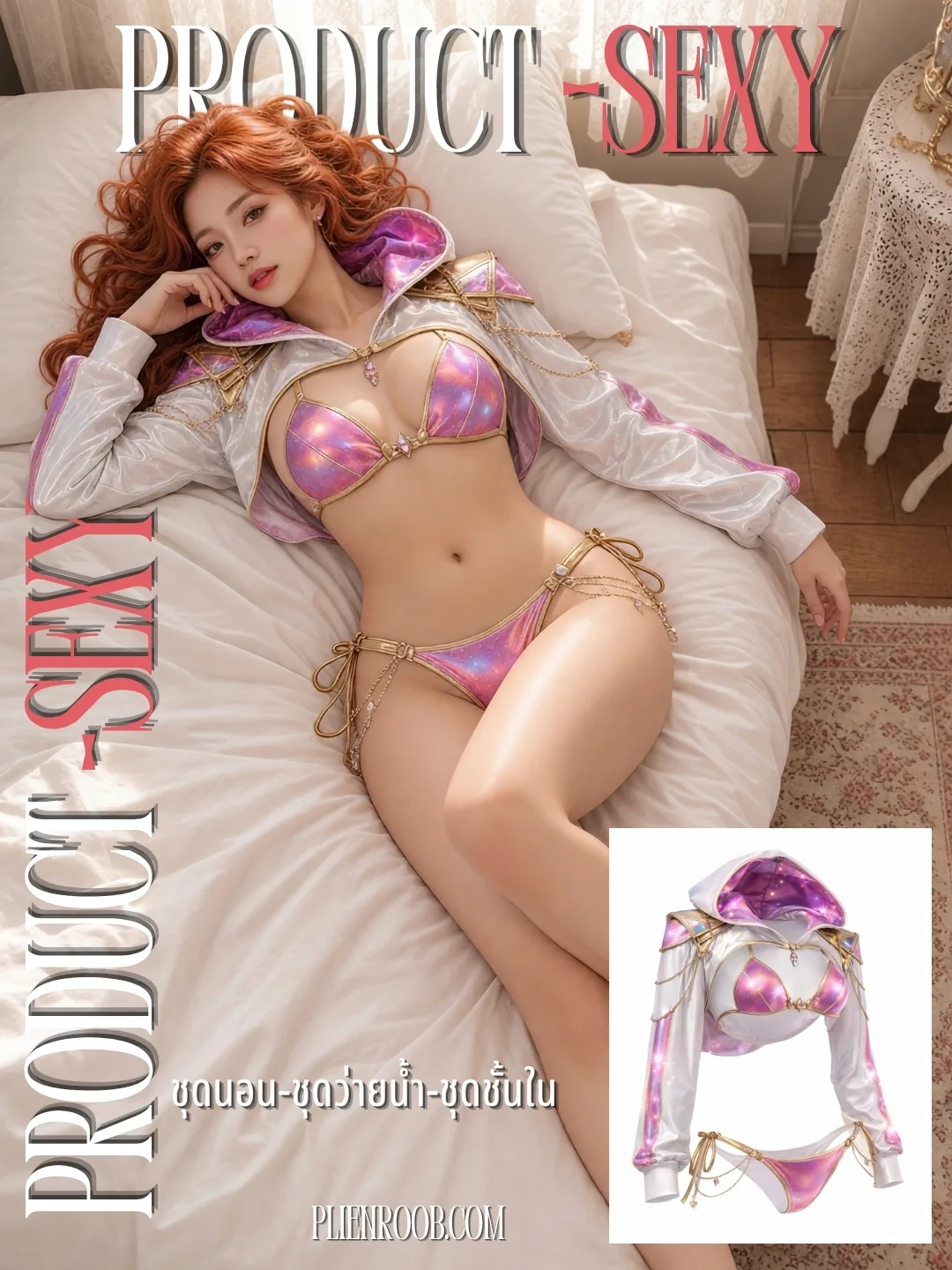
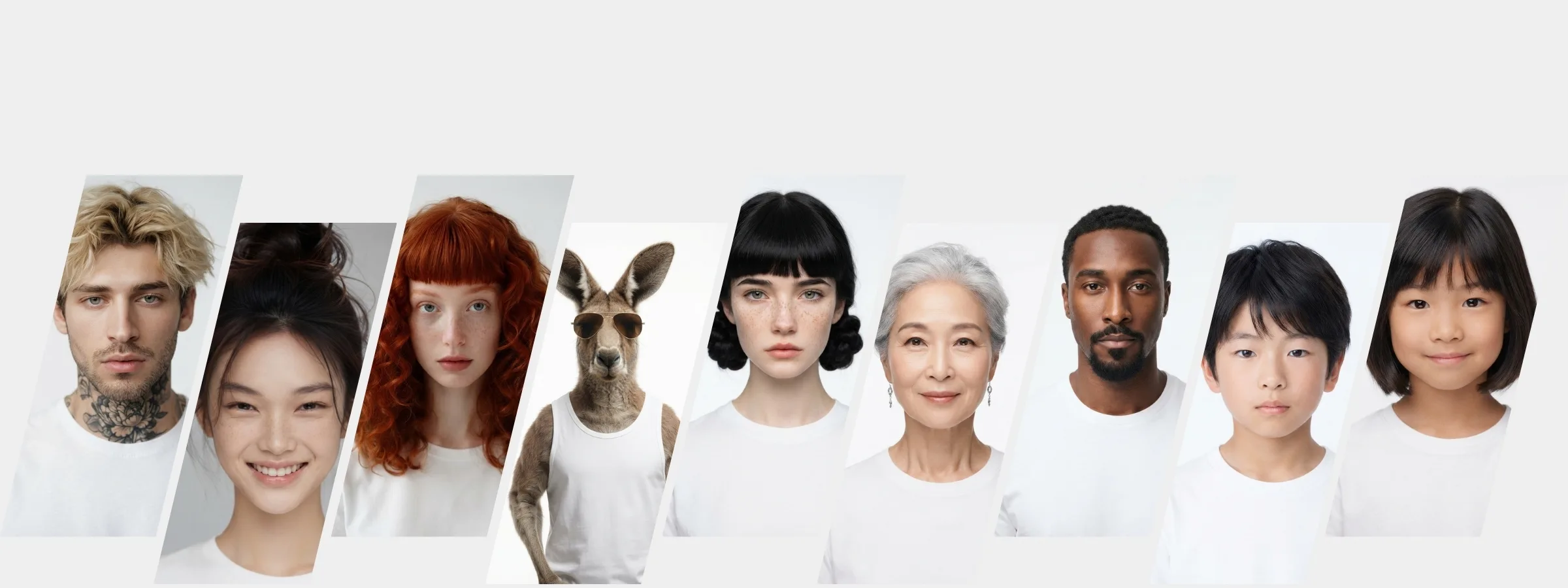
What you can make on this site. Each card is that tool's cover image; tap it to read how the tool works.
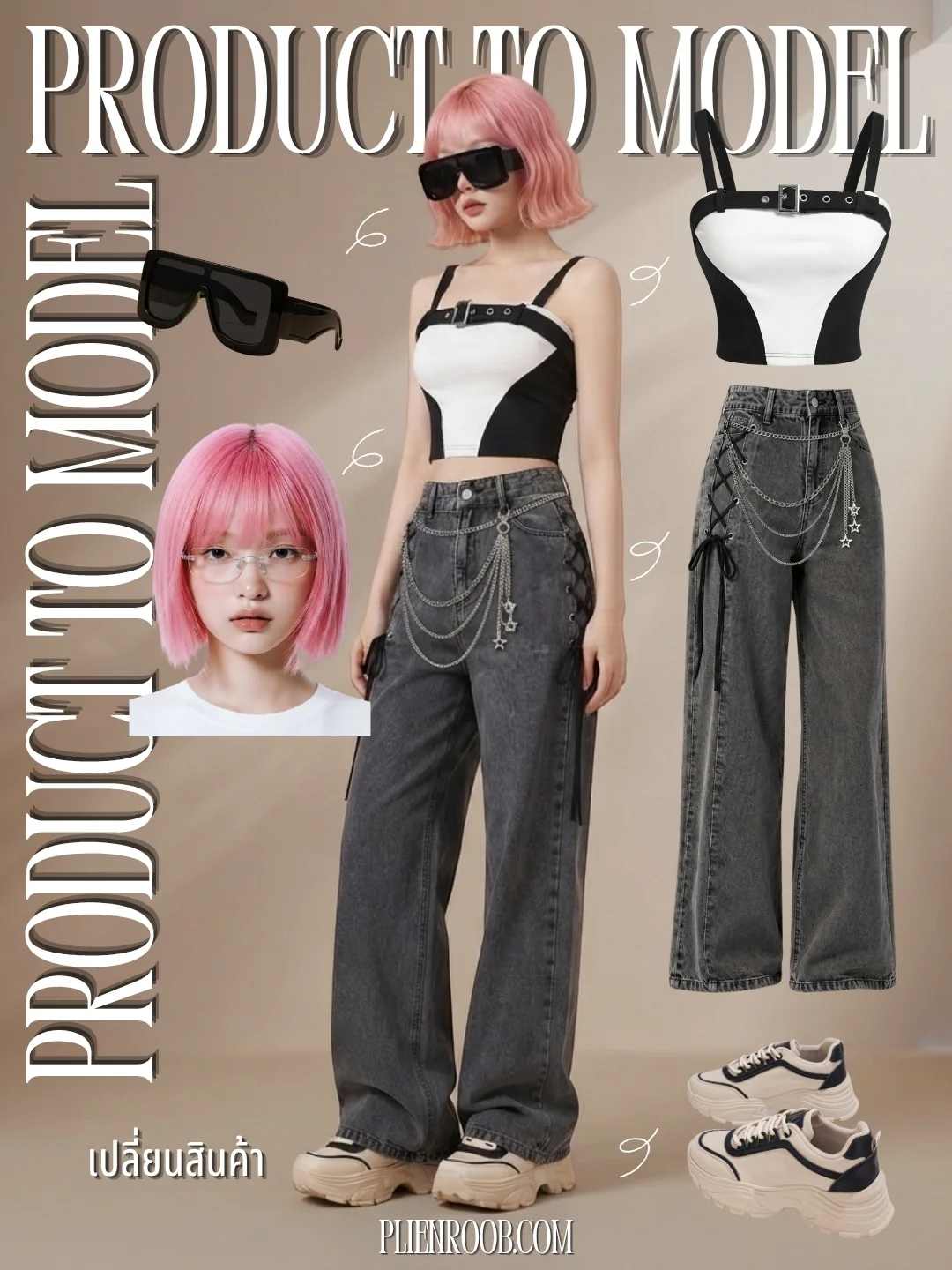
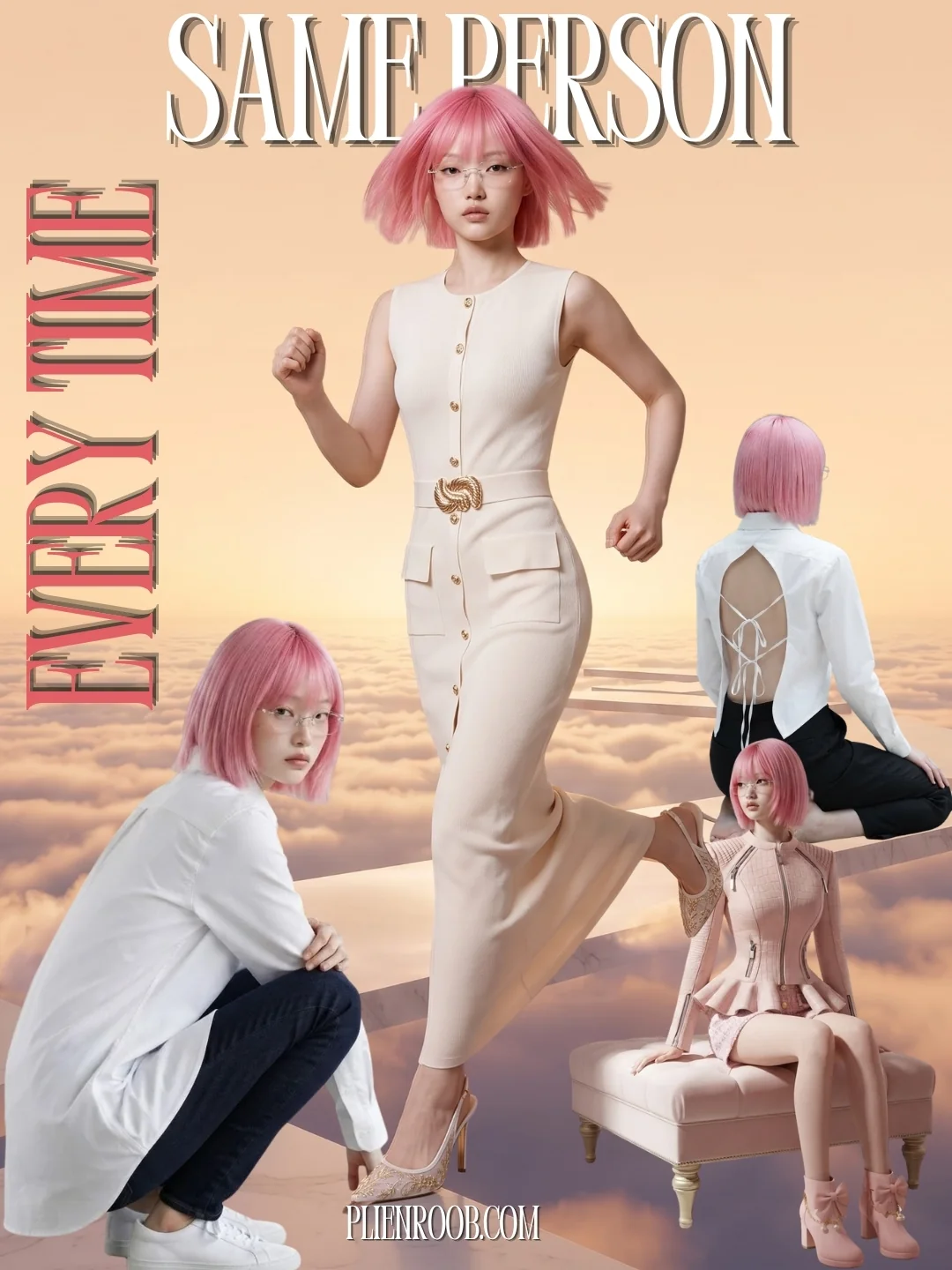
Privacy and switching it off
Anyone with the link can open it, but the page is kept out of Google and the link's code is 8 random characters that can't be guessed.
The page shows no email, username or AI model name.
The shop can switch it off any time from the box under the result or from the image library, and the old link and QR then say the shop has closed this image.
An image that is switched on isn't deleted automatically by the data-retention period until the shop closes it itself.
The shop can see how many times it has been opened.
Where a QR code can and can't go
It suits images posted on Instagram, Facebook, LINE and the shop's own website. The app notes under the button that Shopee, Lazada and TikTok Shop don't allow a QR code in product images. For those platforms, use the original image without a QR, and always check each platform's current rules yourself.
Photo checks before generating: which photo fits which tool
Plien Roob checks an uploaded photo in two layers. The first measures file quality (size, sharpness, compression). The second has an AI read what is in the photo before it is stored: whether it is safe, what product it shows and how it was shot, and then compares that with the tool you have open.
Image size
- The rule
- At least 480 pixels on the short side (1,024 or more recommended)
- What happens if it fails
- Rejected at upload; a photo under 1,024 that passes gets a warning
Sharpness
- The rule
- A clearly blurry photo fails
- What happens if it fails
- Rejected at upload; retake it, because enlarging a blurry photo doesn't sharpen it
File compression
- The rule
- A JPEG compressed very hard (quality below 50) fails
- What happens if it fails
- Rejected at upload; send the original file instead of one sent through chat
A person photo uploaded as a model or face
- The rule
- Must be an adult with a clearly visible face; unclear counts as a fail
- What happens if it fails
- Rejected at upload
Product-Sexy product photo
- The rule
- Must have no person wearing it (a mannequin doesn't count as a person)
- What happens if it fails
- Rejected before credits are held, with a button to take the person out through Ghost Mannequin, which is a separate job charged as usual
An image to enlarge
- The rule
- Area no more than 4,194,304 pixels² (2,048 × 2,048)
- What happens if it fails
- Rejected before credits are held; an enlarged image can't be enlarged again
Extra photos on a check page
- The rule
- Must have no person in them
- What happens if it fails
- That photo isn't accepted
| What is checked | The rule | What happens if it fails |
|---|---|---|
| Image size | At least 480 pixels on the short side (1,024 or more recommended) | Rejected at upload; a photo under 1,024 that passes gets a warning |
| Sharpness | A clearly blurry photo fails | Rejected at upload; retake it, because enlarging a blurry photo doesn't sharpen it |
| File compression | A JPEG compressed very hard (quality below 50) fails | Rejected at upload; send the original file instead of one sent through chat |
| A person photo uploaded as a model or face | Must be an adult with a clearly visible face; unclear counts as a fail | Rejected at upload |
| Product-Sexy product photo | Must have no person wearing it (a mannequin doesn't count as a person) | Rejected before credits are held, with a button to take the person out through Ghost Mannequin, which is a separate job charged as usual |
| An image to enlarge | Area no more than 4,194,304 pixels² (2,048 × 2,048) | Rejected before credits are held; an enlarged image can't be enlarged again |
| Extra photos on a check page | Must have no person in them | That photo isn't accepted |
The "Checked / We suggest" card in the studio
Every uploaded photo is put to an AI as three separate questions. The first is whether it is explicit (a woman's nipple or areola, or anyone's genitals: the file is deleted at once and nothing is saved; a man's bare chest is fine). The second is age: the product slot blocks only photos that look like a minor, while the model slot has its own stricter age check. The third applies only to product photos: what product it is and how it was shot. The three are kept separate on purpose, because in testing a combined question caught only 3 of 26 photos of children.
Products it can read: 7 fashion kinds (clothing, footwear, bag, headwear or glasses, necklace, earrings, ring, bracelet or watch), 7 kinds Product-Sexy handles, the 15 held or displayed kinds of Product Showcase, a person photo, or other.
Ways of shooting it can read: flat, on a mannequin, worn, screenshot, box or advert, and several items.
The card shows three steps (product kind, content, tool) and says whether the photo is a "match", "has a better fit elsewhere" or a "mismatch" for the tool you have open.
A "Go to …" button takes you to the better tool and sets the product category for you. You can always carry on with the tool you had; the card suggests, it never blocks.
Yellow notes under the card, such as: Virtual Try-On works for clothing only, Product-Sexy takes only photos with no one wearing the item, crop the app buttons off a screenshot first, and crop a multi-item photo down to one item.
The AI can misread a photo. In our internal test on 151 real photos it read the product kind correctly 94–98% of the time and the way of shooting 92–100% of the time, which is not a guarantee, so the card is advice. If you know your photo suits the tool you picked, carry on. If the AI call fails at upload, the photo passes for now and is re-checked before credits are held every time.
A photo with a person wearing the garment: where can it go
A photo of a person wearing the garment doesn't fit every tool. The one the system knows it will refuse is Product-Sexy, which needs a photo of the garment alone. If it finds a person, it says so before holding credits and offers to take the person out. Ghost Mannequin accepts flat-lay, hanger and worn photos, and gives a garment holding a worn shape on white with neither a person nor a mannequin.
Refused? Where to go next
If Virtual Try-On or Product to Model has a photo refused by the AI provider, the system offers Product-Sexy with the same photo, which builds the model from words you tap and sends no photo of a real person. And when something is missing at the moment you press generate (no model chosen, no image, not enough credits), the button takes you to where you can fix it instead of staying silently disabled.
Frequently asked questions
What is Plien Roob's QR code for verifying product photos?
It is a check page a shop opens for an AI image, with a QR code placed on the picture. A buyer scans it and sees the real product photos the shop uploaded next to the image in the post, with a note of which parts the AI made new. No login is needed.
Does the system verify that the product in the image matches the real one?
Not image by image. The shop compares print, colour and lettering itself and confirms, which is why the badge says "shop-confirmed" and not "checked by the system".
Does opening a check page cost credits?
No. Opening a check page, downloading the image with the QR and closing the page are all free.
Which tools' images can have a check page?
Virtual Try-On, Product to Model, Product Showcase, Product-Sexy and Ghost Mannequin. Upscale and background removal aren't supported because they don't create a new image, and images from image sets or multi-product batches don't have the box yet.
Can I put the QR on product images on Shopee or Lazada?
The app notes that Shopee, Lazada and TikTok Shop don't allow a QR code in product images. Use the QR on Instagram, Facebook, LINE and your own website, and check each platform's current rules before posting.
What photos does the system reject at upload?
Photos under 480 pixels on the short side, clearly blurry photos, and JPEGs compressed very hard. Explicit photos (a woman's nipple or areola, or anyone's genitals) and product photos that look like a minor are deleted at once. A person photo uploaded as a model or face must be an adult with a clearly visible face.
Does the system know which tool my photo should go to?
As advice, yes. When you upload a product photo, an AI reads what product it is and how it was shot, and the "Checked / We suggest" card in the studio says whether it fits the tool you have open, with a button to the better tool. It never blocks and it can misread, so the decision is always yours.
My product photo has a person wearing it. Can I use Product-Sexy?
Not directly. A Product-Sexy product photo must have no person wearing it. If one is found, the system says so before holding credits and offers to take the person out through Ghost Mannequin, a separate job charged as usual.
Plien Roob