AI Tools
Ghost mannequin front and back in one photo, and when to do one side at a time
Last updated 2026-09-08From Plien Roob — AI model photography for online stores
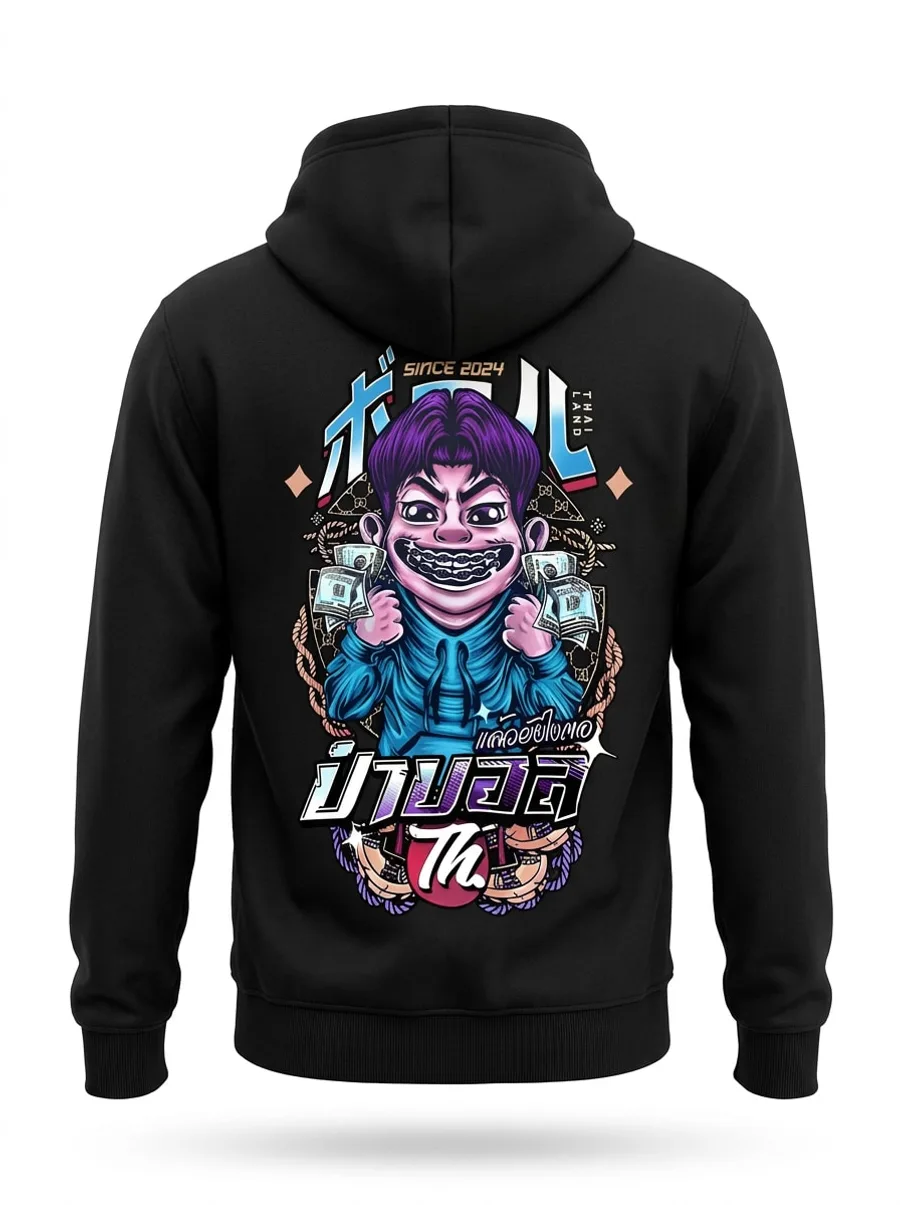

A ghost mannequin shot is a garment holding the shape it takes when worn, with no person and no mannequin in the frame. If the photo you give Plien Roob already shows the front and the back, the tool can shape both of them in a single image — front on the left, back on the right.
Where the button is
Open the Ghost Mannequin tool
Select a product photo showing the front and the back of the same garment
Tap Garment side in the control row
Choose Front + back in one image, then generate
What it costs
Standard quality: 2 credits per image
Premium quality: 4 credits per image, returning a much larger file for print
Front + back does not add to either figure — it is still a single generation
The part that matters most: small lettering
Two garments sharing one frame means each of them occupies roughly half the picture it would get on its own, and small lettering loses detail in proportion. If your print carries words a buyer needs to read, crop the photo down to one garment filling the frame and run each side separately. The lettering comes out more accurate.
What matters is how much of the frame the garment fills, not how large the file is.
A large file holding two garments in one frame can still come back with distorted lettering.
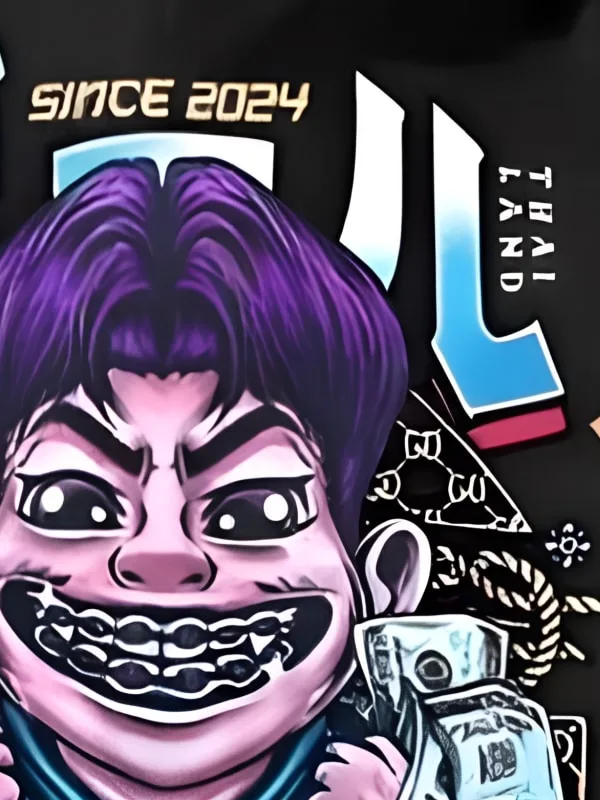
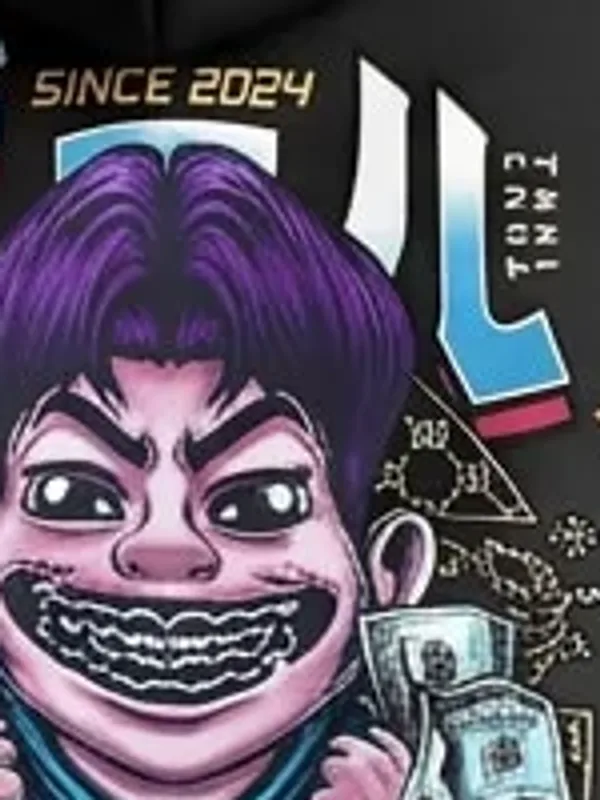
The same photo, cropped so one garment fills the frame, comes back with every character correct — from a much smaller file.
Tap the product photo you want to crop
Press the crop icon in the bottom-right corner of that thumbnail — it only appears on the photo currently selected
Drag the frame down to a single garment, then apply the crop
The cropped version is saved as a new image in your library; the original stays untouched, so repeat for the other side
The AI does not leave lettering blurred. It guesses a new word that is spelled correctly and blends in perfectly — which is far more dangerous, because the image looks finished enough to list for sale before anyone notices. It happened here with THAI LAND, which came back as TNAI LAND.
A higher quality level does not fix this
Premium returns a much larger image and the lettering is genuinely sharper — but it is still the wrong word, sharpened. Premium exists for output size you can print, not for text accuracy. What actually fixes text is letting the garment fill the frame.
The source photo must already show both sides
This mode does not invent the back. It reads the photo you upload, so that photo has to contain the front and the back of the same garment already. If you only have one side, choose Front or Back to match what you have and the system will shape the torso correctly — the front swells across the chest, the back has no chest volume but sits high across the shoulder blades.
Plien Roob